> ## Documentation Index
> Fetch the complete documentation index at: https://docs.dash360.com/llms.txt
> Use this file to discover all available pages before exploring further.
# Codes
> Create and manage code files: the WBS hierarchies, work package codes, activity codes, basis codes, and other structured lists that define your project's data.
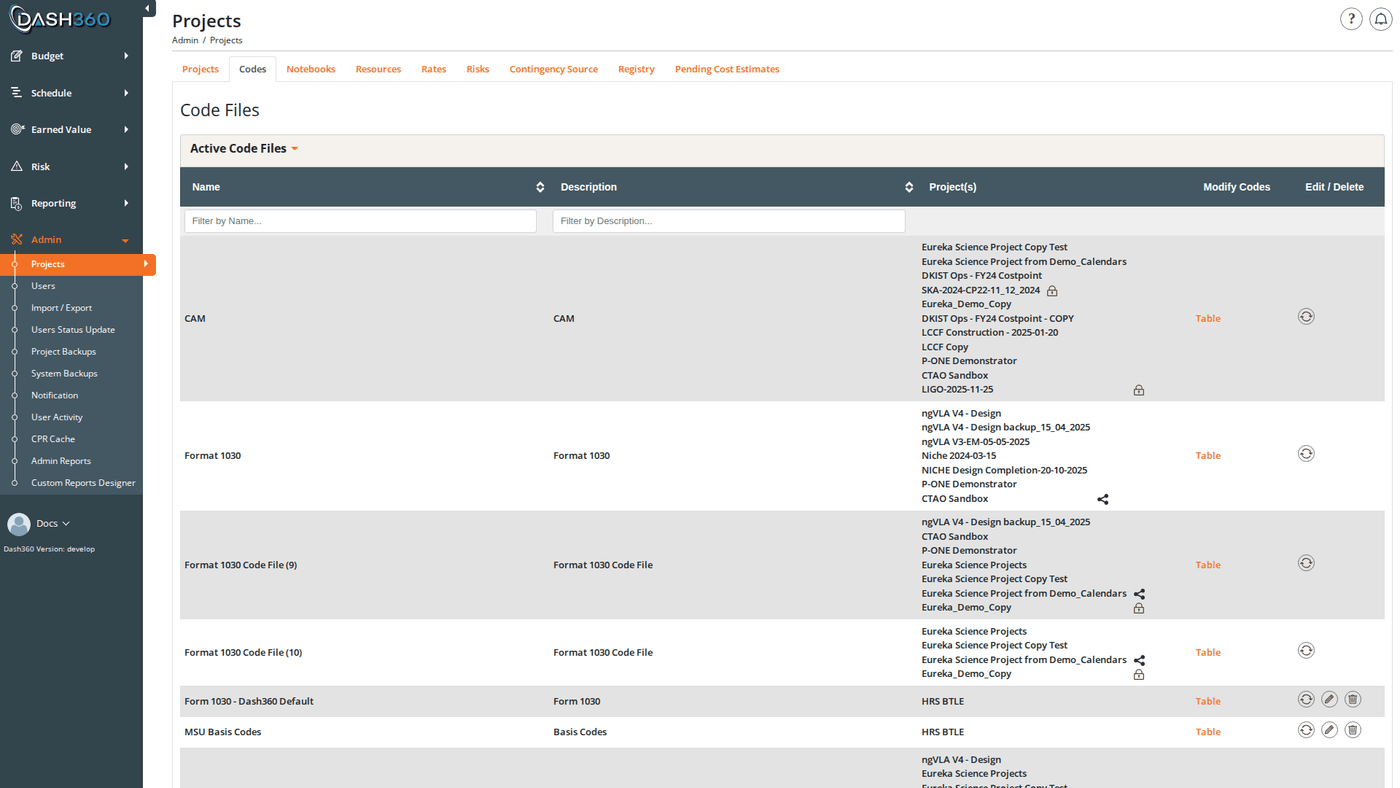 ## Overview
Code files are the building blocks of project structure in Dash360. A code file is a named list of codes (either a flat list or a hierarchical tree) that gets assigned to one or more projects. Every WBS hierarchy, work package numbering scheme, activity code set, and basis code list in the system is a code file.
Before you can create a project, you need code files for at least the WBS structure and work packages. Administrators create and manage code files here, then assign them to projects in [Project Settings](/user-guide/admin/project-settings).
## Permissions
Administrator role required.
***
## Code File Types
Dash360 uses code files for several purposes:
| Type | What It Defines | Structure |
| -------------------------- | --------------------------------------------------------------- | --------------------------------------- |
| **WBS Code File** | The Work Breakdown Structure hierarchy | Hierarchical (with separator character) |
| **Work Package Code File** | Work package identifiers within each WBS element | Flat or hierarchical |
| **Activity Code File** | Activity codes for schedule integration | Flat or hierarchical |
| **Basis Code File** | Estimating basis codes (Analogy, Parametric, Engineering, etc.) | Flat |
The same code file infrastructure supports all of these types. The difference is in how the file is configured (hierarchical vs. flat) and where it is assigned in [Project Settings](/user-guide/admin/project-settings).
***
## Code File List
The Codes page displays all code files in two collapsible sections:
* **Active Code Files**: files assigned to at least one active project
* **Inactive Code Files**: files not assigned to any active project
### Status Indicators
Each code file row shows status icons on the right:
| Icon | Meaning |
| ---------- | ------------------------------------------------------------------------------------------------------- |
| **Locked** | The code file is used by a project that has locked cost classes. Editing and deleting are disabled. |
| **Shared** | The code file is assigned to multiple projects. Changes to codes affect all projects sharing this file. |
***
## Code File Fields
| Field | Description | Required |
| --------------------- | ------------------------------------------------------------------------------------------------------------------------------------------------------------------------------------------------------------------------------------------------------------------------ | --------------- |
| **Name** | Unique name for the code file | Yes |
| **Description** | Optional description | No |
| **Type** | **Flat**: codes are a simple list with no hierarchy. **Hierarchical**: codes have a parent-child tree structure. | Yes |
| **Separator** | The character used to delimit hierarchy levels (e.g., `.` produces codes like `1.2.3`). Only shown for hierarchical files. | If hierarchical |
| **Linked Code Files** | Other code files associated with this one. When a code file is linked here, each code in this file gets a dropdown to reference a code in the linked file. Used to connect WBS codes to work packages, or work packages to activity codes. Maximum 10 linked code files. | No |
The separator character determines how hierarchical code paths are parsed throughout the system. It cannot be changed after codes have been added; plan your separator before creating codes.
***
## Creating a Code File
1. Click **Add Code File**.
2. Enter a **Name** (required) and optional **Description**.
3. Set **Type** to Flat or Hierarchical.
4. If Hierarchical, enter the **Separator** character (default `.`).
5. Optionally, use the **Linked Code Files** dual-list selector to associate up to 10 other code files with this one. Codes in those files will be available as selectable entries when adding codes here.
6. Click **Save and Close** or **Save and Add Another**.
The file is created empty: add codes next.
***
## Editing a Code File
Click the **Edit** (pencil) button on any code file row. Edit/delete buttons are disabled when any project using the file is locked or has locked cost classes.
***
## Copying a Code File
Click the **Copy** (process) icon on any code file row. Enter a name for the new file and click **Copy Code File**.
The copy includes:
* All codes and their hierarchical structure
* All code descriptions
* All linked code file associations
* All code entries (cross-references to linked files)
The copy does **not** include project assignments; you must assign the new file to a project in [Project Settings](/user-guide/admin/project-settings).
***
## Deleting a Code File
Click the **Delete** (trash) button on a code file row. Before deletion proceeds, Dash360 shows an impact analysis listing every project and record that references this file; cost estimates, resource assignments, schedules, and notebook entries.
Deleting a code file permanently removes all codes within it and cascades the deletion to all records that reference those codes across every project using the file. This cannot be undone. Review the impact list carefully before confirming.
***
## Managing Codes
Within a code file, codes are managed through two views, selectable from the **Modify Codes** column in the code file list:
| View | When to Use |
| --------- | ----------------------------------------------------------------------------------------------------------------------------------------------------- |
| **Table** | Available for all code files. Grid-based view for adding, editing, and deleting codes. |
| **Tree** | Available for hierarchical code files only. Visual tree diagram showing parent-child relationships. Supports drag-to-reorder and child code creation. |
When a code file is shared across multiple projects, the **Add Code** button is hidden. To add codes to a shared file, use the Table or Tree view directly. This prevents accidental structural changes that would affect all sharing projects without review.
***
## Table View; Code Fields
| Field | Description | Required |
| ------------------------ | ---------------------------------------------------------------------------------------------------------------------------------------------------------------- | --------------- |
| **Code** | The code value (e.g., `1.2.3` or `WP-001`) | Yes |
| **Description** | Human-readable label for this code | Yes |
| **Parent** | For hierarchical files: the parent code this code belongs under. Sets the code's position in the hierarchy. | If hierarchical |
| **\[Linked File] Entry** | For each linked code file, a dropdown to associate a code from that file with this code. Creates the cross-reference relationship. One dropdown per linked file. | No |
The **Entries** column in the table grid shows which codes from linked files are associated with each code. Format: **Linked File Name**: Entry Code + Description.
### Adding a Code
1. Click **Add Code**.
2. Enter the **Code** value and **Description**.
3. If the file is hierarchical, select a **Parent** code (or leave blank for a root-level code).
4. If the file has linked code files, use the entry dropdowns to associate codes from each linked file.
5. Click **Save and Close** or **Save and Add Another**.
### Editing a Code
Click the **Edit** icon on any code row. The same modal opens pre-filled with the current values.
### Deleting a Code
Click the **Delete** icon on a code row. If the code has child codes or is referenced in project data, a confirmation modal lists all affected records grouped by project. Child codes are deleted along with the parent.
### Bulk Operations
| Operation | What It Does |
| ------------------- | -------------------------------------------------------------------------------------------------------------------------------------- |
| **Update Multiple** | Edit the descriptions of several codes at once. Opens a grid where you can modify all selected descriptions before saving in one step. |
| **Delete Multiple** | Remove a set of codes in one operation. Shows the same cascade impact analysis as single delete. |
***
## Tree View (Hierarchical Files Only)
The Tree view renders the code hierarchy as an interactive D3 diagram with parent-child relationships shown visually.
### Tree Interactions
| Action | How |
| ------------------------ | ------------------------------------------------------------------------------------------------ |
| Expand / collapse a node | Click on a parent node to toggle its children |
| Edit a code | Click the edit button on any node: opens the same Add/Edit modal as the Table view |
| Delete a code | Click the delete button on a node: shows cascade impact confirmation |
| Add a child code | Click the add-child button on a node: opens the Add modal with the parent pre-selected |
| Reorder siblings | Drag any node to a new position among its siblings. Sort order is saved via **Save Sort Order**. |
### Tree Toolbar
| Control | What It Does |
| -------------------- | -------------------------------------------------------------------------------------------------------------- |
| **Reset Sort Order** | Resets all codes in the file back to alphabetical order. Discards any manually applied drag-and-drop ordering. |
| **Close** | Closes the tree view modal |
The Tree view is the most efficient way to visualize and restructure deep WBS hierarchies. Use drag-and-drop to reorganize code positions, then confirm with Reset Sort Order if you want to revert to alphabetical.
***
## Code Linking
Code files can be linked to other code files. Linking is configured on the **code file** (not the individual codes) using the Linked Code Files field when creating or editing the file.
When file A links to file B:
* Each code in file A gets a dropdown selector to reference a code from file B
* This cross-reference appears in the **Entries** column of file A's table view
* The relationship enables filtering and grouping; for example, filtering work packages by WBS element
**Common linking patterns:**
* WBS Code File → Work Package Code File (link WBS nodes to their work packages)
* Work Package Code File → Activity Code File (link work packages to scheduled activities)
A single code file can link to a maximum of **10** other code files.
***
## Code History
When history tracking is enabled (controlled by the `EnableHistoryTracking` registry setting), a **History** icon appears on each code file row. Click it to open a full audit trail showing every change made to the code file and all of its codes (creations, edits, deletions, link changes, and entry changes) with timestamps and the user who made each change.
***
## Shared Code Files
A single code file can be assigned to multiple projects. When a code file is shared:
* The **Shared** icon appears on the code file row
* Any change to a code (add, edit, delete, reorder) affects every project using that file
* The **Add Code** button is hidden as a guard against accidental edits; use Table or Tree view to make changes
If you need to modify codes for one project without affecting others, copy the code file first to create a project-specific version, then reassign the project to use the copy in [Project Settings](/user-guide/admin/project-settings).
***
## Impact on the Rest of the System
Changes to code files and codes propagate throughout Dash360:
| Change | Downstream Effect |
| ------------------------------------- | ---------------------------------------------------------------------------------------------------------- |
| Add a code | New code becomes available in project selectors (WBS, work package, activity, etc.) |
| Edit a code description | Description updates wherever the code is displayed |
| Delete a code | References in cost estimates, resource assignments, schedules, and notebook entries are removed or cleared |
| Delete a code file | All codes are deleted and all project assignments are cleared |
| Change a code's parent (hierarchical) | WBS hierarchy levels are recalculated and synced across reporting tables |
| Change linked code files | Entry dropdowns on all codes in the file update to reflect the new linked files |
***
## Overview
Code files are the building blocks of project structure in Dash360. A code file is a named list of codes (either a flat list or a hierarchical tree) that gets assigned to one or more projects. Every WBS hierarchy, work package numbering scheme, activity code set, and basis code list in the system is a code file.
Before you can create a project, you need code files for at least the WBS structure and work packages. Administrators create and manage code files here, then assign them to projects in [Project Settings](/user-guide/admin/project-settings).
## Permissions
Administrator role required.
***
## Code File Types
Dash360 uses code files for several purposes:
| Type | What It Defines | Structure |
| -------------------------- | --------------------------------------------------------------- | --------------------------------------- |
| **WBS Code File** | The Work Breakdown Structure hierarchy | Hierarchical (with separator character) |
| **Work Package Code File** | Work package identifiers within each WBS element | Flat or hierarchical |
| **Activity Code File** | Activity codes for schedule integration | Flat or hierarchical |
| **Basis Code File** | Estimating basis codes (Analogy, Parametric, Engineering, etc.) | Flat |
The same code file infrastructure supports all of these types. The difference is in how the file is configured (hierarchical vs. flat) and where it is assigned in [Project Settings](/user-guide/admin/project-settings).
***
## Code File List
The Codes page displays all code files in two collapsible sections:
* **Active Code Files**: files assigned to at least one active project
* **Inactive Code Files**: files not assigned to any active project
### Status Indicators
Each code file row shows status icons on the right:
| Icon | Meaning |
| ---------- | ------------------------------------------------------------------------------------------------------- |
| **Locked** | The code file is used by a project that has locked cost classes. Editing and deleting are disabled. |
| **Shared** | The code file is assigned to multiple projects. Changes to codes affect all projects sharing this file. |
***
## Code File Fields
| Field | Description | Required |
| --------------------- | ------------------------------------------------------------------------------------------------------------------------------------------------------------------------------------------------------------------------------------------------------------------------ | --------------- |
| **Name** | Unique name for the code file | Yes |
| **Description** | Optional description | No |
| **Type** | **Flat**: codes are a simple list with no hierarchy. **Hierarchical**: codes have a parent-child tree structure. | Yes |
| **Separator** | The character used to delimit hierarchy levels (e.g., `.` produces codes like `1.2.3`). Only shown for hierarchical files. | If hierarchical |
| **Linked Code Files** | Other code files associated with this one. When a code file is linked here, each code in this file gets a dropdown to reference a code in the linked file. Used to connect WBS codes to work packages, or work packages to activity codes. Maximum 10 linked code files. | No |
The separator character determines how hierarchical code paths are parsed throughout the system. It cannot be changed after codes have been added; plan your separator before creating codes.
***
## Creating a Code File
1. Click **Add Code File**.
2. Enter a **Name** (required) and optional **Description**.
3. Set **Type** to Flat or Hierarchical.
4. If Hierarchical, enter the **Separator** character (default `.`).
5. Optionally, use the **Linked Code Files** dual-list selector to associate up to 10 other code files with this one. Codes in those files will be available as selectable entries when adding codes here.
6. Click **Save and Close** or **Save and Add Another**.
The file is created empty: add codes next.
***
## Editing a Code File
Click the **Edit** (pencil) button on any code file row. Edit/delete buttons are disabled when any project using the file is locked or has locked cost classes.
***
## Copying a Code File
Click the **Copy** (process) icon on any code file row. Enter a name for the new file and click **Copy Code File**.
The copy includes:
* All codes and their hierarchical structure
* All code descriptions
* All linked code file associations
* All code entries (cross-references to linked files)
The copy does **not** include project assignments; you must assign the new file to a project in [Project Settings](/user-guide/admin/project-settings).
***
## Deleting a Code File
Click the **Delete** (trash) button on a code file row. Before deletion proceeds, Dash360 shows an impact analysis listing every project and record that references this file; cost estimates, resource assignments, schedules, and notebook entries.
Deleting a code file permanently removes all codes within it and cascades the deletion to all records that reference those codes across every project using the file. This cannot be undone. Review the impact list carefully before confirming.
***
## Managing Codes
Within a code file, codes are managed through two views, selectable from the **Modify Codes** column in the code file list:
| View | When to Use |
| --------- | ----------------------------------------------------------------------------------------------------------------------------------------------------- |
| **Table** | Available for all code files. Grid-based view for adding, editing, and deleting codes. |
| **Tree** | Available for hierarchical code files only. Visual tree diagram showing parent-child relationships. Supports drag-to-reorder and child code creation. |
When a code file is shared across multiple projects, the **Add Code** button is hidden. To add codes to a shared file, use the Table or Tree view directly. This prevents accidental structural changes that would affect all sharing projects without review.
***
## Table View; Code Fields
| Field | Description | Required |
| ------------------------ | ---------------------------------------------------------------------------------------------------------------------------------------------------------------- | --------------- |
| **Code** | The code value (e.g., `1.2.3` or `WP-001`) | Yes |
| **Description** | Human-readable label for this code | Yes |
| **Parent** | For hierarchical files: the parent code this code belongs under. Sets the code's position in the hierarchy. | If hierarchical |
| **\[Linked File] Entry** | For each linked code file, a dropdown to associate a code from that file with this code. Creates the cross-reference relationship. One dropdown per linked file. | No |
The **Entries** column in the table grid shows which codes from linked files are associated with each code. Format: **Linked File Name**: Entry Code + Description.
### Adding a Code
1. Click **Add Code**.
2. Enter the **Code** value and **Description**.
3. If the file is hierarchical, select a **Parent** code (or leave blank for a root-level code).
4. If the file has linked code files, use the entry dropdowns to associate codes from each linked file.
5. Click **Save and Close** or **Save and Add Another**.
### Editing a Code
Click the **Edit** icon on any code row. The same modal opens pre-filled with the current values.
### Deleting a Code
Click the **Delete** icon on a code row. If the code has child codes or is referenced in project data, a confirmation modal lists all affected records grouped by project. Child codes are deleted along with the parent.
### Bulk Operations
| Operation | What It Does |
| ------------------- | -------------------------------------------------------------------------------------------------------------------------------------- |
| **Update Multiple** | Edit the descriptions of several codes at once. Opens a grid where you can modify all selected descriptions before saving in one step. |
| **Delete Multiple** | Remove a set of codes in one operation. Shows the same cascade impact analysis as single delete. |
***
## Tree View (Hierarchical Files Only)
The Tree view renders the code hierarchy as an interactive D3 diagram with parent-child relationships shown visually.
### Tree Interactions
| Action | How |
| ------------------------ | ------------------------------------------------------------------------------------------------ |
| Expand / collapse a node | Click on a parent node to toggle its children |
| Edit a code | Click the edit button on any node: opens the same Add/Edit modal as the Table view |
| Delete a code | Click the delete button on a node: shows cascade impact confirmation |
| Add a child code | Click the add-child button on a node: opens the Add modal with the parent pre-selected |
| Reorder siblings | Drag any node to a new position among its siblings. Sort order is saved via **Save Sort Order**. |
### Tree Toolbar
| Control | What It Does |
| -------------------- | -------------------------------------------------------------------------------------------------------------- |
| **Reset Sort Order** | Resets all codes in the file back to alphabetical order. Discards any manually applied drag-and-drop ordering. |
| **Close** | Closes the tree view modal |
The Tree view is the most efficient way to visualize and restructure deep WBS hierarchies. Use drag-and-drop to reorganize code positions, then confirm with Reset Sort Order if you want to revert to alphabetical.
***
## Code Linking
Code files can be linked to other code files. Linking is configured on the **code file** (not the individual codes) using the Linked Code Files field when creating or editing the file.
When file A links to file B:
* Each code in file A gets a dropdown selector to reference a code from file B
* This cross-reference appears in the **Entries** column of file A's table view
* The relationship enables filtering and grouping; for example, filtering work packages by WBS element
**Common linking patterns:**
* WBS Code File → Work Package Code File (link WBS nodes to their work packages)
* Work Package Code File → Activity Code File (link work packages to scheduled activities)
A single code file can link to a maximum of **10** other code files.
***
## Code History
When history tracking is enabled (controlled by the `EnableHistoryTracking` registry setting), a **History** icon appears on each code file row. Click it to open a full audit trail showing every change made to the code file and all of its codes (creations, edits, deletions, link changes, and entry changes) with timestamps and the user who made each change.
***
## Shared Code Files
A single code file can be assigned to multiple projects. When a code file is shared:
* The **Shared** icon appears on the code file row
* Any change to a code (add, edit, delete, reorder) affects every project using that file
* The **Add Code** button is hidden as a guard against accidental edits; use Table or Tree view to make changes
If you need to modify codes for one project without affecting others, copy the code file first to create a project-specific version, then reassign the project to use the copy in [Project Settings](/user-guide/admin/project-settings).
***
## Impact on the Rest of the System
Changes to code files and codes propagate throughout Dash360:
| Change | Downstream Effect |
| ------------------------------------- | ---------------------------------------------------------------------------------------------------------- |
| Add a code | New code becomes available in project selectors (WBS, work package, activity, etc.) |
| Edit a code description | Description updates wherever the code is displayed |
| Delete a code | References in cost estimates, resource assignments, schedules, and notebook entries are removed or cleared |
| Delete a code file | All codes are deleted and all project assignments are cleared |
| Change a code's parent (hierarchical) | WBS hierarchy levels are recalculated and synced across reporting tables |
| Change linked code files | Entry dropdowns on all codes in the file update to reflect the new linked files |
***