> ## Documentation Index
> Fetch the complete documentation index at: https://docs.dash360.com/llms.txt
> Use this file to discover all available pages before exploring further.
# Pending Cost Estimates
> Review, approve, or reject new work package cost estimates submitted by CAMs that are awaiting admin approval before appearing in the Budget Form.
 ## Overview
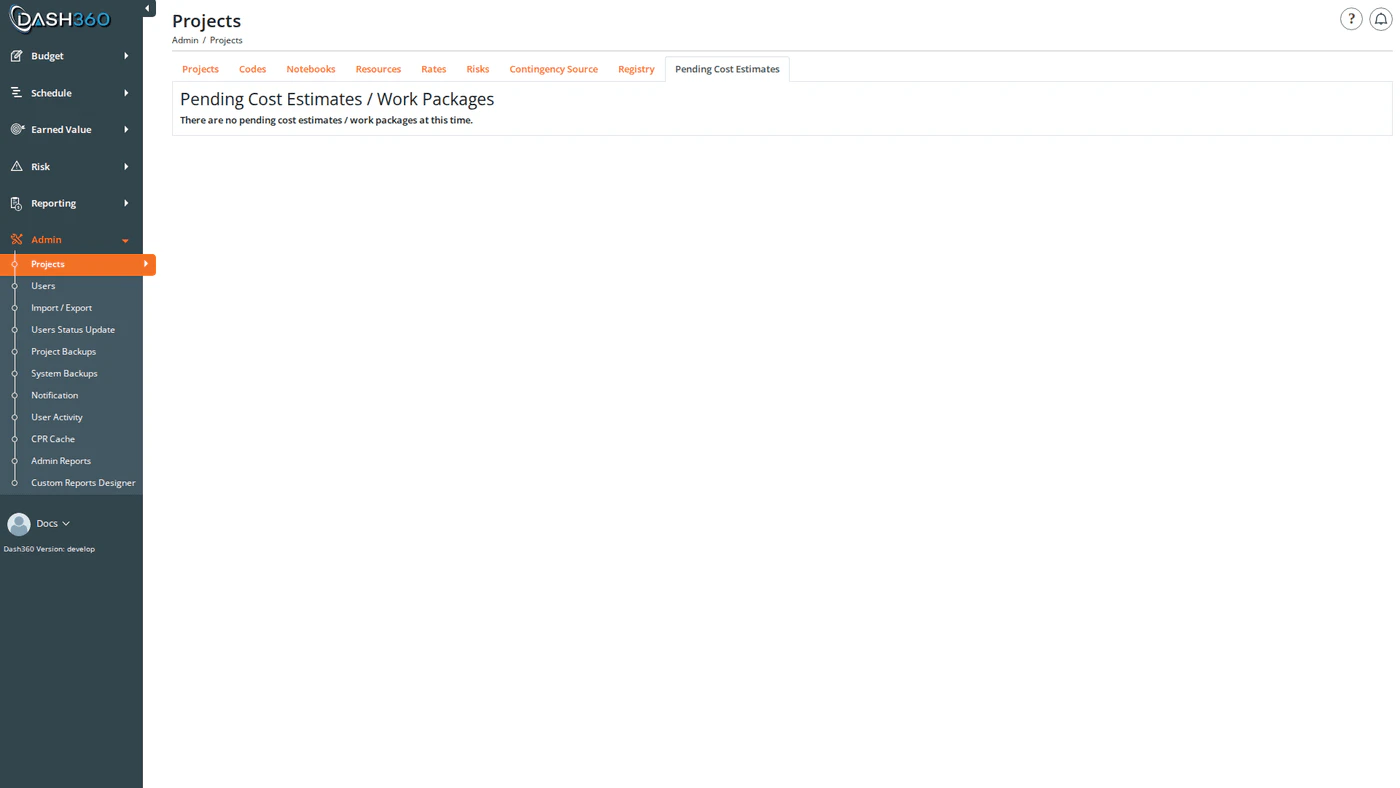
The Pending Cost Estimates page is an admin approval queue for new cost estimate submissions. When a CAM creates a brand-new work package cost estimate from the [Budget Form](/user-guide/estimating/budget-form), it is placed in a pending state and does not appear in normal Budget Form views until an administrator reviews and approves it.
This page lists all cost estimates currently in the pending state. Administrators can:
* **View** the full estimate in the Budget Form to review its details
* **Edit** the WBS and work package identifiers if they need correction
* **Approve** the estimate, making it live and visible in the Budget Form
* **Reject** the estimate, permanently deleting it from the system
## Permissions
Administrator role required.
***
## Pending Estimates Grid
The page displays a grid listing all cost estimates awaiting approval. When there are no pending estimates, the grid is hidden and a message indicates the queue is empty.
| Column | Description |
| ---------------- | ---------------------------------------------------------------------- |
| **Project** | The project the estimate was submitted for |
| **WBS** | The WBS code and name the estimate is linked to |
| **Work Package** | The work package number and title |
| **View Details** | Link to open the full estimate in the Budget Form (opens in a new tab) |
| **Actions** | Edit, Approve, and Reject buttons |
***
## Reviewing an Estimate
Click **View Details** on any row to open the estimate in the Budget Form in a new tab. The Budget Form will display an **Approve Pending Cost Estimate** button that allows the admin to approve directly from the form view.
Use the Budget Form view to check the estimate's resource assignments, costs, and any attached documentation before deciding to approve or reject.
***
## Editing a Pending Estimate
Click the **Edit** (pencil) icon on any row to correct the estimate's WBS and work package identifiers before approving.
| Field | Description | Required |
| ----------------------- | ------------------------------------------------------------------- | -------- |
| **WBS** | Dropdown of the project's WBS codes: select the correct WBS element | Yes |
| **Work Package Number** | The work package number (text) | Yes |
| **Work Package Title** | The work package title (text) | Yes |
After editing, click **Save**. The updated identifiers are reflected immediately in the grid.
Use Edit when the CAM submitted the estimate with an incorrect or placeholder WBS or work package number. Correcting the identifiers here ensures the estimate is linked correctly before approval.
***
## Approving an Estimate
Click the **Approve** (checkmark) icon on any row. A confirmation dialog appears before the action completes.
When approved:
* The estimate's pending flag is cleared and it becomes visible in the Budget Form for all users with access to that project.
* If the work package code does not yet exist in the project's WP code file, it is created automatically during approval.
Approval is the normal path when the estimate looks correct. Once approved, the estimate behaves like any other cost estimate in the Budget Form; it can be edited, submitted for signatures, and included in reports.
***
## Rejecting an Estimate
Click the **Reject** (trash) icon on any row. A confirmation dialog appears before the action completes.
Rejection permanently deletes the cost estimate record. This action cannot be undone. All resource assignments and data entered by the CAM on this estimate are removed from the system. Use Reject only when the submission is invalid or should not proceed.
***
## How Estimates Enter the Queue
Cost estimates arrive in the pending queue when a CAM creates a new work package estimate through the Budget Form submission workflow. The estimate remains invisible in normal Budget Form views until an admin approves it from this page.
This workflow ensures administrators can validate new work package submissions (checking that the WBS linkage, work package identifiers, and cost data are correct) before they become part of the active project baseline.
***
## Overview
The Pending Cost Estimates page is an admin approval queue for new cost estimate submissions. When a CAM creates a brand-new work package cost estimate from the [Budget Form](/user-guide/estimating/budget-form), it is placed in a pending state and does not appear in normal Budget Form views until an administrator reviews and approves it.
This page lists all cost estimates currently in the pending state. Administrators can:
* **View** the full estimate in the Budget Form to review its details
* **Edit** the WBS and work package identifiers if they need correction
* **Approve** the estimate, making it live and visible in the Budget Form
* **Reject** the estimate, permanently deleting it from the system
## Permissions
Administrator role required.
***
## Pending Estimates Grid
The page displays a grid listing all cost estimates awaiting approval. When there are no pending estimates, the grid is hidden and a message indicates the queue is empty.
| Column | Description |
| ---------------- | ---------------------------------------------------------------------- |
| **Project** | The project the estimate was submitted for |
| **WBS** | The WBS code and name the estimate is linked to |
| **Work Package** | The work package number and title |
| **View Details** | Link to open the full estimate in the Budget Form (opens in a new tab) |
| **Actions** | Edit, Approve, and Reject buttons |
***
## Reviewing an Estimate
Click **View Details** on any row to open the estimate in the Budget Form in a new tab. The Budget Form will display an **Approve Pending Cost Estimate** button that allows the admin to approve directly from the form view.
Use the Budget Form view to check the estimate's resource assignments, costs, and any attached documentation before deciding to approve or reject.
***
## Editing a Pending Estimate
Click the **Edit** (pencil) icon on any row to correct the estimate's WBS and work package identifiers before approving.
| Field | Description | Required |
| ----------------------- | ------------------------------------------------------------------- | -------- |
| **WBS** | Dropdown of the project's WBS codes: select the correct WBS element | Yes |
| **Work Package Number** | The work package number (text) | Yes |
| **Work Package Title** | The work package title (text) | Yes |
After editing, click **Save**. The updated identifiers are reflected immediately in the grid.
Use Edit when the CAM submitted the estimate with an incorrect or placeholder WBS or work package number. Correcting the identifiers here ensures the estimate is linked correctly before approval.
***
## Approving an Estimate
Click the **Approve** (checkmark) icon on any row. A confirmation dialog appears before the action completes.
When approved:
* The estimate's pending flag is cleared and it becomes visible in the Budget Form for all users with access to that project.
* If the work package code does not yet exist in the project's WP code file, it is created automatically during approval.
Approval is the normal path when the estimate looks correct. Once approved, the estimate behaves like any other cost estimate in the Budget Form; it can be edited, submitted for signatures, and included in reports.
***
## Rejecting an Estimate
Click the **Reject** (trash) icon on any row. A confirmation dialog appears before the action completes.
Rejection permanently deletes the cost estimate record. This action cannot be undone. All resource assignments and data entered by the CAM on this estimate are removed from the system. Use Reject only when the submission is invalid or should not proceed.
***
## How Estimates Enter the Queue
Cost estimates arrive in the pending queue when a CAM creates a new work package estimate through the Budget Form submission workflow. The estimate remains invisible in normal Budget Form views until an admin approves it from this page.
This workflow ensures administrators can validate new work package submissions (checking that the WBS linkage, work package identifiers, and cost data are correct) before they become part of the active project baseline.
***