> ## Documentation Index
> Fetch the complete documentation index at: https://docs.dash360.com/llms.txt
> Use this file to discover all available pages before exploring further.
# Rates
> Configure rate files, rate sets, and time-phased rate values used to calculate resource assignment costs in Dash360.
 ## Overview
Rate files define the dollar rates applied to resource calculations when computing cost estimates. Each resource file is optionally linked to a rate file in [Resources](/user-guide/admin/resources), and the rate sets in that file are what resource calculations reference when deriving cost results from labor hours or other source values.
A rate file has a three-level structure:
* **Rate File**: the named container assigned to a resource file
* **Rate Sets**: named groupings within the file (e.g., "SY28 Rates", "Fringe"); each maps to a rate name used in resource calculation formulas
* **Rate Details**: individual dated rate values within a rate set; multiple entries enable time-phased rates that change over a project's life
## Permissions
Administrator role required.
***
## Rate File List
The Rates page displays all rate files in two collapsible sections: **Active Rate Files** (linked to at least one active project through a resource file) and **Inactive Rate Files** (not linked to any active project).
Each row shows the file name, description, an indicator of the resource files and projects using it, and action buttons.
### Status Indicators
| Indicator | Meaning |
| --------------- | ------------------------------------------------------------------------------------------------------------------------------ |
| **Locked** icon | The file is used by a project with locked cost classes. Add/Edit/Delete are disabled for rate sets and rates within this file. |
| **Shared** icon | The file is used by multiple projects. Changes affect all projects sharing it. |
### Row Actions
Each rate file row has:
* **Rate Sets** link: opens the Rate Sets inline panel for this file
* **Edit** (pencil) icon: edit the file name and description
* **Copy** icon: create a copy of the file with all rate sets and rates
* **Delete** (trash) icon: delete the file
* **History** icon: shown when history tracking is enabled (see [History Tracking](#history-tracking))
***
## Rate File Fields
| Field | Description | Required |
| --------------- | ----------------------------- | -------- |
| **Name** | Unique name for the rate file | Yes |
| **Description** | Optional description | No |
### Creating a Rate File
1. Click **Add Rate File**.
2. Enter a **Name** and optional **Description**.
3. Click **Save and Close**. The file is created empty; add rate sets next.
### Copying a Rate File
Click the **Copy** icon on any rate file row. Enter a name for the new file and click **Copy Rate File**. The copy includes all rate sets and all rate detail entries. Useful for creating a new fiscal year's rate structure from an existing one.
### Deleting a Rate File
Click **Delete** on any rate file row and confirm. The file can be deleted even if it has rate sets; all rate sets and rate details are removed. If the rate file is referenced by any resource file, remove that assignment in [Resources](/user-guide/admin/resources) first.
***
## Rate Sets
Rate sets are the named rate groupings within a rate file. In resource calculation formulas, the "Rate Set" field selects which rate set to apply as a multiplier to source results. For example, a "Fringe" rate set would contain the dated fringe rates applied to labor hours.
### Viewing Rate Sets
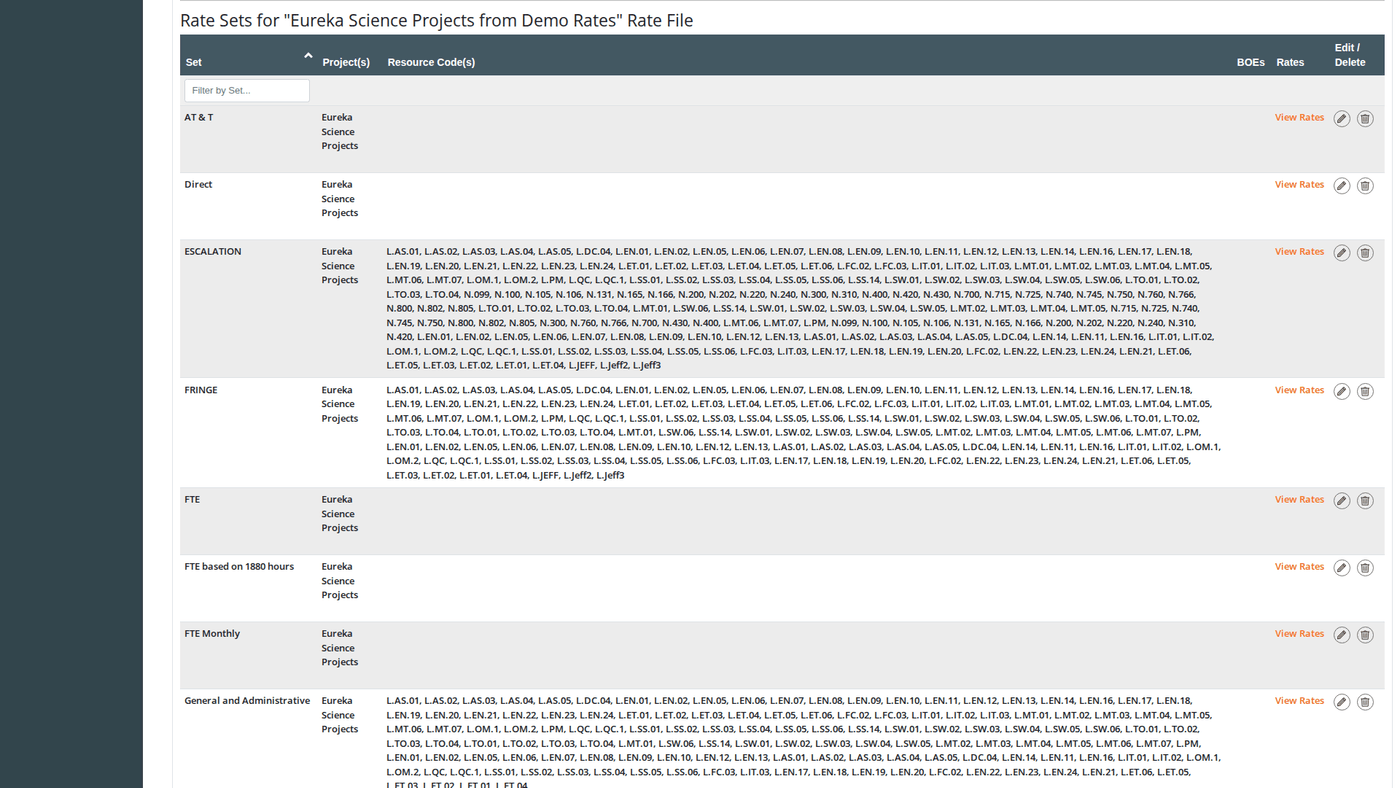
Click the **Rate Sets** link on any rate file row to expand the Rate Sets panel below it. The panel shows all rate sets defined in that file.
### Rate Sets Grid Columns
| Column | Description |
| ------------------ | -------------------------------------------------------------------------- |
| **Name** | The rate set name |
| **Project(s)** | The projects using this rate file (with Shared/Locked icons if applicable) |
| **Resource Codes** | The resource codes whose calculations reference this rate set |
| **BOE Files** | Links to any Basis of Estimate documents attached to this rate set |
| **View Rates** | Link to open the Rate Details panel for this rate set |
| **Edit / Delete** | Action buttons for the rate set |
### Rate Set Fields
When adding a new rate set, the form is titled **"Add a Rate Set (and initial rate)"**: you must provide the first rate at the same time as the rate set:
| Field | Description | Required |
| --------------- | -------------------------------------------------------------------------------------------------- | ------------ |
| **Name** | The rate set name (e.g., "SY28 Rates", "Fringe", "Overhead"). Must be unique within the rate file. | Yes |
| **Rate Date** | The effective date of the initial rate value | Yes (on add) |
| **Rate** | The initial rate value | Yes (on add) |
| **BOE File** | A Basis of Estimate document to attach. Multiple files can be uploaded. | No |
| **BOE Comment** | A text comment accompanying the BOE file upload | No |
When **editing** an existing rate set, the Rate Date and Rate fields are hidden; you manage rates separately through the Rate Details panel. Only the Name and BOE files are editable on the rate set itself.
### BOE Files
Each rate set can have multiple BOE (Basis of Estimate) files attached. In the Add/Edit Rate Set modal:
* A blank upload row is always shown for adding a new file
* Existing files appear as **"Existing File"** links (open the file from S3) with a **"Remove this File"** checkbox to delete them on save
* Click **Add another file** to add additional upload rows
* Each file can have its own **BOE Comment** (free-text explanation)
### Adding a Rate Set
1. In the Rate Sets panel, click **Add Rate Set**.
2. Enter a **Name** for the rate set.
3. Enter the initial **Rate Date** and **Rate** (required for the first rate entry).
4. Optionally upload one or more **BOE Files** with comments.
5. Click **Save and Close**.
### Editing a Rate Set
Click the **Edit** icon on any rate set row. You can update the name and manage BOE files. Rate values are managed separately through the Rate Details panel.
### Deleting a Rate Set
Click **Delete** on a rate set row. This removes the rate set and all of its rate detail entries.
Add Rate Set and Add Rate buttons are hidden when the rate file is locked (used by a project with locked cost classes) or shared across multiple projects. To make changes, either unlock the relevant cost classes or copy the rate file to create a project-specific version.
***
## Rate Details
Rate details are the individual dated rate values within a rate set. Multiple rate detail entries allow rates to change over time; Dash360 applies the appropriate rate based on the period date of each resource assignment.
### Viewing Rate Details
In the Rate Sets panel, click **View Rates** on any rate set row to expand the Rate Details panel below it.
### Rate Details Grid Columns
| Column | Description |
| ----------------- | -------------------------------------- |
| **Rate Set** | The rate set this rate belongs to |
| **Rate Date** | The effective date for this rate value |
| **Rate** | The rate value |
| **Project(s)** | Projects using this rate file |
| **Edit / Delete** | Action buttons |
### Rate Detail Fields
| Field | Description | Required |
| ------------- | ------------------------------------------------------------------------- | -------- |
| **Rate Set** | The rate set this rate belongs to (dropdown of all rate sets in the file) | Yes |
| **Rate Date** | The date this rate value takes effect | Yes |
| **Rate** | The numeric rate value | Yes |
### Adding a Rate Detail
1. In the Rate Details panel, click **Add Rate**.
2. Select the **Rate Set** from the dropdown.
3. Enter the **Rate Date** and **Rate**.
4. Click **Save and Close** or **Save and Add Another**.
### Editing a Rate Detail
Click the **Edit** icon on any rate row. The same modal opens pre-filled.
### Deleting a Rate Detail
Click **Delete** on a rate row.
If the rate you are deleting is the **last rate in its rate set**, Dash360 will also delete the rate set itself. A warning message is shown before confirmation so you are aware of this cascade.
***
## History Tracking
When history tracking is enabled (controlled by the `EnableHistoryTracking` registry setting), a **History** icon appears on each rate file row. Click it to see a full audit trail of all changes to the rate file, rate sets, and rate detail entries; with timestamps and the user who made each change.
***
## Shared Rate Files
A rate file can be used by multiple projects (through shared resource files). When a rate file is shared:
* The **Shared** icon appears on the file row
* The **Add Rate Set** and **Add Rate** buttons are hidden; structural changes to shared files are blocked
* History and view access remain available
If you need to modify rates for one project without affecting others, copy the rate file to create a project-specific version, then update the resource file assignment in [Resources](/user-guide/admin/resources) to use the new copy.
***
## How Rates Connect to Calculations
Rate sets are referenced by resource calculations in [Resources](/user-guide/admin/resources). When a resource calculation row uses a rate-based formula:
1. The calculation selects a **Rate Set** by name from the rate file linked to the resource file
2. The source results (e.g., Labor Hours) are multiplied by the rate value in effect for each time period
3. The result is the derived cost for that resource in that period
If you select **"Rateset Same Name as Resource Code ID"** in a resource calculation, Dash360 looks for a rate set whose name exactly matches the resource code's ID. If no matching rate set exists, an error is shown.
***
## Impact on the Rest of the System
| Change | Downstream Effect |
| ------------------------------------------------- | -------------------------------------------------------------------------------------------- |
| Add a rate set | Becomes selectable in resource calculation formulas |
| Edit a rate set name | Resource calculations referencing that rate set must be updated manually to use the new name |
| Add / edit a rate detail | Project snapshots are flagged for recalculation; cost results update on next recalculate |
| Delete a rate detail | Calculated costs using that rate period are removed on next recalculate |
| Delete a rate set (or last rate triggers cascade) | Resource calculations referencing the deleted rate set produce errors until updated |
***
## Overview
Rate files define the dollar rates applied to resource calculations when computing cost estimates. Each resource file is optionally linked to a rate file in [Resources](/user-guide/admin/resources), and the rate sets in that file are what resource calculations reference when deriving cost results from labor hours or other source values.
A rate file has a three-level structure:
* **Rate File**: the named container assigned to a resource file
* **Rate Sets**: named groupings within the file (e.g., "SY28 Rates", "Fringe"); each maps to a rate name used in resource calculation formulas
* **Rate Details**: individual dated rate values within a rate set; multiple entries enable time-phased rates that change over a project's life
## Permissions
Administrator role required.
***
## Rate File List
The Rates page displays all rate files in two collapsible sections: **Active Rate Files** (linked to at least one active project through a resource file) and **Inactive Rate Files** (not linked to any active project).
Each row shows the file name, description, an indicator of the resource files and projects using it, and action buttons.
### Status Indicators
| Indicator | Meaning |
| --------------- | ------------------------------------------------------------------------------------------------------------------------------ |
| **Locked** icon | The file is used by a project with locked cost classes. Add/Edit/Delete are disabled for rate sets and rates within this file. |
| **Shared** icon | The file is used by multiple projects. Changes affect all projects sharing it. |
### Row Actions
Each rate file row has:
* **Rate Sets** link: opens the Rate Sets inline panel for this file
* **Edit** (pencil) icon: edit the file name and description
* **Copy** icon: create a copy of the file with all rate sets and rates
* **Delete** (trash) icon: delete the file
* **History** icon: shown when history tracking is enabled (see [History Tracking](#history-tracking))
***
## Rate File Fields
| Field | Description | Required |
| --------------- | ----------------------------- | -------- |
| **Name** | Unique name for the rate file | Yes |
| **Description** | Optional description | No |
### Creating a Rate File
1. Click **Add Rate File**.
2. Enter a **Name** and optional **Description**.
3. Click **Save and Close**. The file is created empty; add rate sets next.
### Copying a Rate File
Click the **Copy** icon on any rate file row. Enter a name for the new file and click **Copy Rate File**. The copy includes all rate sets and all rate detail entries. Useful for creating a new fiscal year's rate structure from an existing one.
### Deleting a Rate File
Click **Delete** on any rate file row and confirm. The file can be deleted even if it has rate sets; all rate sets and rate details are removed. If the rate file is referenced by any resource file, remove that assignment in [Resources](/user-guide/admin/resources) first.
***
## Rate Sets
Rate sets are the named rate groupings within a rate file. In resource calculation formulas, the "Rate Set" field selects which rate set to apply as a multiplier to source results. For example, a "Fringe" rate set would contain the dated fringe rates applied to labor hours.
### Viewing Rate Sets
Click the **Rate Sets** link on any rate file row to expand the Rate Sets panel below it. The panel shows all rate sets defined in that file.
### Rate Sets Grid Columns
| Column | Description |
| ------------------ | -------------------------------------------------------------------------- |
| **Name** | The rate set name |
| **Project(s)** | The projects using this rate file (with Shared/Locked icons if applicable) |
| **Resource Codes** | The resource codes whose calculations reference this rate set |
| **BOE Files** | Links to any Basis of Estimate documents attached to this rate set |
| **View Rates** | Link to open the Rate Details panel for this rate set |
| **Edit / Delete** | Action buttons for the rate set |
### Rate Set Fields
When adding a new rate set, the form is titled **"Add a Rate Set (and initial rate)"**: you must provide the first rate at the same time as the rate set:
| Field | Description | Required |
| --------------- | -------------------------------------------------------------------------------------------------- | ------------ |
| **Name** | The rate set name (e.g., "SY28 Rates", "Fringe", "Overhead"). Must be unique within the rate file. | Yes |
| **Rate Date** | The effective date of the initial rate value | Yes (on add) |
| **Rate** | The initial rate value | Yes (on add) |
| **BOE File** | A Basis of Estimate document to attach. Multiple files can be uploaded. | No |
| **BOE Comment** | A text comment accompanying the BOE file upload | No |
When **editing** an existing rate set, the Rate Date and Rate fields are hidden; you manage rates separately through the Rate Details panel. Only the Name and BOE files are editable on the rate set itself.
### BOE Files
Each rate set can have multiple BOE (Basis of Estimate) files attached. In the Add/Edit Rate Set modal:
* A blank upload row is always shown for adding a new file
* Existing files appear as **"Existing File"** links (open the file from S3) with a **"Remove this File"** checkbox to delete them on save
* Click **Add another file** to add additional upload rows
* Each file can have its own **BOE Comment** (free-text explanation)
### Adding a Rate Set
1. In the Rate Sets panel, click **Add Rate Set**.
2. Enter a **Name** for the rate set.
3. Enter the initial **Rate Date** and **Rate** (required for the first rate entry).
4. Optionally upload one or more **BOE Files** with comments.
5. Click **Save and Close**.
### Editing a Rate Set
Click the **Edit** icon on any rate set row. You can update the name and manage BOE files. Rate values are managed separately through the Rate Details panel.
### Deleting a Rate Set
Click **Delete** on a rate set row. This removes the rate set and all of its rate detail entries.
Add Rate Set and Add Rate buttons are hidden when the rate file is locked (used by a project with locked cost classes) or shared across multiple projects. To make changes, either unlock the relevant cost classes or copy the rate file to create a project-specific version.
***
## Rate Details
Rate details are the individual dated rate values within a rate set. Multiple rate detail entries allow rates to change over time; Dash360 applies the appropriate rate based on the period date of each resource assignment.
### Viewing Rate Details
In the Rate Sets panel, click **View Rates** on any rate set row to expand the Rate Details panel below it.
### Rate Details Grid Columns
| Column | Description |
| ----------------- | -------------------------------------- |
| **Rate Set** | The rate set this rate belongs to |
| **Rate Date** | The effective date for this rate value |
| **Rate** | The rate value |
| **Project(s)** | Projects using this rate file |
| **Edit / Delete** | Action buttons |
### Rate Detail Fields
| Field | Description | Required |
| ------------- | ------------------------------------------------------------------------- | -------- |
| **Rate Set** | The rate set this rate belongs to (dropdown of all rate sets in the file) | Yes |
| **Rate Date** | The date this rate value takes effect | Yes |
| **Rate** | The numeric rate value | Yes |
### Adding a Rate Detail
1. In the Rate Details panel, click **Add Rate**.
2. Select the **Rate Set** from the dropdown.
3. Enter the **Rate Date** and **Rate**.
4. Click **Save and Close** or **Save and Add Another**.
### Editing a Rate Detail
Click the **Edit** icon on any rate row. The same modal opens pre-filled.
### Deleting a Rate Detail
Click **Delete** on a rate row.
If the rate you are deleting is the **last rate in its rate set**, Dash360 will also delete the rate set itself. A warning message is shown before confirmation so you are aware of this cascade.
***
## History Tracking
When history tracking is enabled (controlled by the `EnableHistoryTracking` registry setting), a **History** icon appears on each rate file row. Click it to see a full audit trail of all changes to the rate file, rate sets, and rate detail entries; with timestamps and the user who made each change.
***
## Shared Rate Files
A rate file can be used by multiple projects (through shared resource files). When a rate file is shared:
* The **Shared** icon appears on the file row
* The **Add Rate Set** and **Add Rate** buttons are hidden; structural changes to shared files are blocked
* History and view access remain available
If you need to modify rates for one project without affecting others, copy the rate file to create a project-specific version, then update the resource file assignment in [Resources](/user-guide/admin/resources) to use the new copy.
***
## How Rates Connect to Calculations
Rate sets are referenced by resource calculations in [Resources](/user-guide/admin/resources). When a resource calculation row uses a rate-based formula:
1. The calculation selects a **Rate Set** by name from the rate file linked to the resource file
2. The source results (e.g., Labor Hours) are multiplied by the rate value in effect for each time period
3. The result is the derived cost for that resource in that period
If you select **"Rateset Same Name as Resource Code ID"** in a resource calculation, Dash360 looks for a rate set whose name exactly matches the resource code's ID. If no matching rate set exists, an error is shown.
***
## Impact on the Rest of the System
| Change | Downstream Effect |
| ------------------------------------------------- | -------------------------------------------------------------------------------------------- |
| Add a rate set | Becomes selectable in resource calculation formulas |
| Edit a rate set name | Resource calculations referencing that rate set must be updated manually to use the new name |
| Add / edit a rate detail | Project snapshots are flagged for recalculation; cost results update on next recalculate |
| Delete a rate detail | Calculated costs using that rate period are removed on next recalculate |
| Delete a rate set (or last rate triggers cascade) | Resource calculations referencing the deleted rate set produce errors until updated |
***