> ## Documentation Index
> Fetch the complete documentation index at: https://docs.dash360.com/llms.txt
> Use this file to discover all available pages before exploring further.
# Report Studio Folders and Tags
> Organize reports into nested folders, label them with your own tags, and filter by folder, tag, or search text in Report Studio and the Report Gallery.
 ## Overview
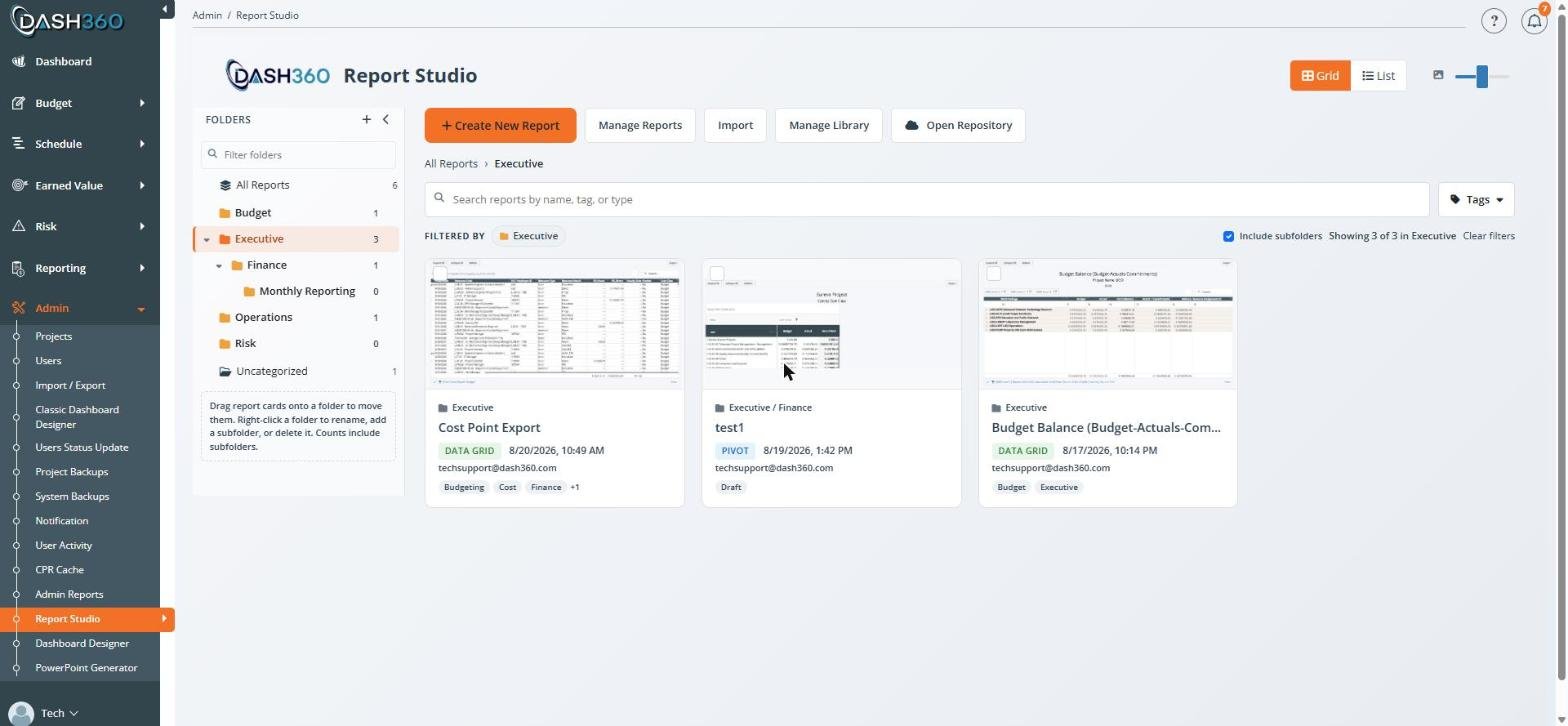
Report Studio organizes reports two ways at once, and they are meant for different jobs:
* **Folders** give every report one home, nested as deeply as you like, much like folders in Windows Explorer.
* **Tags** are free-text labels. A report can carry as many as you want, so a single report can be found under "Monthly", "Finance", and "Executive" at the same time.
Use folders for where a report lives; use tags for the cross-cutting ways people look for it.
Whatever you set up in Report Studio appears automatically in the Report Gallery. The Gallery is read-only: people browsing there see and filter by your folders and tags, but only Report Studio can change them.
A folder is a way to organize reports, not a way to restrict them. Filing a report in a folder does not hide it from anyone who can already open Report Studio. Report data itself stays scoped by project permissions, exactly as before.
## Permissions
Administrator role plus Report Studio access. Everyone with that access shares one folder tree, so folders you create are visible to, and editable by, every other Report Studio user.
***
## The folder rail
The folder rail runs down the left side of the Report Studio landing page. Selecting a folder filters the report list to that folder.
| Item | What it does |
| ----------------- | --------------------------------------------------------------------------------- |
| **All Reports** | Shows every report, including reports not filed in any folder |
| **Your folders** | Shows the reports in that folder, and by default everything in its subfolders too |
| **Uncategorized** | Shows only reports that are not in any folder |
The number beside each folder counts the active reports in it, including those in its subfolders, so a collapsed folder still tells you how much is inside.
### Finding a folder
Once the tree grows past a screenful, use **Filter folders** at the top of the rail. Typing narrows the tree to matching folders and keeps their parents visible, so you can see where each match sits, and the path opens itself. A folder three levels down is one keystroke away instead of three clicks.
### Reclaiming the width
The chevron in the rail header collapses the rail to a narrow strip. Your top-level folders stay there as icons, and clicking one selects that folder and reopens the rail, so collapsing the rail does not cost you the structure.
### Creating and managing folders
* **New folder**: click the folder-plus icon in the rail header. The panel that opens names the folder it is about to create in, which is the current selection, so you can see where the new folder will land before you name it.
* **Everything else**: right-click a folder, or click the kebab (vertical dots) that appears when you hover over it.
## Overview
Report Studio organizes reports two ways at once, and they are meant for different jobs:
* **Folders** give every report one home, nested as deeply as you like, much like folders in Windows Explorer.
* **Tags** are free-text labels. A report can carry as many as you want, so a single report can be found under "Monthly", "Finance", and "Executive" at the same time.
Use folders for where a report lives; use tags for the cross-cutting ways people look for it.
Whatever you set up in Report Studio appears automatically in the Report Gallery. The Gallery is read-only: people browsing there see and filter by your folders and tags, but only Report Studio can change them.
A folder is a way to organize reports, not a way to restrict them. Filing a report in a folder does not hide it from anyone who can already open Report Studio. Report data itself stays scoped by project permissions, exactly as before.
## Permissions
Administrator role plus Report Studio access. Everyone with that access shares one folder tree, so folders you create are visible to, and editable by, every other Report Studio user.
***
## The folder rail
The folder rail runs down the left side of the Report Studio landing page. Selecting a folder filters the report list to that folder.
| Item | What it does |
| ----------------- | --------------------------------------------------------------------------------- |
| **All Reports** | Shows every report, including reports not filed in any folder |
| **Your folders** | Shows the reports in that folder, and by default everything in its subfolders too |
| **Uncategorized** | Shows only reports that are not in any folder |
The number beside each folder counts the active reports in it, including those in its subfolders, so a collapsed folder still tells you how much is inside.
### Finding a folder
Once the tree grows past a screenful, use **Filter folders** at the top of the rail. Typing narrows the tree to matching folders and keeps their parents visible, so you can see where each match sits, and the path opens itself. A folder three levels down is one keystroke away instead of three clicks.
### Reclaiming the width
The chevron in the rail header collapses the rail to a narrow strip. Your top-level folders stay there as icons, and clicking one selects that folder and reopens the rail, so collapsing the rail does not cost you the structure.
### Creating and managing folders
* **New folder**: click the folder-plus icon in the rail header. The panel that opens names the folder it is about to create in, which is the current selection, so you can see where the new folder will land before you name it.
* **Everything else**: right-click a folder, or click the kebab (vertical dots) that appears when you hover over it.
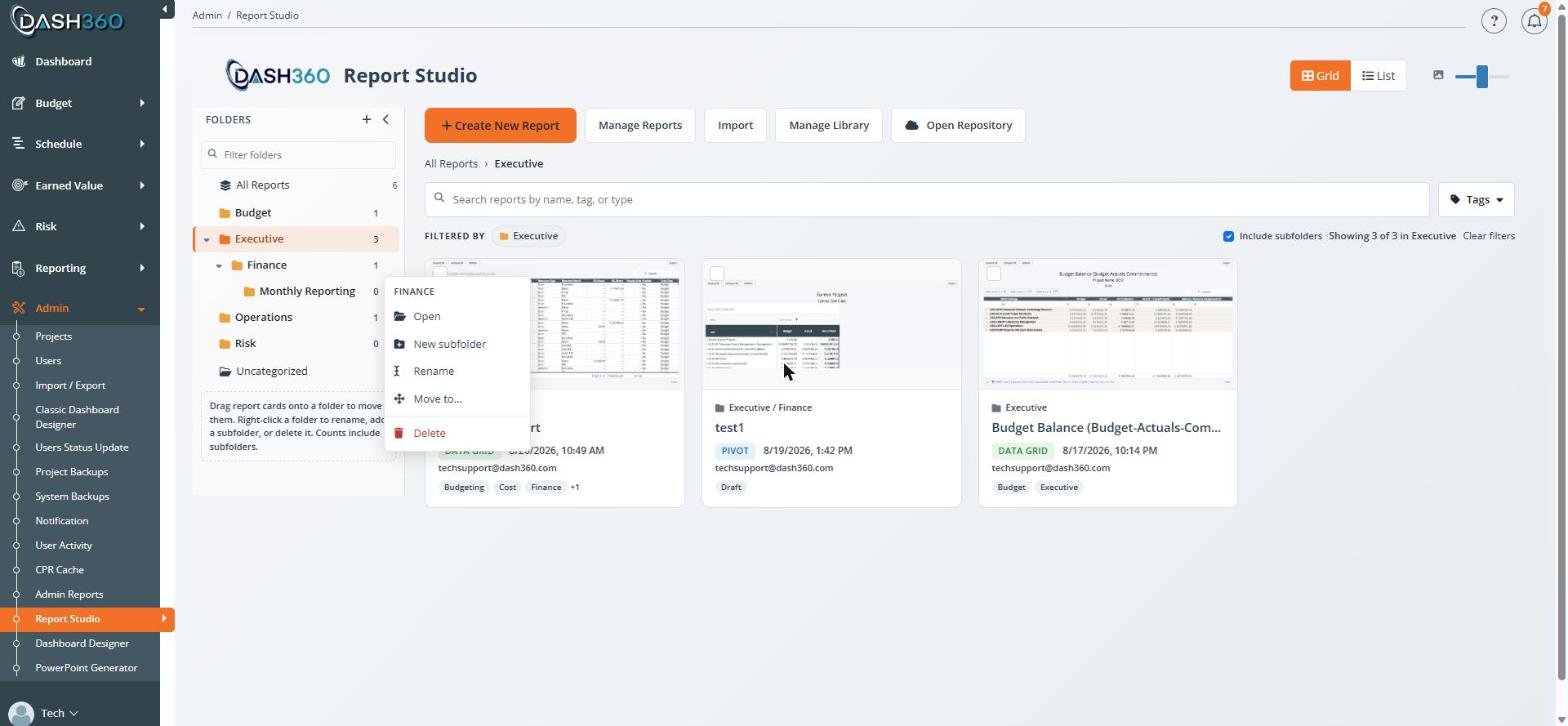 The menu offers **Open**, **New subfolder**, **Rename**, **Move to**, and **Delete**. When you have report cards selected, it also offers to move those reports straight into the folder you right-clicked.
Renaming happens in the row itself rather than in a dialog. Press Enter to commit, Escape to abandon. Clicking away also commits, because you asked to rename and walking away should not throw away what you typed.
Folders can nest up to 10 levels deep. Two folders in the same parent cannot share a name, and the comparison ignores case, so "Finance" and "finance" count as the same name. You can still rename a folder to change only its capitalization.
Folder names cannot contain a slash, forward or back. Exporting a report writes its folder as a single path, so a slash inside a name would come back on import as two nested folders.
### Deleting a folder
Deleting an empty folder happens immediately. If the folder still holds subfolders or reports, Dash360 refuses the first time and tells you exactly what is inside it. You can then choose to delete it anyway, which:
* moves its subfolders up one level, into the deleted folder's parent
* moves its reports to **Uncategorized**
The menu offers **Open**, **New subfolder**, **Rename**, **Move to**, and **Delete**. When you have report cards selected, it also offers to move those reports straight into the folder you right-clicked.
Renaming happens in the row itself rather than in a dialog. Press Enter to commit, Escape to abandon. Clicking away also commits, because you asked to rename and walking away should not throw away what you typed.
Folders can nest up to 10 levels deep. Two folders in the same parent cannot share a name, and the comparison ignores case, so "Finance" and "finance" count as the same name. You can still rename a folder to change only its capitalization.
Folder names cannot contain a slash, forward or back. Exporting a report writes its folder as a single path, so a slash inside a name would come back on import as two nested folders.
### Deleting a folder
Deleting an empty folder happens immediately. If the folder still holds subfolders or reports, Dash360 refuses the first time and tells you exactly what is inside it. You can then choose to delete it anyway, which:
* moves its subfolders up one level, into the deleted folder's parent
* moves its reports to **Uncategorized**
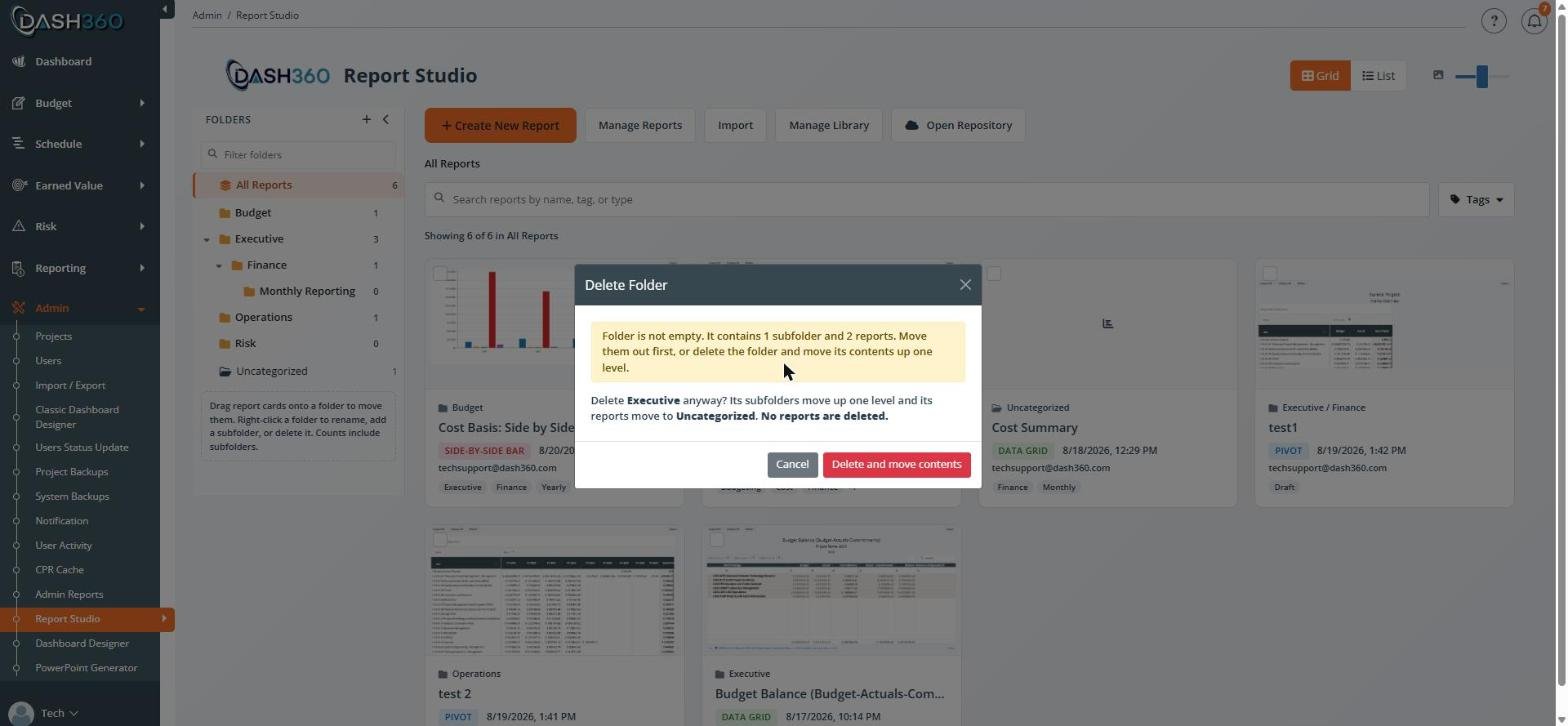 A folder can also be held open by an inactive report, which the rail counts as empty because inactive reports are not listed on the page. The refusal says how many of the reports are inactive, and deleting the folder anyway moves them to **Uncategorized** along with the rest.
**No report is ever deleted by deleting a folder.** Deleting a report is permanent and there is no recycle bin, so folder deletion never touches report content.
***
## Filing reports into folders
Three ways, and they all do the same thing:
1. **Drag a report card onto a folder** in the rail. The folder turns green when it will accept the drop. Drop a card on **Uncategorized** to take it out of its folder.
2. **Click the folder icon** on a report card, or the folder button in list view, and pick a destination.
3. **Select several cards** and use the action bar, covered below.
The second route works everywhere, including at the smallest thumbnail size where cards are too small to drag comfortably.
Each card shows the folder it lives in, above its name, so you can tell where a report is filed without clearing your filters to go and find it.
You can also drag folders themselves onto other folders to restructure the tree, and onto **All Reports** to move one back to the top level. A folder cannot be dropped inside its own subtree; that is refused in the browser and again on the server.
Copying a report puts the copy in the same folder as the original and gives it the same tags, since copying is something you do while working inside a folder. A brand-new report is different: it starts in **Uncategorized** even if a folder was selected when you created it, so file it once it exists.
Exporting a report records the folder it was in and the tags it carried. On import, the wizard shows where it came from and asks what to do: put it in that folder if it already exists here, create the missing folders, or leave it uncategorized and file it yourself. Nothing is created unless you choose it, so importing somebody else's reports never quietly builds their folder structure in your tree. Its tags can be applied at the same time, and a tag that already exists here is reused rather than duplicated.
Moving a report between folders does not change whether it is active, and does not change its position in the Manage Reports ordering.
### Working with several reports at once
Every card has a checkbox in its top-left corner. Selecting any card brings up an action bar offering to **Move to folder** or **Add tag** for the whole selection, and dragging any selected card brings the rest of the selection with it.
A folder can also be held open by an inactive report, which the rail counts as empty because inactive reports are not listed on the page. The refusal says how many of the reports are inactive, and deleting the folder anyway moves them to **Uncategorized** along with the rest.
**No report is ever deleted by deleting a folder.** Deleting a report is permanent and there is no recycle bin, so folder deletion never touches report content.
***
## Filing reports into folders
Three ways, and they all do the same thing:
1. **Drag a report card onto a folder** in the rail. The folder turns green when it will accept the drop. Drop a card on **Uncategorized** to take it out of its folder.
2. **Click the folder icon** on a report card, or the folder button in list view, and pick a destination.
3. **Select several cards** and use the action bar, covered below.
The second route works everywhere, including at the smallest thumbnail size where cards are too small to drag comfortably.
Each card shows the folder it lives in, above its name, so you can tell where a report is filed without clearing your filters to go and find it.
You can also drag folders themselves onto other folders to restructure the tree, and onto **All Reports** to move one back to the top level. A folder cannot be dropped inside its own subtree; that is refused in the browser and again on the server.
Copying a report puts the copy in the same folder as the original and gives it the same tags, since copying is something you do while working inside a folder. A brand-new report is different: it starts in **Uncategorized** even if a folder was selected when you created it, so file it once it exists.
Exporting a report records the folder it was in and the tags it carried. On import, the wizard shows where it came from and asks what to do: put it in that folder if it already exists here, create the missing folders, or leave it uncategorized and file it yourself. Nothing is created unless you choose it, so importing somebody else's reports never quietly builds their folder structure in your tree. Its tags can be applied at the same time, and a tag that already exists here is reused rather than duplicated.
Moving a report between folders does not change whether it is active, and does not change its position in the Manage Reports ordering.
### Working with several reports at once
Every card has a checkbox in its top-left corner. Selecting any card brings up an action bar offering to **Move to folder** or **Add tag** for the whole selection, and dragging any selected card brings the rest of the selection with it.
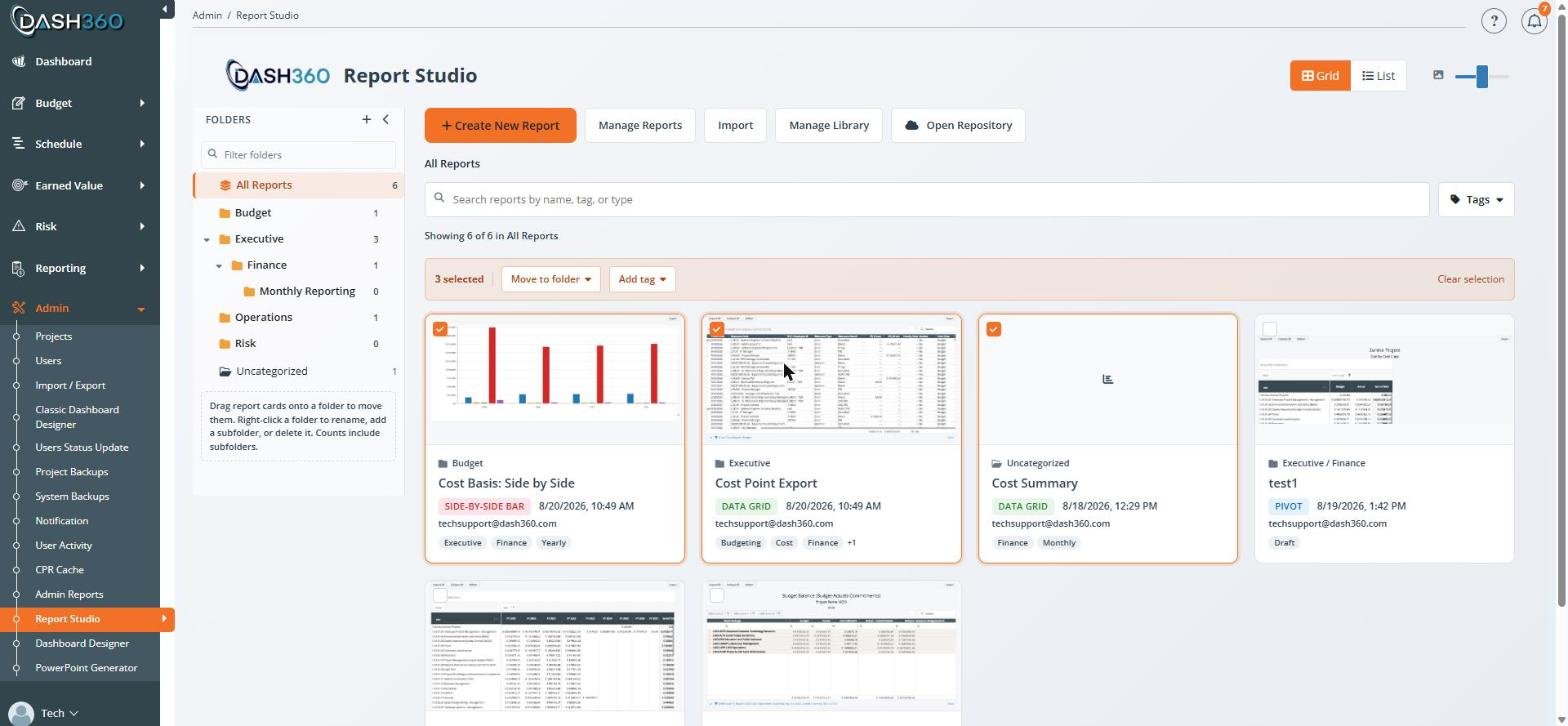 Adding a tag in bulk keeps whatever tags each report already has; it adds rather than replaces, and it skips reports that already carry that tag.
There is deliberately no bulk delete. Every other action here can be undone by doing it again, but deleting a report is permanent, so it stays a single-report action behind its own confirmation.
***
## Tagging reports
Click the tag icon on a report card, or the tag button in list view, to open the tag editor.
Adding a tag in bulk keeps whatever tags each report already has; it adds rather than replaces, and it skips reports that already carry that tag.
There is deliberately no bulk delete. Every other action here can be undone by doing it again, but deleting a report is permanent, so it stays a single-report action behind its own confirmation.
***
## Tagging reports
Click the tag icon on a report card, or the tag button in list view, to open the tag editor.
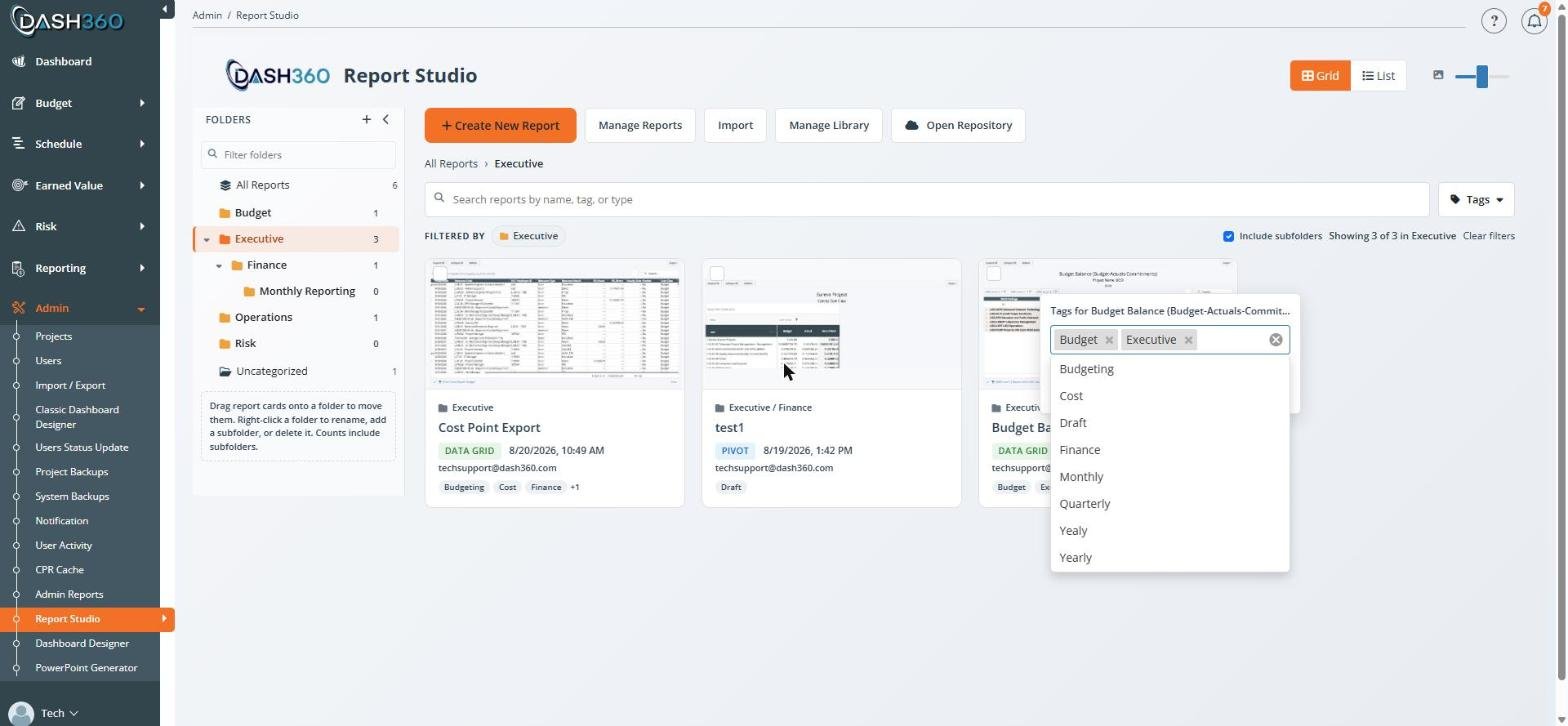 * Start typing to filter the tags already in use.
* Type something new and press Enter to create a tag on the spot.
* Tags are capped at 50 characters and cannot contain commas.
Typing a tag that already exists with different capitalization reuses the existing one, so your tag list does not fill up with "Finance", "finance", and "FINANCE" as three separate labels. That check runs on the server as well as in the browser, so two people tagging at the same time cannot create duplicates either.
Saving replaces the report's whole tag set: whatever is in the editor when you click Save is what the report ends up with. Clearing every tag and saving removes them all.
Once a tag is off every report, it stops being offered in the suggestion list and in the bulk **Add tag** menu, so a tag typed by mistake does not follow you around. Typing the name again re-creates it and picks up the existing spelling, so nothing is lost by the tag dropping out of the list.
***
## Searching and filtering
Above the report list are a search box and a **Tags** button.
* **Search** matches report names, tag text, and report types. Typing `finance` finds reports named "Finance Summary" and reports tagged "Finance", without you having to pick a tag.
* **Tags** opens a picker with its own search box and a usage count beside each tag, so you can tell a tag that is doing work from one that was applied once. Selecting more than one tag matches reports carrying **any** of them, which the picker says out loud.
* **Include subfolders** appears once you select a folder, and controls whether its subfolders' reports are shown. It is on by default, because with nesting most reports live in the leaves.
The three filters combine: a report has to be in the selected folder, **and** carry at least one selected tag, **and** match the search text.
### Knowing what you are looking at
Whenever anything is narrowing the list, a **Filtered by** row appears above the reports naming each active criterion: the search text, the folder in scope, and each selected tag. The search chip and the tag chips remove themselves when clicked, so a filter can be undone in the same place it is reported.
Alongside it, the count names its scope, for example "Showing 3 of 12 in Finance", so a short list reads as a filtered view rather than as missing data. On each card, the tag that matched your filter is highlighted, which answers why that report is in your results.
Two clear controls appear only when they would do different things. **Clear tags** drops the tag filters and keeps your folder and search; **Clear filters** resets everything.
Selecting a tag never removes the other tags from the picker, so you can always widen the filter back out.
Your folder selection, tags, and search text survive opening and closing a report, so you do not lose your place while working through a folder.
***
## List view
Everything above works in list view too. Alongside the existing columns, the grid shows **Folder** and **Tags** for each report, and the per-row actions include tagging and moving.
The **Name** and **Actions** columns stay pinned to the edges of the grid as you scroll across it, so you can always tell which report a row belongs to and act on it without losing your place.
The **Inactive Reports** grid below is deliberately not filtered by your folder and tag selection. It comes from a different source that carries no folder or tag information.
***
## Report Gallery
The Report Gallery shows the same folder rail, folder filter, tag picker, and search, filled in from whatever Report Studio has set up. Cards there show their folder path and tags as well.
The Gallery is read-only. There is no way to create, rename, move, or delete a folder there, no tag editing, and no multi-select, because the structure belongs to Report Studio.
***
## Current limits
* There is no tag management screen. Tags can be created and applied, but renaming, merging, or deleting a tag across every report is not built.
* Ordering inside a folder is not separate from the global Manage Reports ordering.
* Dashboards and PowerPoint decks do not have folders or tags. This is reports only.
* Start typing to filter the tags already in use.
* Type something new and press Enter to create a tag on the spot.
* Tags are capped at 50 characters and cannot contain commas.
Typing a tag that already exists with different capitalization reuses the existing one, so your tag list does not fill up with "Finance", "finance", and "FINANCE" as three separate labels. That check runs on the server as well as in the browser, so two people tagging at the same time cannot create duplicates either.
Saving replaces the report's whole tag set: whatever is in the editor when you click Save is what the report ends up with. Clearing every tag and saving removes them all.
Once a tag is off every report, it stops being offered in the suggestion list and in the bulk **Add tag** menu, so a tag typed by mistake does not follow you around. Typing the name again re-creates it and picks up the existing spelling, so nothing is lost by the tag dropping out of the list.
***
## Searching and filtering
Above the report list are a search box and a **Tags** button.
* **Search** matches report names, tag text, and report types. Typing `finance` finds reports named "Finance Summary" and reports tagged "Finance", without you having to pick a tag.
* **Tags** opens a picker with its own search box and a usage count beside each tag, so you can tell a tag that is doing work from one that was applied once. Selecting more than one tag matches reports carrying **any** of them, which the picker says out loud.
* **Include subfolders** appears once you select a folder, and controls whether its subfolders' reports are shown. It is on by default, because with nesting most reports live in the leaves.
The three filters combine: a report has to be in the selected folder, **and** carry at least one selected tag, **and** match the search text.
### Knowing what you are looking at
Whenever anything is narrowing the list, a **Filtered by** row appears above the reports naming each active criterion: the search text, the folder in scope, and each selected tag. The search chip and the tag chips remove themselves when clicked, so a filter can be undone in the same place it is reported.
Alongside it, the count names its scope, for example "Showing 3 of 12 in Finance", so a short list reads as a filtered view rather than as missing data. On each card, the tag that matched your filter is highlighted, which answers why that report is in your results.
Two clear controls appear only when they would do different things. **Clear tags** drops the tag filters and keeps your folder and search; **Clear filters** resets everything.
Selecting a tag never removes the other tags from the picker, so you can always widen the filter back out.
Your folder selection, tags, and search text survive opening and closing a report, so you do not lose your place while working through a folder.
***
## List view
Everything above works in list view too. Alongside the existing columns, the grid shows **Folder** and **Tags** for each report, and the per-row actions include tagging and moving.
The **Name** and **Actions** columns stay pinned to the edges of the grid as you scroll across it, so you can always tell which report a row belongs to and act on it without losing your place.
The **Inactive Reports** grid below is deliberately not filtered by your folder and tag selection. It comes from a different source that carries no folder or tag information.
***
## Report Gallery
The Report Gallery shows the same folder rail, folder filter, tag picker, and search, filled in from whatever Report Studio has set up. Cards there show their folder path and tags as well.
The Gallery is read-only. There is no way to create, rename, move, or delete a folder there, no tag editing, and no multi-select, because the structure belongs to Report Studio.
***
## Current limits
* There is no tag management screen. Tags can be created and applied, but renaming, merging, or deleting a tag across every report is not built.
* Ordering inside a folder is not separate from the global Manage Reports ordering.
* Dashboards and PowerPoint decks do not have folders or tags. This is reports only.