> ## Documentation Index
> Fetch the complete documentation index at: https://docs.dash360.com/llms.txt
> Use this file to discover all available pages before exploring further.
# User Status Update
> Review and approve individual activity-level schedule status updates submitted by CAMs before they are applied to the project schedule.
 ## Overview
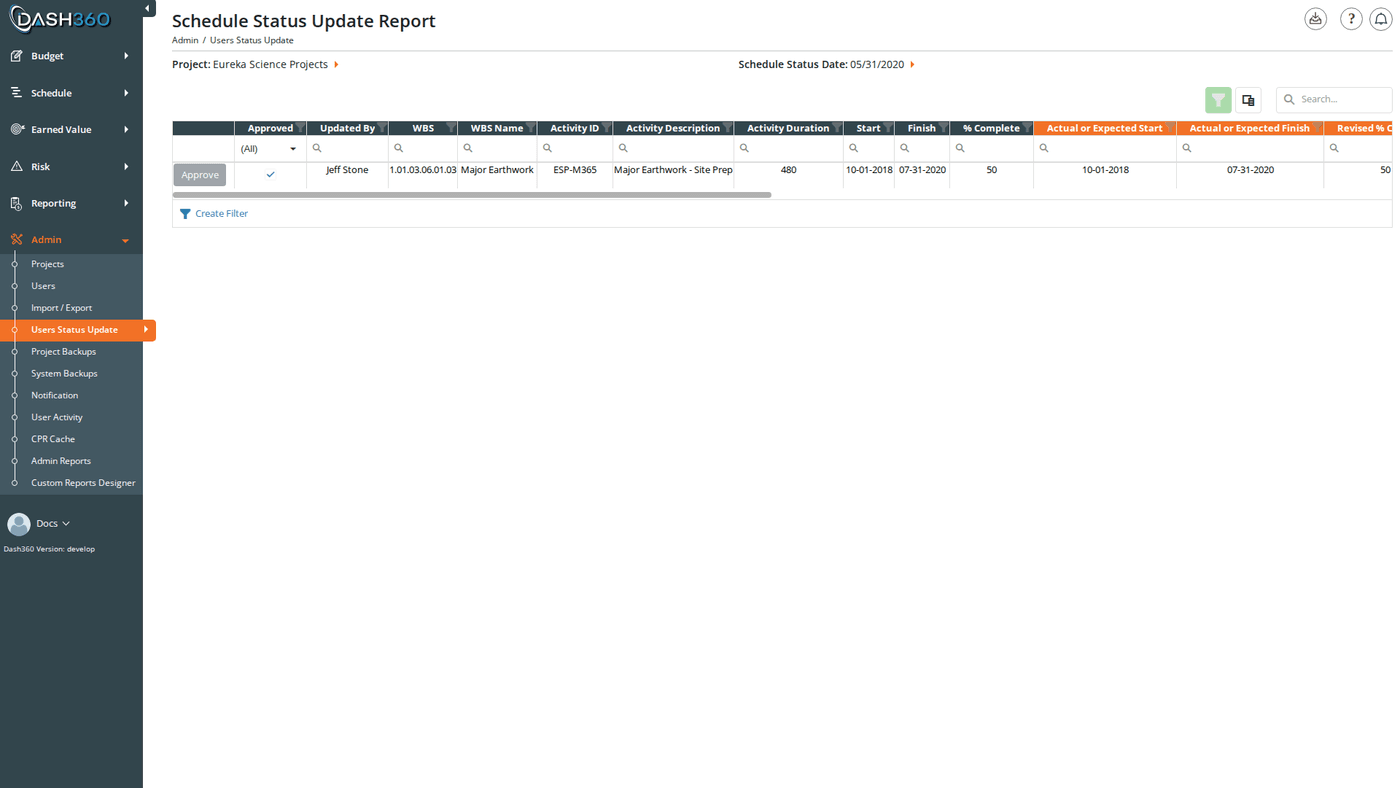
The User Status Update page is where administrators review and approve the schedule activity updates that CAMs submit from the [Quick Status](/user-guide/schedule/quick-status) page. Each row in the grid is a single activity update; showing both the current schedule values and the CAM's proposed changes side by side. Administrators can approve or delete each update individually, or approve all visible updates at once.
Only approved updates are written back to the project schedule and become available for earned value calculations.
## Permissions
Administrator role required.
***
## How the Workflow Works
1. A CAM navigates to [Quick Status](/user-guide/schedule/quick-status) and submits activity progress updates for a reporting period.
2. Each activity update appears as a separate row on this page, pending administrator review.
3. An administrator selects the project and schedule status date, reviews each activity update, and either:
* **Approves** the update: writes the CAM's values into the project schedule
* **Deletes** the update: discards it; the schedule is not changed and the CAM may need to resubmit
***
## Filters
Two filters control which activity updates are displayed. Both must be set before the grid loads.
| Filter | Description |
| ------------------------ | ------------------------------------------------------------------------------------------------------------------------------------------------------------------------- |
| **Project** | Select the project whose pending updates you want to review |
| **Schedule Status Date** | Select the status date period. The dropdown is populated with all distinct status dates that have submissions for the selected project. Defaults to the most recent date. |
Below the filters is a **Hide unchanged activities** checkbox. When a CAM submits Quick Status for every activity, many rows come through with no real change (the same start and finish dates, the same percent complete, no comment, and no dependency changes). Turn this on to hide those unchanged rows so the grid shows only the activities the CAM actually changed. It is off by default, so the grid shows every submitted update unless you enable it. Toggling it reloads the grid for the selected project and status date.
An activity update counts as "unchanged" only when its Actual or Expected Start, Actual or Expected Finish, and Revised % Complete all match the activity's current schedule values, it has no comment, no added or removed predecessors or successors, and it is not a delete request. Anything the CAM actually changed keeps the row visible.
If you navigate to this page with a `?projectId=` parameter in the URL, the project is pre-selected automatically and the schedule status dates load immediately.
***
## Activity Updates Grid
The grid shows one row per activity update. It has a search panel, filter row, and header filters. Export to Excel is also available.
The columns are grouped into two sets. **Non-highlighted columns** show the activity's current values in the schedule (what it looks like before the CAM's update is applied). **Orange-highlighted columns** show the values the CAM submitted; these are what will be written to the schedule if the update is approved.
### Current Schedule Values (non-highlighted)
| Column | Description |
| ------------------------ | ------------------------------------------------------------------------------- |
| **(Approve button)** | Per-row Approve button. Disabled and greyed out if the row is already approved. |
| **Approved** | Whether this activity update has been approved |
| **Updated By** | The CAM who submitted this update |
| **WBS** | WBS code of the activity |
| **WBS Name** | Name of the WBS element |
| **Activity ID** | The schedule activity ID |
| **Activity Description** | The activity's current description in the schedule |
| **Activity Duration** | The activity's current duration in the schedule |
| **Start** | The activity's current start date in the schedule |
| **Finish** | The activity's current finish date in the schedule |
| **% Complete** | The activity's current percent complete in the schedule |
| **Work Package** | The work package number the activity belongs to |
| **Work Package Name** | The work package name |
### CAM-Submitted Values (orange header)
| Column | Description |
| ----------------------------- | ------------------------------------------------------------------------- |
| **Actual or Expected Start** | The start date the CAM is reporting |
| **Actual or Expected Finish** | The finish date the CAM is reporting |
| **Revised % Complete** | The percent complete the CAM is reporting |
| **Delete Activity** | If true, the CAM has requested this activity be removed from the schedule |
| **Comments** | Any comment the CAM included with this update |
### Dependency Changes
| Column | Description |
| ------------------------ | ---------------------------------------------- |
| **Added Predecessors** | Activity IDs the CAM added as new predecessors |
| **Removed Predecessors** | Activity IDs the CAM removed as predecessors |
| **Added Successors** | Activity IDs the CAM added as new successors |
| **Removed Successors** | Activity IDs the CAM removed as successors |
### Timestamps
| Column | Description |
| ------------------------ | ----------------------------------------- |
| **Schedule Status Date** | The status period this update belongs to |
| **Last Updated Date** | When this update record was last modified |
***
## Approving an Activity Update
Click the **Approve** button on any row. The button is disabled if the row is already approved.
When an activity update is approved, the following changes are written to the project schedule immediately:
* **Start Date** is updated to the CAM's Actual or Expected Start
* **Finish Date** is updated to the CAM's Actual or Expected Finish
* **% Complete** is updated to the CAM's Revised % Complete
* **Activity Description** is updated to the CAM's submitted description
* **Duration** is updated to the CAM's submitted duration
* **Added predecessors** are created as new task dependency links
* **Added successors** are created as new task dependency links
* **Removed predecessors** have their dependency links deleted
* **Removed successors** have their dependency links deleted
* **Activity step updates** (if any) are processed: steps are added, updated, or deleted to match the CAM's submitted step data
### Delete Activity
If the **Delete Activity** column shows true for a row, approving that row removes the entire activity from the project schedule; including all of its predecessor and successor dependency links. This is permanent.
Approving a "Delete Activity" update permanently removes that activity from the project schedule. All task links connected to it are also deleted. This action cannot be undone from this page.
***
## Approve All
The **Approve All** button appears above the grid when there are unapproved rows visible. Click it to approve every row currently shown in the grid (respecting any active search or filter criteria).
This is the typical workflow at the end of a status period: filter to the correct project and date, review the updates, then click **Approve All** to apply them all at once.
The **Approve All** button hides automatically after all visible rows are approved.
***
## Deleting an Activity Update
Click the **Delete** (trash) icon on any row to discard that activity update. The project schedule is not changed; the CAM's submitted values are discarded. The CAM will need to re-enter and resubmit their status update for that activity if their changes should still be applied.
Deleting an activity update cannot be undone. The CAM will need to return to Quick Status and resubmit the changes.
***
## Exporting to Excel
Click the **Export to Excel** button (if visible in the grid toolbar) to download the current grid contents as an Excel file. All columns and any active filters are included in the export.
***
## Overview
The User Status Update page is where administrators review and approve the schedule activity updates that CAMs submit from the [Quick Status](/user-guide/schedule/quick-status) page. Each row in the grid is a single activity update; showing both the current schedule values and the CAM's proposed changes side by side. Administrators can approve or delete each update individually, or approve all visible updates at once.
Only approved updates are written back to the project schedule and become available for earned value calculations.
## Permissions
Administrator role required.
***
## How the Workflow Works
1. A CAM navigates to [Quick Status](/user-guide/schedule/quick-status) and submits activity progress updates for a reporting period.
2. Each activity update appears as a separate row on this page, pending administrator review.
3. An administrator selects the project and schedule status date, reviews each activity update, and either:
* **Approves** the update: writes the CAM's values into the project schedule
* **Deletes** the update: discards it; the schedule is not changed and the CAM may need to resubmit
***
## Filters
Two filters control which activity updates are displayed. Both must be set before the grid loads.
| Filter | Description |
| ------------------------ | ------------------------------------------------------------------------------------------------------------------------------------------------------------------------- |
| **Project** | Select the project whose pending updates you want to review |
| **Schedule Status Date** | Select the status date period. The dropdown is populated with all distinct status dates that have submissions for the selected project. Defaults to the most recent date. |
Below the filters is a **Hide unchanged activities** checkbox. When a CAM submits Quick Status for every activity, many rows come through with no real change (the same start and finish dates, the same percent complete, no comment, and no dependency changes). Turn this on to hide those unchanged rows so the grid shows only the activities the CAM actually changed. It is off by default, so the grid shows every submitted update unless you enable it. Toggling it reloads the grid for the selected project and status date.
An activity update counts as "unchanged" only when its Actual or Expected Start, Actual or Expected Finish, and Revised % Complete all match the activity's current schedule values, it has no comment, no added or removed predecessors or successors, and it is not a delete request. Anything the CAM actually changed keeps the row visible.
If you navigate to this page with a `?projectId=` parameter in the URL, the project is pre-selected automatically and the schedule status dates load immediately.
***
## Activity Updates Grid
The grid shows one row per activity update. It has a search panel, filter row, and header filters. Export to Excel is also available.
The columns are grouped into two sets. **Non-highlighted columns** show the activity's current values in the schedule (what it looks like before the CAM's update is applied). **Orange-highlighted columns** show the values the CAM submitted; these are what will be written to the schedule if the update is approved.
### Current Schedule Values (non-highlighted)
| Column | Description |
| ------------------------ | ------------------------------------------------------------------------------- |
| **(Approve button)** | Per-row Approve button. Disabled and greyed out if the row is already approved. |
| **Approved** | Whether this activity update has been approved |
| **Updated By** | The CAM who submitted this update |
| **WBS** | WBS code of the activity |
| **WBS Name** | Name of the WBS element |
| **Activity ID** | The schedule activity ID |
| **Activity Description** | The activity's current description in the schedule |
| **Activity Duration** | The activity's current duration in the schedule |
| **Start** | The activity's current start date in the schedule |
| **Finish** | The activity's current finish date in the schedule |
| **% Complete** | The activity's current percent complete in the schedule |
| **Work Package** | The work package number the activity belongs to |
| **Work Package Name** | The work package name |
### CAM-Submitted Values (orange header)
| Column | Description |
| ----------------------------- | ------------------------------------------------------------------------- |
| **Actual or Expected Start** | The start date the CAM is reporting |
| **Actual or Expected Finish** | The finish date the CAM is reporting |
| **Revised % Complete** | The percent complete the CAM is reporting |
| **Delete Activity** | If true, the CAM has requested this activity be removed from the schedule |
| **Comments** | Any comment the CAM included with this update |
### Dependency Changes
| Column | Description |
| ------------------------ | ---------------------------------------------- |
| **Added Predecessors** | Activity IDs the CAM added as new predecessors |
| **Removed Predecessors** | Activity IDs the CAM removed as predecessors |
| **Added Successors** | Activity IDs the CAM added as new successors |
| **Removed Successors** | Activity IDs the CAM removed as successors |
### Timestamps
| Column | Description |
| ------------------------ | ----------------------------------------- |
| **Schedule Status Date** | The status period this update belongs to |
| **Last Updated Date** | When this update record was last modified |
***
## Approving an Activity Update
Click the **Approve** button on any row. The button is disabled if the row is already approved.
When an activity update is approved, the following changes are written to the project schedule immediately:
* **Start Date** is updated to the CAM's Actual or Expected Start
* **Finish Date** is updated to the CAM's Actual or Expected Finish
* **% Complete** is updated to the CAM's Revised % Complete
* **Activity Description** is updated to the CAM's submitted description
* **Duration** is updated to the CAM's submitted duration
* **Added predecessors** are created as new task dependency links
* **Added successors** are created as new task dependency links
* **Removed predecessors** have their dependency links deleted
* **Removed successors** have their dependency links deleted
* **Activity step updates** (if any) are processed: steps are added, updated, or deleted to match the CAM's submitted step data
### Delete Activity
If the **Delete Activity** column shows true for a row, approving that row removes the entire activity from the project schedule; including all of its predecessor and successor dependency links. This is permanent.
Approving a "Delete Activity" update permanently removes that activity from the project schedule. All task links connected to it are also deleted. This action cannot be undone from this page.
***
## Approve All
The **Approve All** button appears above the grid when there are unapproved rows visible. Click it to approve every row currently shown in the grid (respecting any active search or filter criteria).
This is the typical workflow at the end of a status period: filter to the correct project and date, review the updates, then click **Approve All** to apply them all at once.
The **Approve All** button hides automatically after all visible rows are approved.
***
## Deleting an Activity Update
Click the **Delete** (trash) icon on any row to discard that activity update. The project schedule is not changed; the CAM's submitted values are discarded. The CAM will need to re-enter and resubmit their status update for that activity if their changes should still be applied.
Deleting an activity update cannot be undone. The CAM will need to return to Quick Status and resubmit the changes.
***
## Exporting to Excel
Click the **Export to Excel** button (if visible in the grid toolbar) to download the current grid contents as an Excel file. All columns and any active filters are included in the export.
***