> ## Documentation Index
> Fetch the complete documentation index at: https://docs.dash360.com/llms.txt
> Use this file to discover all available pages before exploring further.
# Activities by Resource
> Trace schedule activities to their resource assignments and cost data, with time-phased columns and two view modes for schedule-to-budget analysis.
 ## Overview
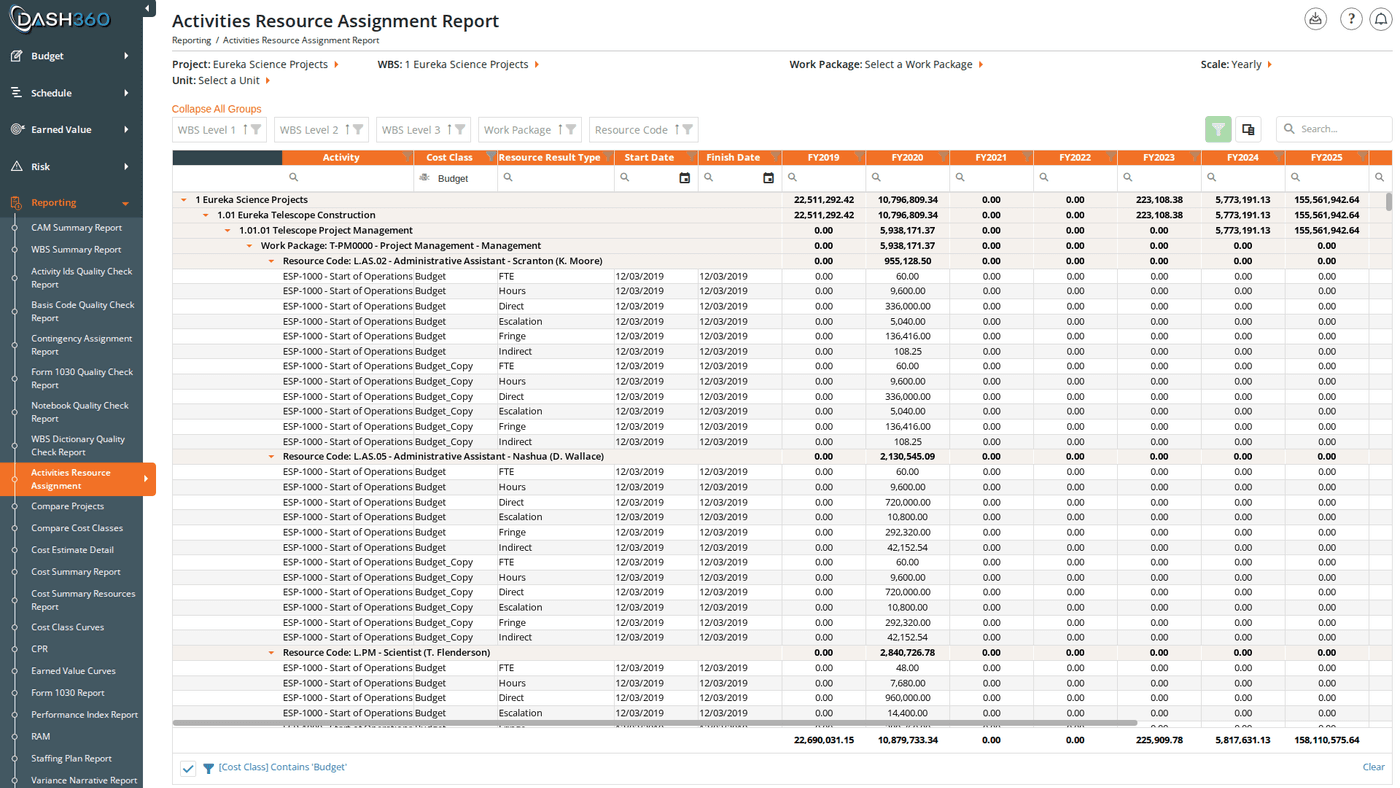
The Activities by Resource report bridges your schedule and your budget. It shows exactly which resources are assigned to which schedule activities, with cost data time-phased across the project timeline. This makes it easy to verify that every activity has resource coverage, identify misalignments between your schedule and your budget, and analyze how costs are distributed across the project timeline.
**URL:** `/Reporting/ActivitiesByResourceReport/Index`
## Prerequisites
* Select a **project**. The report does not load until a project is selected.
***
## Filters
The page header contains five inline filters. Selecting a project immediately loads the grid. Selecting a WBS reloads the grid and populates the Work Package dropdown. Selecting a Work Package reloads the grid scoped to that one work package.
| Filter | What It Controls |
| ---------------- | ---------------------------------------------------------------------------------------------------------------------------------------------------------- |
| **Project** | The project to analyze. Required. |
| **WBS** | Limit the report to a specific WBS element and its children. The dropdown includes a search box. Selecting a WBS also populates the Work Package dropdown. |
| **Work Package** | Limit to a specific work package within the selected WBS. The dropdown includes a search box. |
| **Scale** | Toggle between **Yearly** and **Monthly** time-phased columns. Default: Yearly. Hidden for projects using a custom calendar; see below. |
| **Unit** | Display values in base currency, thousands (K), or millions (M). |
### Custom Calendar Projects
For projects configured with a custom calendar, the **Scale** dropdown is replaced by a **Calendar** dropdown listing the project's named calendars. Selecting a different calendar reloads the time-phased columns using that calendar's period labels instead of fiscal year or month names.
***
## View Modes
The report offers two modes, controlled by a Report Type selector:
| Mode | Description |
| ----------------------- | ------------------------------------------------------------------------------------------------------------------------------------------------------------------------------- |
| **Time-Phased** | Shows individual resource result types as separate rows (labor hours, FTEs, travel costs, and other configured resource results) with costs time-phased by fiscal year or month |
| **Resource Assignment** | Aggregates costs at the resource assignment level, showing total cost per assignment per period without breaking out individual resource result types |
Switch between modes based on whether you need individual resource type detail or a higher-level cost summary.
***
## Reading the Grid
### Hierarchy
The grid is organized hierarchically with group rows at each level:
```
WBS Level 1
└── WBS Level 2
└── WBS Level 3 (and deeper levels if configured)
└── Work Package
└── Resource Code
```
Expand or collapse any group row by clicking it, or use the **Expand All Groups / Collapse All Groups** link above the grid.
Each group row shows **summed totals** for every time-phased column and the Total column, so you can read roll-up costs at any level of the hierarchy without expanding.
### Fixed Columns
These columns appear at the left side of the grid and remain visible while scrolling through time-phased columns:
| Column | Description |
| -------------------------- | ----------------------------------------------------------------------------------------------------------------------------- |
| **WBS Level 1–3** | WBS group columns, visible by default. Additional WBS levels (4+) are available via the column chooser but hidden by default. |
| **Work Package** | Work package group column |
| **Resource Code** | Resource code group column |
| **Resource Assignment ID** | Hidden by default. Can be added via the column chooser. |
| **Activity** | The schedule activity name |
| **Cost Class** | The cost class for this assignment. **Default filter: Budget**: only Budget cost class data appears on initial load. |
| **Resource Result Type** | The type of resource result (e.g., Labor Hours, FTEs, Travel) |
| **Start Date** | The resource assignment start date |
| **Finish Date** | The resource assignment finish date |
The Cost Class column has a default filter of **Budget**. If you need to see other cost classes (Revised, Actuals, etc.), clear or change the Cost Class filter in the filter row.
### Time-Phased Columns
After the fixed columns, one column appears per fiscal year or calendar month (depending on the Scale setting), followed by a **Total** column. For custom calendar projects, columns use the calendar's period labels.
**Column header styling:**
* Time-phased column headers have an **orange background** to visually distinguish them from the fixed identifier columns.
* The cell in a data row whose column matches the **current reporting period** is highlighted in light orange; making the active period easy to locate when scrolling across many columns.
A **grand total row** at the bottom of the grid sums all visible data rows for each time-phased column.
***
## When to Use This Report
Use Activities by Resource when you need to:
* **Verify coverage**: Confirm that every schedule activity has at least one resource assignment.
* **Spot misalignments**: Find activities where the resource assignment dates don't match the scheduled activity dates.
* **Analyze cost distribution**: Understand how costs spread across the project timeline at the activity level rather than the work package level.
* **Connect schedule and budget**: Use alongside the [Schedule Viewer](/schedule/project-schedule) to cross-reference activity timing against resource costs.
***
## Saved Views
Activities by Resource supports named saved views that preserve your column layout, grouping, and filter settings. Use the view selector in the toolbar to save and reload your own named views.
When viewing a system view, the message "Currently viewing a system view. Changes will not be saved." appears at the top right of the grid.
***
## Grid Features
| Feature | Description |
| ------------------------------ | --------------------------------------------------------------------- |
| **Expand/Collapse All Groups** | Link above the grid. Toggles all group rows at once. |
| **Column chooser** | Add hidden columns: WBS Level 4+, Resource Assignment ID, and others. |
| **Search panel** | Free-text search across all visible columns |
| **Filter row** | Per-column filter inputs; click **Apply Filters** to apply |
| **Header filter** | Click any column header for value-based filtering |
| **Filter panel** | Shows active filter criteria and allows clearing them |
| **Group panel** | Drag columns to add additional grouping levels |
| **Context menu** | Right-click a group row to expand or collapse it individually |
***
## Exporting
Click the **Download** icon and select **Export as Excel**. The file is saved as `ActivitiesByResourceReport.xlsx` with the grid data on a sheet named `ActivityByRA`.
***
## Overview
The Activities by Resource report bridges your schedule and your budget. It shows exactly which resources are assigned to which schedule activities, with cost data time-phased across the project timeline. This makes it easy to verify that every activity has resource coverage, identify misalignments between your schedule and your budget, and analyze how costs are distributed across the project timeline.
**URL:** `/Reporting/ActivitiesByResourceReport/Index`
## Prerequisites
* Select a **project**. The report does not load until a project is selected.
***
## Filters
The page header contains five inline filters. Selecting a project immediately loads the grid. Selecting a WBS reloads the grid and populates the Work Package dropdown. Selecting a Work Package reloads the grid scoped to that one work package.
| Filter | What It Controls |
| ---------------- | ---------------------------------------------------------------------------------------------------------------------------------------------------------- |
| **Project** | The project to analyze. Required. |
| **WBS** | Limit the report to a specific WBS element and its children. The dropdown includes a search box. Selecting a WBS also populates the Work Package dropdown. |
| **Work Package** | Limit to a specific work package within the selected WBS. The dropdown includes a search box. |
| **Scale** | Toggle between **Yearly** and **Monthly** time-phased columns. Default: Yearly. Hidden for projects using a custom calendar; see below. |
| **Unit** | Display values in base currency, thousands (K), or millions (M). |
### Custom Calendar Projects
For projects configured with a custom calendar, the **Scale** dropdown is replaced by a **Calendar** dropdown listing the project's named calendars. Selecting a different calendar reloads the time-phased columns using that calendar's period labels instead of fiscal year or month names.
***
## View Modes
The report offers two modes, controlled by a Report Type selector:
| Mode | Description |
| ----------------------- | ------------------------------------------------------------------------------------------------------------------------------------------------------------------------------- |
| **Time-Phased** | Shows individual resource result types as separate rows (labor hours, FTEs, travel costs, and other configured resource results) with costs time-phased by fiscal year or month |
| **Resource Assignment** | Aggregates costs at the resource assignment level, showing total cost per assignment per period without breaking out individual resource result types |
Switch between modes based on whether you need individual resource type detail or a higher-level cost summary.
***
## Reading the Grid
### Hierarchy
The grid is organized hierarchically with group rows at each level:
```
WBS Level 1
└── WBS Level 2
└── WBS Level 3 (and deeper levels if configured)
└── Work Package
└── Resource Code
```
Expand or collapse any group row by clicking it, or use the **Expand All Groups / Collapse All Groups** link above the grid.
Each group row shows **summed totals** for every time-phased column and the Total column, so you can read roll-up costs at any level of the hierarchy without expanding.
### Fixed Columns
These columns appear at the left side of the grid and remain visible while scrolling through time-phased columns:
| Column | Description |
| -------------------------- | ----------------------------------------------------------------------------------------------------------------------------- |
| **WBS Level 1–3** | WBS group columns, visible by default. Additional WBS levels (4+) are available via the column chooser but hidden by default. |
| **Work Package** | Work package group column |
| **Resource Code** | Resource code group column |
| **Resource Assignment ID** | Hidden by default. Can be added via the column chooser. |
| **Activity** | The schedule activity name |
| **Cost Class** | The cost class for this assignment. **Default filter: Budget**: only Budget cost class data appears on initial load. |
| **Resource Result Type** | The type of resource result (e.g., Labor Hours, FTEs, Travel) |
| **Start Date** | The resource assignment start date |
| **Finish Date** | The resource assignment finish date |
The Cost Class column has a default filter of **Budget**. If you need to see other cost classes (Revised, Actuals, etc.), clear or change the Cost Class filter in the filter row.
### Time-Phased Columns
After the fixed columns, one column appears per fiscal year or calendar month (depending on the Scale setting), followed by a **Total** column. For custom calendar projects, columns use the calendar's period labels.
**Column header styling:**
* Time-phased column headers have an **orange background** to visually distinguish them from the fixed identifier columns.
* The cell in a data row whose column matches the **current reporting period** is highlighted in light orange; making the active period easy to locate when scrolling across many columns.
A **grand total row** at the bottom of the grid sums all visible data rows for each time-phased column.
***
## When to Use This Report
Use Activities by Resource when you need to:
* **Verify coverage**: Confirm that every schedule activity has at least one resource assignment.
* **Spot misalignments**: Find activities where the resource assignment dates don't match the scheduled activity dates.
* **Analyze cost distribution**: Understand how costs spread across the project timeline at the activity level rather than the work package level.
* **Connect schedule and budget**: Use alongside the [Schedule Viewer](/schedule/project-schedule) to cross-reference activity timing against resource costs.
***
## Saved Views
Activities by Resource supports named saved views that preserve your column layout, grouping, and filter settings. Use the view selector in the toolbar to save and reload your own named views.
When viewing a system view, the message "Currently viewing a system view. Changes will not be saved." appears at the top right of the grid.
***
## Grid Features
| Feature | Description |
| ------------------------------ | --------------------------------------------------------------------- |
| **Expand/Collapse All Groups** | Link above the grid. Toggles all group rows at once. |
| **Column chooser** | Add hidden columns: WBS Level 4+, Resource Assignment ID, and others. |
| **Search panel** | Free-text search across all visible columns |
| **Filter row** | Per-column filter inputs; click **Apply Filters** to apply |
| **Header filter** | Click any column header for value-based filtering |
| **Filter panel** | Shows active filter criteria and allows clearing them |
| **Group panel** | Drag columns to add additional grouping levels |
| **Context menu** | Right-click a group row to expand or collapse it individually |
***
## Exporting
Click the **Download** icon and select **Export as Excel**. The file is saved as `ActivitiesByResourceReport.xlsx` with the grid data on a sheet named `ActivityByRA`.
***