> ## Documentation Index
> Fetch the complete documentation index at: https://docs.dash360.com/llms.txt
> Use this file to discover all available pages before exploring further.
# Calculated Field Cookbook
> Ready-to-use calculated field formulas for cost reporting, plus the common reasons a calculated field returns the wrong result and how to fix them.
# Calculated Field Cookbook
This page is a recipe book of calculated fields you can copy, plus a troubleshooting guide for when a formula does not return what you expect. For how the calculated-field builder works (naming, validation, the library), see [Fields and Calculated Fields](/user-guide/reporting/report-designer-fields).
This page is part of the [Report Studio](/user-guide/reporting/report-designer) guide.
## Quick reference
* **Field references** go in square brackets: `[Item Cost]`. Insert them from the field list to avoid typos.
* **Operators**: `+` `-` `*` `/` `=` `<>` `<` `>` and `AND`, `OR`, `NOT`.
* **Functions**: `IF`, `SWITCH`, `SUM`, `AVG`, `COUNT`, `MIN`, `MAX`, `ROUND`, `ABS`, `CEILING`, `FLOOR`, `SQRT`, `POWER`, `ISNULL`, `COALESCE`, and date/text functions.
* **Row-level vs aggregate**: a formula that contains `SUM`, `AVG`, `COUNT`, `MIN`, or `MAX` is an aggregate (calculated across a group or total). Everything else is row-level (calculated once per row).
In `IF` formulas that split a value, use `NULL` (not `0`) for the "else" result. Returning `0` adds ghost zeros that distort AVG, MIN, and MAX.
## Recipes
### Cost roll-ups
```
Total Cost = [Item Cost] + [Contingency]
Burdened Cost = [Item Cost] * 1.35 (apply a 35% overhead)
```
### Splitting Budget, Actual, and Earned (row-level)
Cost Class arrives as separate rows (a Budget row, an Actual row, an Earned row). Split them into their own columns first:
```
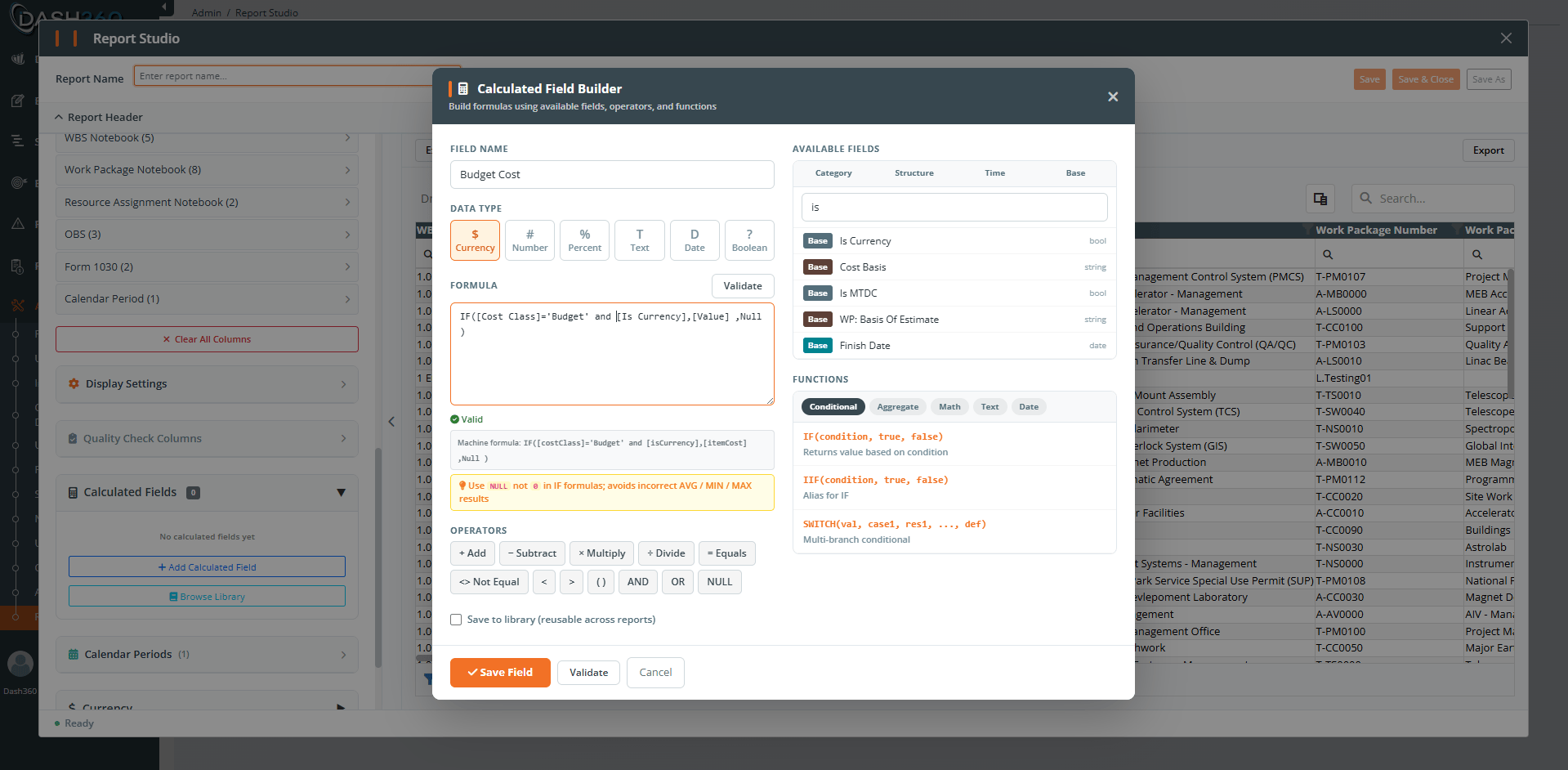
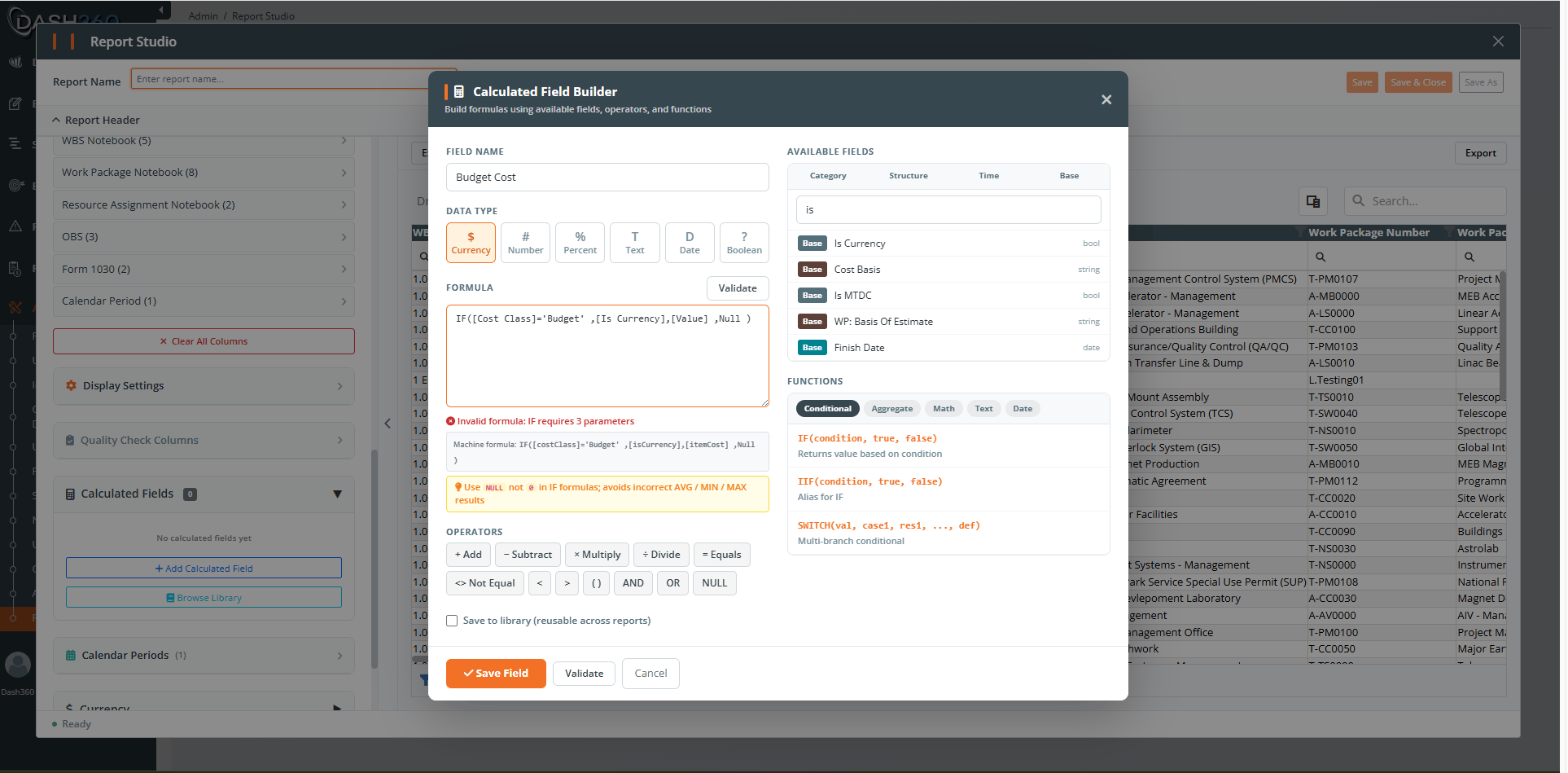
BudgetCost = IF([CostClass]='Budget', [ItemCost], NULL)
ActualCost = IF([CostClass]='Actual', [ItemCost], NULL)
EarnedCost = IF([CostClass]='Earned', [ItemCost], NULL)
```
### Variance and performance (aggregate)
Once you have the split fields, combine them with aggregates so they total correctly across groups:
```
Cost Variance (CV) = SUM([EarnedCost]) - SUM([ActualCost])
Schedule Variance (SV) = SUM([EarnedCost]) - SUM([BudgetCost])
CPI = SUM([EarnedCost]) / SUM([ActualCost])
SPI = SUM([EarnedCost]) / SUM([BudgetCost])
Budget vs Actual Variance = SUM([BudgetCost]) - SUM([ActualCost])
```
### Percentages
```
Percent of Budget Spent = SUM([ActualCost]) / SUM([BudgetCost]) * 100
Contingency as % of Cost = [Contingency] / [Item Cost] * 100
```
### Safe division (avoid divide-by-zero)
If a denominator can be zero, guard it so the result is blank instead of an error:
```
CPI (safe) = SUM([EarnedCost]) / ISNULL(NULLIF(SUM([ActualCost]), 0), NULL)
```
Or wrap the whole thing in an `IF`:
```
CPI (safe) = IF(SUM([ActualCost]) = 0, NULL, SUM([EarnedCost]) / SUM([ActualCost]))
```
### Conditional labels and buckets
```
Over/Under = IF(SUM([ActualCost]) > SUM([BudgetCost]), 'Over', 'Under')
Health = SWITCH(
TRUE,
CPI < 0.9, 'At Risk',
CPI < 1.0, 'Watch',
'On Track')
```
### Effective rate
```
Effective Rate = [Item Cost] / [Units]
```
### Multi-step (build on earlier fields)
```
Step 1: Total Direct Cost = [Labor] + [Materials]
Step 2: Total With Overhead = [Total Direct Cost] * 1.25
Step 3: Margin % = ([Revenue] - [Total With Overhead]) / [Revenue] * 100
```
The Designer evaluates these in the right order automatically.
## Why a calculated field is not returning the correct result
When a formula validates green but the numbers look wrong, it is almost always one of the following.
`IF([CostClass]='Budget', [ItemCost], 0)` puts a zero on every non-Budget row. SUM still works, but AVG, MIN, and MAX are now polluted with zeros. **Fix:** use `NULL` for the else branch.
`[BudgetCost] - [ActualCost]` at the row level subtracts within a single row, but Budget and Actual live on different rows, so one of them is NULL on any given row. To compare them across a group, use aggregates: `SUM([BudgetCost]) - SUM([ActualCost])`. **Rule of thumb:** to compare values that come from different rows (like Budget vs Actual), wrap each in SUM (or another aggregate).
Division by zero or NULL yields a blank or an unexpected result. **Fix:** guard the denominator with `NULLIF(..., 0)` or an `IF(... = 0, NULL, ...)` as shown in the recipes above.
Field references must match the field exactly. A typo, or a field you removed from the report, breaks the reference. **Fix:** insert fields from the field list rather than typing them, and confirm every referenced field is still in the report.
If your formula sums Item Cost without separating Cost Class, Budget, Actual, and Earned are added together. **Fix:** split Cost Class with row-level IF fields first (see the recipe), or filter Cost Class on the report.
Calculated fields can build on each other. The Designer resolves the order automatically, but a **circular reference** (A uses B and B uses A) is not allowed and is blocked. **Fix:** break the loop so the chain only flows one way.
An aggregate formula is recomputed at each group and at the grand total, not summed up from the rows. For example, an average of averages is not the same as an overall average. **Fix:** express the metric from its base components at each level, for example `SUM([EarnedCost]) / SUM([ActualCost])` rather than averaging a per-row ratio.
A correct formula on the wrong rows gives the wrong answer. Check the report's projects, filters, and your permissions. See [Understanding Your Data](/user-guide/reporting/report-designer-troubleshooting).
## Validate and preview before you trust it
The builder helps you catch problems early:
* **Live validation** runs about half a second after you stop typing. A green check means valid; a red icon means a syntax or unknown-field error; a yellow warning flags risks such as possible division by zero.
* A **machine formula** preview shows how your formula is interpreted when it differs from what you typed.
* The **preview on sample data** lets you sanity-check the result before saving.
* For aggregate formulas, the validator confirms the aggregate it detected (for example, "Valid (SUM)").
 ## Where to go next
How the builder works and the shared library.
Snapshots, filters, permissions, and caching.
## Where to go next
How the builder works and the shared library.
Snapshots, filters, permissions, and caching.