> ## Documentation Index
> Fetch the complete documentation index at: https://docs.dash360.com/llms.txt
> Use this file to discover all available pages before exploring further.
# Risk Register
> Track, assess, and manage project risks including probability, cost impact, mitigation strategies, and Monte Carlo simulations.
 ## Overview
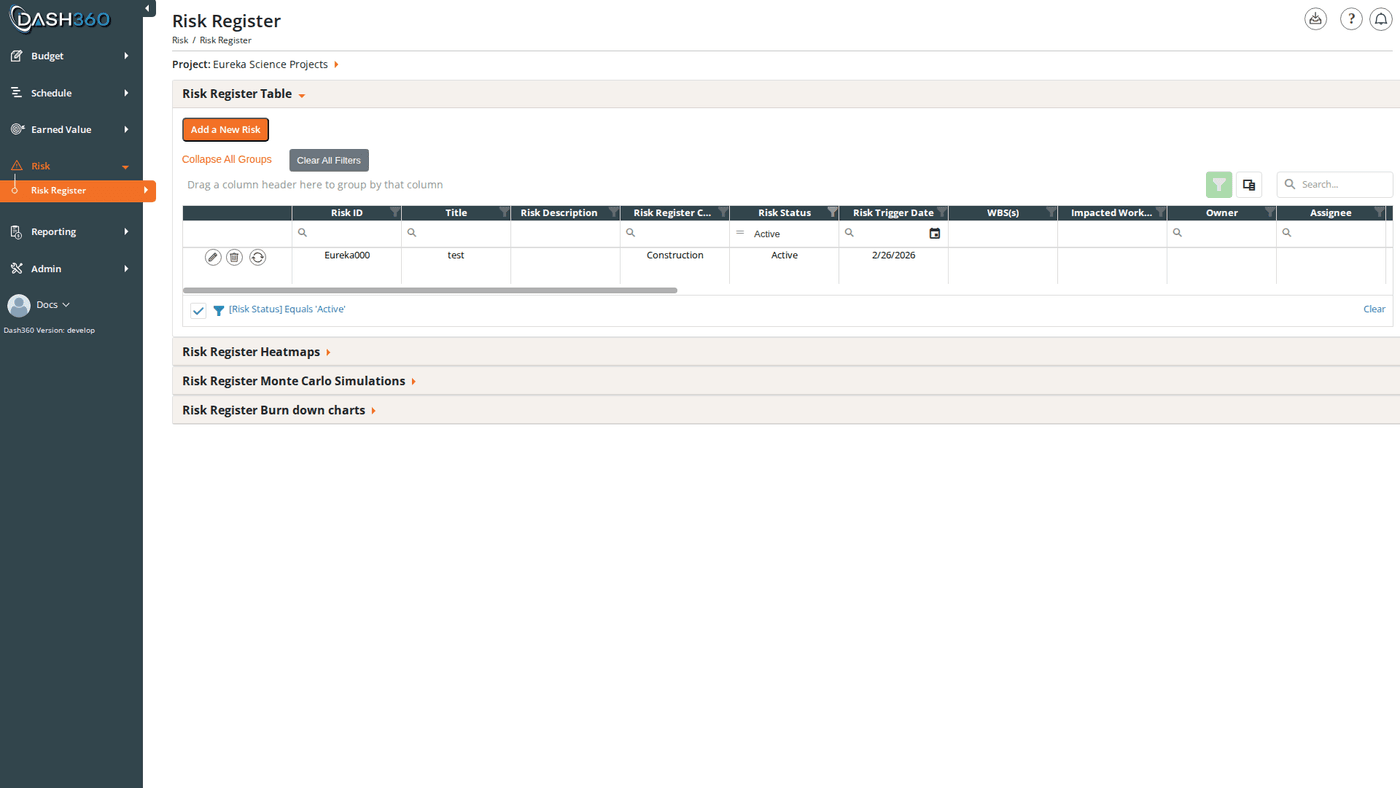
The Risk Register is the central workspace for identifying and managing project risks. It tracks each risk's probability, cost and schedule impact, mitigation plans, and status throughout the project lifecycle. The register is organized into four collapsible sections: the main risk grid, heatmaps, Monte Carlo simulations, and burn down charts.
**URL:** `/Risk/RiskRegister/Index`
## Prerequisites
* A project must be selected to view the Risk Register.
* To add or edit risks, your account must have **Full Access** to the Risk module for the selected project. Accounts with **Read-Only** access can view risks but cannot make changes.
* Risk ID Prefixes must be configured before adding risks. An administrator sets these up in **Admin > Projects > Edit Project**. Examples: `PR-`, `SED-`, `RISK-`.
* Risk thresholds (Cost, Probability, and Schedule) must be configured for the project before the Add/Edit modal can be opened. If thresholds are missing, an error message appears and the modal does not open.
***
## Risk Register Table
### Status Filter
A **Status** multi-select dropdown appears above the grid. You can select one or more statuses to show simultaneously. The default is **Active** only.
Changing the status filter also updates the heatmaps in the Risk Register Heatmaps section to match.
Available status values:
| Status | Meaning |
| ----------------------- | ------------------------------------------------------------------------ |
| **Proposed** | Risk has been identified but not yet confirmed or actively tracked |
| **Active** | Risk is confirmed and being actively monitored and mitigated |
| **Realized (happened)** | The risk event occurred: it is now an issue |
| **Retired** | Risk is no longer relevant (mitigated, expired, or no longer applicable) |
| **Deprecated** | Risk was superseded or replaced by another risk item |
### Grid Columns
| Column | Description |
| -------------------------- | ------------------------------------------------------------------------- |
| **Risk ID** | The unique identifier assigned at creation (e.g., `PR-007`) |
| **Title** | Short descriptive name for the risk |
| **Risk Description** | Full description of the risk |
| **Risk Register Category** | The category this risk belongs to |
| **Risk Status** | Current lifecycle status |
| **Risk Trigger Date** | The date at which the risk may be triggered or is expected to materialize |
| **WBS(s)** | WBS elements associated with the risk |
| **Impacted Work Packages** | Work packages that would be affected if the risk occurs |
| **Owner** | The person responsible for monitoring and managing the risk |
| **Assignee** | The person assigned to execute the mitigation plan |
| **Response** | The planned risk response strategy |
| **Mitigation Plan** | Narrative description of the mitigation plan |
| **Mitigation Status** | Current state of the mitigation effort |
| **Cost Impact** | Estimated cost if the risk occurs |
| **Probability** | Likelihood the risk occurs (shown as a percentage) |
| **Total Cost Exposure** | Calculated: Cost Impact × Probability |
| **Schedule Impact** | Estimated schedule impact in days |
| **Risk Rank** | Numerical rank (1–5) assigned to the risk |
| **Consequence** | Narrative description of the consequence if the risk occurs |
| **\[Notebook Fields]** | One column per configured notebook field for this project |
| **Date Created** | When the risk was first created |
| **Last Updated** | When the risk was most recently edited |
### Row Actions
Each row has four action buttons:
| Button | Action |
| ---------------------------- | ------------------------------------------------------------------------------------------------------- |
| **Edit** (pencil icon) | Opens the Add/Edit modal pre-filled with this risk's data |
| **Delete** (trash icon) | Deletes the risk after confirmation |
| **History** (clock icon) | Opens the history for this risk. Only visible when History Tracking is enabled in the project registry. |
| **Process icon** (gear icon) | Opens a dropdown with **Rename Risk ID** and **Copy Risk** |
### Toolbar Controls
Above the grid:
* **Add a New Risk**: opens the Add/Edit modal to create a new risk
* **Expand All Groups / Collapse All Groups**: toggles all grouped rows
* **Clear All Filters**: removes all active grid filters
***
## Add or Edit a Risk
Click **Add a New Risk** in the toolbar, or click the **Edit** icon on any existing risk row. Both open the **Add/Edit Risk modal**, which contains four collapsible sections.
### Validation
The following fields are **required**. Saving without them shows an error and the modal does not close:
* Risk ID Prefix (add only)
* Title
* Risk Category
* Risk Type
* Cost Impact
* Probability
* Schedule Impact
### General Section
| Field | Description | Required |
| ---------------------------- | -------------------------------------------------------------------------------------------- | -------------- |
| **Risk ID Prefix** | Select the prefix series for this risk (e.g., `PR-`). Disabled when editing. | Yes (add only) |
| **Risk ID** | Auto-populated with the next sequential ID when a prefix is selected. Disabled when editing. | : |
| **Title** | Short descriptive name for the risk | Yes |
| **Risk Category** | Classification category configured by your administrator | Yes |
| **Risk Type** | Sub-classification type | Yes |
| **Status** | Current lifecycle status. Defaults to **Proposed** for new risks. | Yes |
| **Trigger Date** | The date the risk may be triggered or expected to materialize | No |
| **Risk Description** | Full narrative description of the risk | No |
| **WBS(s)** | Multi-select: choose one or more WBS elements affected by this risk | No |
| **Impacted Work Package(s)** | Multi-select: choose one or more work packages that would be impacted | No |
| **Owner** | Person responsible for managing this risk | No |
| **Assignee** | Person responsible for executing the mitigation plan | No |
Risk IDs are assigned sequentially at save time and cannot be manually entered on a new risk. The Risk ID and Risk ID Prefix fields are locked (disabled) when editing an existing risk. To change a Risk ID, use **Rename Risk ID** from the process icon menu.
### Notebook Fields Section
Contains custom fields configured for your project's risk register. Field types include text, textarea, rich text (WYSIWYG), date, radio buttons, checkboxes, dropdown, code file, and CAM. This section is empty if no notebook fields have been configured.
### Mitigations & Timeline Section
| Field | Description |
| -------------------------- | ----------------------------------------------------------------------- |
| **Risk Response** | The planned response strategy (e.g., Mitigate, Accept, Transfer, Avoid) |
| **Risk Mitigation Plan** | Narrative description of how this risk will be mitigated |
| **Risk Mitigation Status** | Current progress on the mitigation effort |
### Risk Impact Section
This section uses **threshold dropdowns** as a quick-entry aid: selecting a threshold range from the dropdown automatically fills the corresponding numeric field with the threshold's boundary value. You can always override the auto-filled value manually.
| Field | Description | Required |
| ------------------------------ | -------------------------------------------------------------------------------------------------------------------------- | -------- |
| **Cost Impact Thresholds** | Dropdown of configured cost threshold ranges (e.g., "\$0–\$100K - Low"). Selecting one pre-fills **Cost Impact**. | No |
| **Cost Impact (\$)** | The estimated cost if the risk occurs | Yes |
| **Probability Thresholds** | Dropdown of configured probability ranges (e.g., "10%–25% - Low"). Selecting one pre-fills **Probability**. | No |
| **Probability (%)** | The likelihood the risk occurs (0–100) | Yes |
| **Schedule Impact Thresholds** | Dropdown of configured schedule ranges (e.g., "0–30 Days - Low"). Selecting one pre-fills **Schedule Impact**. | No |
| **Schedule Impact (Days)** | Estimated schedule impact in days | Yes |
| **Total Cost Exposure** | Read-only. Auto-calculated: Cost Impact × Probability (as a decimal). Updates whenever Cost Impact or Probability changes. | : |
| **Consequence** | Narrative description of what happens if the risk occurs | No |
### Save Options
* **Save & Close**: saves the risk and closes the modal
* **Save & Add Another**: saves the risk, resets the form, and keeps the modal open (only available when adding a new risk, hidden when editing)
***
## Rename a Risk ID
To assign a risk a different ID without losing any associated data:
1. Click the **process icon** (gear icon) on the risk row.
2. Select **Rename Risk ID**.
3. In the modal, the Existing Risk ID Prefix and Existing Risk ID are shown as read-only.
4. Select a **New Risk ID Prefix**: the New Risk ID field auto-populates with the next sequential ID for that prefix.
5. Optionally edit the New Risk ID manually.
6. Click **Save & Close**.
***
## Copy a Risk
To create a new risk based on an existing one:
1. Click the **process icon** (gear icon) on the risk row.
2. Select **Copy Risk**.
3. In the modal:
* Select a **Risk ID Prefix** for the new risk; the **Risk ID** field auto-populates.
* Enter a **Title** for the new risk.
4. Click **Copy & Close**.
All data from the source risk is copied to the new risk. Edit the copy to adjust any fields as needed.
***
## Delete a Risk
Click the **Delete** icon on the risk row and confirm.
Deleting a risk is permanent. All associated mitigation data, notebook entries, and simulation inputs are removed. Consider changing the status to **Retired** or **Deprecated** instead if you want to preserve history.
***
## Risk Register Heatmaps
Click the **Risk Register Heatmaps** accordion to expand it. The section renders three heatmaps side by side, each plotting **Probability** on one axis against a risk dimension on the other axis:
| Heatmap | Axes |
| ----------------- | ----------------------------- |
| **Cost Risk** | Probability × Cost Impact |
| **Schedule Risk** | Probability × Schedule Impact |
| **Risk Ranking** | Probability × Risk Rank |
Each cell shows the **count** of risks falling in that probability/impact range. Cells are color-coded:
* **Green**: low combined exposure
* **Yellow**: moderate combined exposure
* **Red**: high combined exposure
**Clicking any cell filters the Risk Register grid** to show only the risks in that range. To clear the filter, click **Clear All Filters** above the grid.
The heatmaps reflect whichever statuses are currently selected in the Status filter.
If risk thresholds have not been configured for the project, the heatmaps display a message prompting your administrator to complete the threshold setup.
***
## Risk Register Monte Carlo Simulations
Expand the **Risk Register Monte Carlo Simulations** accordion. This section is only shown when there is at least one risk in the project.
### Running a Simulation
1. Set **Simulation Iterations**: the number of times to simulate the portfolio (must be between **10 and 50,000**; default is **1,000**).
2. Click **Run Monte Carlo simulation**.
3. A spline chart appears showing the **cumulative cost distribution** across all iterations. The x-axis is the simulation iteration index (0–1,000 by default); the y-axis is the total risk cost in dollars. Hover a point to see the dollar value.
The simulation runs against the risks currently visible in the grid based on the Status filter. Each iteration independently draws a random outcome for each risk (either the full Cost Impact if the random value falls within the probability, or zero).
### Saving a Simulation
After running, a **Simulation Title** field and **Save Simulation** button appear below the chart.
1. Enter a title for this simulation run.
2. Click **Save Simulation**.
The simulation is saved and added to the **Previous Simulations** dropdown.
### Viewing Previous Simulations
If saved simulations exist, a **Previous Simulations** dropdown appears at the top of the section. Select any saved simulation from the dropdown to reload its chart.
***
## Risk Register Burn Down Charts
Expand the **Risk Register Burn down charts** accordion to see how risk exposure has changed over time.
This section is hidden for projects configured to hide burn down charts.
### Burn Down Filters
| Filter | Description |
| -------------------------- | ------------------------------ |
| **Risk ID Prefix** | Filter by risk prefix series |
| **Risk Category** | Filter by category |
| **Risk ID** | Filter to a specific risk item |
| **WBS** | Filter by WBS element |
| **Impacted Work Packages** | Filter by work package |
| **Owner** | Filter by risk owner |
| **Assignee** | Filter by risk assignee |
Changing any filter refreshes the charts automatically.
### Charts
Two charts are displayed:
* **Cost Burn Down**: total risk cost exposure over time
* **Schedule Burn Down**: total schedule impact exposure over time
***
## Saved Views
The Risk Register supports named saved views that preserve your column layout, grouping, filters, and sort settings.
When viewing a system view, changes to the grid layout are not saved. Switch to a user view to save your preferences.
***
## Grid Features
| Feature | Description |
| ------------------------------ | ----------------------------------------------------------------------------------------- |
| **Expand/Collapse All Groups** | Link above the grid. Toggles all group rows. |
| **Clear All Filters** | Button above the grid. Removes all active grid filters including heatmap-applied filters. |
| **Column chooser** | Add or hide columns including notebook field columns. |
| **Search panel** | Free-text search across all visible columns |
| **Filter row** | Per-column filter inputs; click **Apply Filters** to apply |
| **Header filter** | Click any column header for value-based filtering |
| **Filter panel** | Shows active filter criteria and allows clearing them |
| **Group panel** | Drag columns to add additional grouping levels |
| **Context menu** | Right-click a group row to expand or collapse it individually |
***
## Exporting
Click the **Download** icon in the page header and select **Export as Excel**. The file is saved as `RiskRegister.xlsx` and includes:
| Sheet | Contents |
| ----------------- | --------------------------------------------------------------------------------------------------- |
| **Risk Register** | The current grid data as displayed |
| **Heat Map** | The three heatmap tables with color coding preserved |
| **Monte Carlo** | The Monte Carlo simulation chart image (only included if a simulation chart is currently displayed) |
***
## Overview
The Risk Register is the central workspace for identifying and managing project risks. It tracks each risk's probability, cost and schedule impact, mitigation plans, and status throughout the project lifecycle. The register is organized into four collapsible sections: the main risk grid, heatmaps, Monte Carlo simulations, and burn down charts.
**URL:** `/Risk/RiskRegister/Index`
## Prerequisites
* A project must be selected to view the Risk Register.
* To add or edit risks, your account must have **Full Access** to the Risk module for the selected project. Accounts with **Read-Only** access can view risks but cannot make changes.
* Risk ID Prefixes must be configured before adding risks. An administrator sets these up in **Admin > Projects > Edit Project**. Examples: `PR-`, `SED-`, `RISK-`.
* Risk thresholds (Cost, Probability, and Schedule) must be configured for the project before the Add/Edit modal can be opened. If thresholds are missing, an error message appears and the modal does not open.
***
## Risk Register Table
### Status Filter
A **Status** multi-select dropdown appears above the grid. You can select one or more statuses to show simultaneously. The default is **Active** only.
Changing the status filter also updates the heatmaps in the Risk Register Heatmaps section to match.
Available status values:
| Status | Meaning |
| ----------------------- | ------------------------------------------------------------------------ |
| **Proposed** | Risk has been identified but not yet confirmed or actively tracked |
| **Active** | Risk is confirmed and being actively monitored and mitigated |
| **Realized (happened)** | The risk event occurred: it is now an issue |
| **Retired** | Risk is no longer relevant (mitigated, expired, or no longer applicable) |
| **Deprecated** | Risk was superseded or replaced by another risk item |
### Grid Columns
| Column | Description |
| -------------------------- | ------------------------------------------------------------------------- |
| **Risk ID** | The unique identifier assigned at creation (e.g., `PR-007`) |
| **Title** | Short descriptive name for the risk |
| **Risk Description** | Full description of the risk |
| **Risk Register Category** | The category this risk belongs to |
| **Risk Status** | Current lifecycle status |
| **Risk Trigger Date** | The date at which the risk may be triggered or is expected to materialize |
| **WBS(s)** | WBS elements associated with the risk |
| **Impacted Work Packages** | Work packages that would be affected if the risk occurs |
| **Owner** | The person responsible for monitoring and managing the risk |
| **Assignee** | The person assigned to execute the mitigation plan |
| **Response** | The planned risk response strategy |
| **Mitigation Plan** | Narrative description of the mitigation plan |
| **Mitigation Status** | Current state of the mitigation effort |
| **Cost Impact** | Estimated cost if the risk occurs |
| **Probability** | Likelihood the risk occurs (shown as a percentage) |
| **Total Cost Exposure** | Calculated: Cost Impact × Probability |
| **Schedule Impact** | Estimated schedule impact in days |
| **Risk Rank** | Numerical rank (1–5) assigned to the risk |
| **Consequence** | Narrative description of the consequence if the risk occurs |
| **\[Notebook Fields]** | One column per configured notebook field for this project |
| **Date Created** | When the risk was first created |
| **Last Updated** | When the risk was most recently edited |
### Row Actions
Each row has four action buttons:
| Button | Action |
| ---------------------------- | ------------------------------------------------------------------------------------------------------- |
| **Edit** (pencil icon) | Opens the Add/Edit modal pre-filled with this risk's data |
| **Delete** (trash icon) | Deletes the risk after confirmation |
| **History** (clock icon) | Opens the history for this risk. Only visible when History Tracking is enabled in the project registry. |
| **Process icon** (gear icon) | Opens a dropdown with **Rename Risk ID** and **Copy Risk** |
### Toolbar Controls
Above the grid:
* **Add a New Risk**: opens the Add/Edit modal to create a new risk
* **Expand All Groups / Collapse All Groups**: toggles all grouped rows
* **Clear All Filters**: removes all active grid filters
***
## Add or Edit a Risk
Click **Add a New Risk** in the toolbar, or click the **Edit** icon on any existing risk row. Both open the **Add/Edit Risk modal**, which contains four collapsible sections.
### Validation
The following fields are **required**. Saving without them shows an error and the modal does not close:
* Risk ID Prefix (add only)
* Title
* Risk Category
* Risk Type
* Cost Impact
* Probability
* Schedule Impact
### General Section
| Field | Description | Required |
| ---------------------------- | -------------------------------------------------------------------------------------------- | -------------- |
| **Risk ID Prefix** | Select the prefix series for this risk (e.g., `PR-`). Disabled when editing. | Yes (add only) |
| **Risk ID** | Auto-populated with the next sequential ID when a prefix is selected. Disabled when editing. | : |
| **Title** | Short descriptive name for the risk | Yes |
| **Risk Category** | Classification category configured by your administrator | Yes |
| **Risk Type** | Sub-classification type | Yes |
| **Status** | Current lifecycle status. Defaults to **Proposed** for new risks. | Yes |
| **Trigger Date** | The date the risk may be triggered or expected to materialize | No |
| **Risk Description** | Full narrative description of the risk | No |
| **WBS(s)** | Multi-select: choose one or more WBS elements affected by this risk | No |
| **Impacted Work Package(s)** | Multi-select: choose one or more work packages that would be impacted | No |
| **Owner** | Person responsible for managing this risk | No |
| **Assignee** | Person responsible for executing the mitigation plan | No |
Risk IDs are assigned sequentially at save time and cannot be manually entered on a new risk. The Risk ID and Risk ID Prefix fields are locked (disabled) when editing an existing risk. To change a Risk ID, use **Rename Risk ID** from the process icon menu.
### Notebook Fields Section
Contains custom fields configured for your project's risk register. Field types include text, textarea, rich text (WYSIWYG), date, radio buttons, checkboxes, dropdown, code file, and CAM. This section is empty if no notebook fields have been configured.
### Mitigations & Timeline Section
| Field | Description |
| -------------------------- | ----------------------------------------------------------------------- |
| **Risk Response** | The planned response strategy (e.g., Mitigate, Accept, Transfer, Avoid) |
| **Risk Mitigation Plan** | Narrative description of how this risk will be mitigated |
| **Risk Mitigation Status** | Current progress on the mitigation effort |
### Risk Impact Section
This section uses **threshold dropdowns** as a quick-entry aid: selecting a threshold range from the dropdown automatically fills the corresponding numeric field with the threshold's boundary value. You can always override the auto-filled value manually.
| Field | Description | Required |
| ------------------------------ | -------------------------------------------------------------------------------------------------------------------------- | -------- |
| **Cost Impact Thresholds** | Dropdown of configured cost threshold ranges (e.g., "\$0–\$100K - Low"). Selecting one pre-fills **Cost Impact**. | No |
| **Cost Impact (\$)** | The estimated cost if the risk occurs | Yes |
| **Probability Thresholds** | Dropdown of configured probability ranges (e.g., "10%–25% - Low"). Selecting one pre-fills **Probability**. | No |
| **Probability (%)** | The likelihood the risk occurs (0–100) | Yes |
| **Schedule Impact Thresholds** | Dropdown of configured schedule ranges (e.g., "0–30 Days - Low"). Selecting one pre-fills **Schedule Impact**. | No |
| **Schedule Impact (Days)** | Estimated schedule impact in days | Yes |
| **Total Cost Exposure** | Read-only. Auto-calculated: Cost Impact × Probability (as a decimal). Updates whenever Cost Impact or Probability changes. | : |
| **Consequence** | Narrative description of what happens if the risk occurs | No |
### Save Options
* **Save & Close**: saves the risk and closes the modal
* **Save & Add Another**: saves the risk, resets the form, and keeps the modal open (only available when adding a new risk, hidden when editing)
***
## Rename a Risk ID
To assign a risk a different ID without losing any associated data:
1. Click the **process icon** (gear icon) on the risk row.
2. Select **Rename Risk ID**.
3. In the modal, the Existing Risk ID Prefix and Existing Risk ID are shown as read-only.
4. Select a **New Risk ID Prefix**: the New Risk ID field auto-populates with the next sequential ID for that prefix.
5. Optionally edit the New Risk ID manually.
6. Click **Save & Close**.
***
## Copy a Risk
To create a new risk based on an existing one:
1. Click the **process icon** (gear icon) on the risk row.
2. Select **Copy Risk**.
3. In the modal:
* Select a **Risk ID Prefix** for the new risk; the **Risk ID** field auto-populates.
* Enter a **Title** for the new risk.
4. Click **Copy & Close**.
All data from the source risk is copied to the new risk. Edit the copy to adjust any fields as needed.
***
## Delete a Risk
Click the **Delete** icon on the risk row and confirm.
Deleting a risk is permanent. All associated mitigation data, notebook entries, and simulation inputs are removed. Consider changing the status to **Retired** or **Deprecated** instead if you want to preserve history.
***
## Risk Register Heatmaps
Click the **Risk Register Heatmaps** accordion to expand it. The section renders three heatmaps side by side, each plotting **Probability** on one axis against a risk dimension on the other axis:
| Heatmap | Axes |
| ----------------- | ----------------------------- |
| **Cost Risk** | Probability × Cost Impact |
| **Schedule Risk** | Probability × Schedule Impact |
| **Risk Ranking** | Probability × Risk Rank |
Each cell shows the **count** of risks falling in that probability/impact range. Cells are color-coded:
* **Green**: low combined exposure
* **Yellow**: moderate combined exposure
* **Red**: high combined exposure
**Clicking any cell filters the Risk Register grid** to show only the risks in that range. To clear the filter, click **Clear All Filters** above the grid.
The heatmaps reflect whichever statuses are currently selected in the Status filter.
If risk thresholds have not been configured for the project, the heatmaps display a message prompting your administrator to complete the threshold setup.
***
## Risk Register Monte Carlo Simulations
Expand the **Risk Register Monte Carlo Simulations** accordion. This section is only shown when there is at least one risk in the project.
### Running a Simulation
1. Set **Simulation Iterations**: the number of times to simulate the portfolio (must be between **10 and 50,000**; default is **1,000**).
2. Click **Run Monte Carlo simulation**.
3. A spline chart appears showing the **cumulative cost distribution** across all iterations. The x-axis is the simulation iteration index (0–1,000 by default); the y-axis is the total risk cost in dollars. Hover a point to see the dollar value.
The simulation runs against the risks currently visible in the grid based on the Status filter. Each iteration independently draws a random outcome for each risk (either the full Cost Impact if the random value falls within the probability, or zero).
### Saving a Simulation
After running, a **Simulation Title** field and **Save Simulation** button appear below the chart.
1. Enter a title for this simulation run.
2. Click **Save Simulation**.
The simulation is saved and added to the **Previous Simulations** dropdown.
### Viewing Previous Simulations
If saved simulations exist, a **Previous Simulations** dropdown appears at the top of the section. Select any saved simulation from the dropdown to reload its chart.
***
## Risk Register Burn Down Charts
Expand the **Risk Register Burn down charts** accordion to see how risk exposure has changed over time.
This section is hidden for projects configured to hide burn down charts.
### Burn Down Filters
| Filter | Description |
| -------------------------- | ------------------------------ |
| **Risk ID Prefix** | Filter by risk prefix series |
| **Risk Category** | Filter by category |
| **Risk ID** | Filter to a specific risk item |
| **WBS** | Filter by WBS element |
| **Impacted Work Packages** | Filter by work package |
| **Owner** | Filter by risk owner |
| **Assignee** | Filter by risk assignee |
Changing any filter refreshes the charts automatically.
### Charts
Two charts are displayed:
* **Cost Burn Down**: total risk cost exposure over time
* **Schedule Burn Down**: total schedule impact exposure over time
***
## Saved Views
The Risk Register supports named saved views that preserve your column layout, grouping, filters, and sort settings.
When viewing a system view, changes to the grid layout are not saved. Switch to a user view to save your preferences.
***
## Grid Features
| Feature | Description |
| ------------------------------ | ----------------------------------------------------------------------------------------- |
| **Expand/Collapse All Groups** | Link above the grid. Toggles all group rows. |
| **Clear All Filters** | Button above the grid. Removes all active grid filters including heatmap-applied filters. |
| **Column chooser** | Add or hide columns including notebook field columns. |
| **Search panel** | Free-text search across all visible columns |
| **Filter row** | Per-column filter inputs; click **Apply Filters** to apply |
| **Header filter** | Click any column header for value-based filtering |
| **Filter panel** | Shows active filter criteria and allows clearing them |
| **Group panel** | Drag columns to add additional grouping levels |
| **Context menu** | Right-click a group row to expand or collapse it individually |
***
## Exporting
Click the **Download** icon in the page header and select **Export as Excel**. The file is saved as `RiskRegister.xlsx` and includes:
| Sheet | Contents |
| ----------------- | --------------------------------------------------------------------------------------------------- |
| **Risk Register** | The current grid data as displayed |
| **Heat Map** | The three heatmap tables with color coding preserved |
| **Monte Carlo** | The Monte Carlo simulation chart image (only included if a simulation chart is currently displayed) |
***