> ## Documentation Index
> Fetch the complete documentation index at: https://docs.dash360.com/llms.txt
> Use this file to discover all available pages before exploring further.
# Schedule Status Updates
> An administrator page for reviewing and approving schedule status submissions from CAMs. Approved changes are written back into the live schedule.
 ## Overview
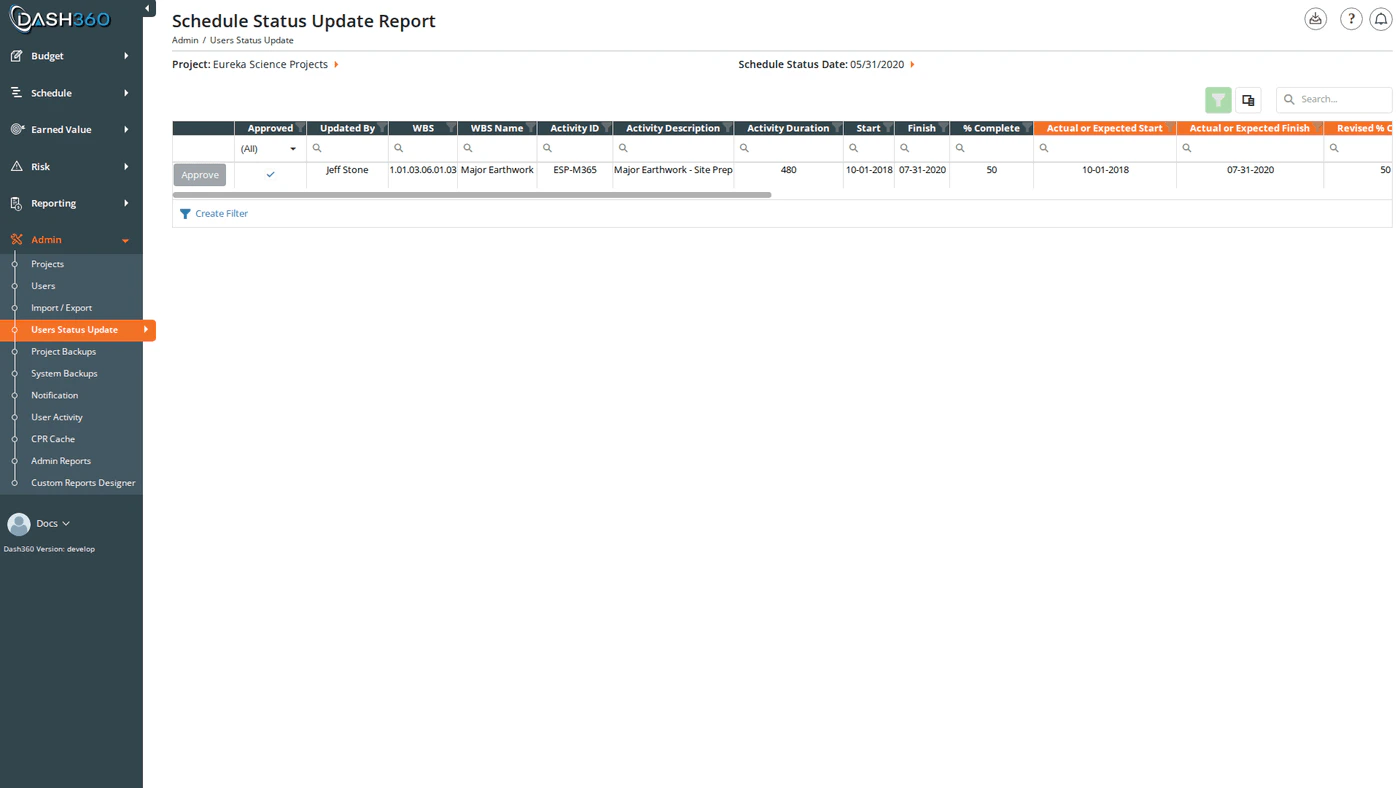
The Schedule Status Updates page is where administrators review, approve, or delete the schedule updates submitted by Control Account Managers through the [Quick Status](/schedule/quick-status) page.
Each row shows one pending submission: the CAM's proposed changes to a single activity alongside the current schedule values, so you can compare before approving. Approved changes are immediately written back to the live schedule.
**URL:** `/Admin/UsersStatusUpdate/Index`
This page only shows submissions that have been **sent to the administrator**. Quick Status entries that a CAM has saved but not yet submitted do not appear here. CAMs submit their updates using the **Send to Admin** button in Quick Status.
## Permissions
This page is accessible to **administrators only**.
***
## Filters
Select a **project** to load submissions. An optional **Schedule Status Date** dropdown filters to submissions from a specific status period; the dropdown is populated with distinct dates from the available submissions.
***
## Reading the Grid
Each row represents one submission for one activity from one CAM:
| Column | Description |
| ----------------------------- | ------------------------------------------------------------------------------------------ |
| **Updated By** | The user who entered the update in Quick Status |
| **CAM** | The Control Account Manager for the work package |
| **WBS** | The WBS code for the activity |
| **WBS Name** | The WBS element name |
| **Activity ID** | The activity's identifier in the schedule |
| **Activity Description** | The activity description |
| **Activity Duration** | The activity's scheduled duration |
| **Start** | The activity's currently scheduled start date |
| **Finish** | The activity's currently scheduled finish date |
| **% Complete** | The activity's current percent complete in the live schedule |
| **Actual or Expected Start** | The CAM's submitted start date (orange header) |
| **Actual or Expected Finish** | The CAM's submitted finish date (orange header) |
| **Revised % Complete** | The CAM's submitted percent complete (orange header) |
| **Delete Activity** | Checked if the CAM is requesting the activity be removed from the schedule (orange header) |
| **Comments** | The CAM's notes explaining the change (orange header) |
| **Work Package** | Work package code |
| **Work Package Name** | Work package description |
| **Added Predecessors** | Predecessor activity IDs added by the CAM |
| **Removed Predecessors** | Predecessor activity IDs removed by the CAM |
| **Added Successors** | Successor activity IDs added by the CAM |
| **Removed Successors** | Successor activity IDs removed by the CAM |
| **Schedule Status Date** | The status period cutoff date for this submission |
| **Last Updated Date** | When this submission was last modified by the CAM |
| **Approved** | Whether the submission has been approved |
The five **orange-header columns** (Actual or Expected Start, Actual or Expected Finish, Revised % Complete, Delete Activity, Comments) are the CAM-submitted values; the same columns that were editable in Quick Status.
***
## Approving Submissions
### Approve a Single Submission
Click **Approve** on a row to immediately apply that submission to the live schedule. Once approved, the Approve button for that row becomes disabled (shown in grey); already-approved rows cannot be re-approved.
What happens when a submission is approved:
* The activity's **start date**, **finish date**, **duration**, **percent complete**, and **activity name** are updated in the live schedule.
* Any **added predecessors and successors** are created as task links in the schedule. Any **removed predecessors and successors** are deleted.
* If **Delete Activity** was checked, the activity and all of its task links are **permanently removed** from the schedule.
* If the submission includes **activity step changes**, those are applied to the live schedule steps: new steps are created, existing steps are updated, and deleted steps are removed.
Approval is immediate and writes directly to the live schedule. Review the proposed changes carefully before approving; there is no undo for approved schedule updates.
### Approve All
The **Approve All** button appears in the grid toolbar when the current view contains at least one unapproved submission. Click it to approve all unapproved submissions in sequence. The button hides automatically once all submissions in the view are approved.
***
## Deleting a Submission
Click **Delete** on a row to discard a submission without approving it. The submission is removed and the CAM's proposed changes are not applied to the schedule. The CAM can re-enter and resubmit corrected values through Quick Status.
Unlike CAMs (who cannot delete their own approved submissions), administrators can delete any submission; including ones that have already been approved.
***
## The CAM's View
CAMs have a complementary read-only view of their own submissions at `/Schedule/ScheduleStatusReport/Index`. That page shows all submissions for their work packages (including ones not yet sent to the administrator) and includes a **Send Schedule Status Updates to the Admin** button to submit unsent entries. Administrators reviewing a submitted update can refer the CAM back to that page if corrections are needed.
***
## Exporting
Click the **Download** icon and select **Export to Excel** to download the current grid view as `Schedule Status Update Report.xlsx`.
***
## Overview
The Schedule Status Updates page is where administrators review, approve, or delete the schedule updates submitted by Control Account Managers through the [Quick Status](/schedule/quick-status) page.
Each row shows one pending submission: the CAM's proposed changes to a single activity alongside the current schedule values, so you can compare before approving. Approved changes are immediately written back to the live schedule.
**URL:** `/Admin/UsersStatusUpdate/Index`
This page only shows submissions that have been **sent to the administrator**. Quick Status entries that a CAM has saved but not yet submitted do not appear here. CAMs submit their updates using the **Send to Admin** button in Quick Status.
## Permissions
This page is accessible to **administrators only**.
***
## Filters
Select a **project** to load submissions. An optional **Schedule Status Date** dropdown filters to submissions from a specific status period; the dropdown is populated with distinct dates from the available submissions.
***
## Reading the Grid
Each row represents one submission for one activity from one CAM:
| Column | Description |
| ----------------------------- | ------------------------------------------------------------------------------------------ |
| **Updated By** | The user who entered the update in Quick Status |
| **CAM** | The Control Account Manager for the work package |
| **WBS** | The WBS code for the activity |
| **WBS Name** | The WBS element name |
| **Activity ID** | The activity's identifier in the schedule |
| **Activity Description** | The activity description |
| **Activity Duration** | The activity's scheduled duration |
| **Start** | The activity's currently scheduled start date |
| **Finish** | The activity's currently scheduled finish date |
| **% Complete** | The activity's current percent complete in the live schedule |
| **Actual or Expected Start** | The CAM's submitted start date (orange header) |
| **Actual or Expected Finish** | The CAM's submitted finish date (orange header) |
| **Revised % Complete** | The CAM's submitted percent complete (orange header) |
| **Delete Activity** | Checked if the CAM is requesting the activity be removed from the schedule (orange header) |
| **Comments** | The CAM's notes explaining the change (orange header) |
| **Work Package** | Work package code |
| **Work Package Name** | Work package description |
| **Added Predecessors** | Predecessor activity IDs added by the CAM |
| **Removed Predecessors** | Predecessor activity IDs removed by the CAM |
| **Added Successors** | Successor activity IDs added by the CAM |
| **Removed Successors** | Successor activity IDs removed by the CAM |
| **Schedule Status Date** | The status period cutoff date for this submission |
| **Last Updated Date** | When this submission was last modified by the CAM |
| **Approved** | Whether the submission has been approved |
The five **orange-header columns** (Actual or Expected Start, Actual or Expected Finish, Revised % Complete, Delete Activity, Comments) are the CAM-submitted values; the same columns that were editable in Quick Status.
***
## Approving Submissions
### Approve a Single Submission
Click **Approve** on a row to immediately apply that submission to the live schedule. Once approved, the Approve button for that row becomes disabled (shown in grey); already-approved rows cannot be re-approved.
What happens when a submission is approved:
* The activity's **start date**, **finish date**, **duration**, **percent complete**, and **activity name** are updated in the live schedule.
* Any **added predecessors and successors** are created as task links in the schedule. Any **removed predecessors and successors** are deleted.
* If **Delete Activity** was checked, the activity and all of its task links are **permanently removed** from the schedule.
* If the submission includes **activity step changes**, those are applied to the live schedule steps: new steps are created, existing steps are updated, and deleted steps are removed.
Approval is immediate and writes directly to the live schedule. Review the proposed changes carefully before approving; there is no undo for approved schedule updates.
### Approve All
The **Approve All** button appears in the grid toolbar when the current view contains at least one unapproved submission. Click it to approve all unapproved submissions in sequence. The button hides automatically once all submissions in the view are approved.
***
## Deleting a Submission
Click **Delete** on a row to discard a submission without approving it. The submission is removed and the CAM's proposed changes are not applied to the schedule. The CAM can re-enter and resubmit corrected values through Quick Status.
Unlike CAMs (who cannot delete their own approved submissions), administrators can delete any submission; including ones that have already been approved.
***
## The CAM's View
CAMs have a complementary read-only view of their own submissions at `/Schedule/ScheduleStatusReport/Index`. That page shows all submissions for their work packages (including ones not yet sent to the administrator) and includes a **Send Schedule Status Updates to the Admin** button to submit unsent entries. Administrators reviewing a submitted update can refer the CAM back to that page if corrections are needed.
***
## Exporting
Click the **Download** icon and select **Export to Excel** to download the current grid view as `Schedule Status Update Report.xlsx`.
***