

Article Structure:
- Title
- Begin with a clear, descriptive title. It should be easy for the reader to understand what the article will cover based on the title.
- Video Placement
- Insert a video, including a table of contents at the top of the article.
- The video should be a visual version of the article.
- Insert a video, including a table of contents at the top of the article.
- Table of Contents
- After the video, include a table of contents.
- Use Heading 3 for the “Table of Contents” header.
- Table of Contents should include any tips/common issues (any of the sticky notes), as well as each step and anything else deemed important.
- Each entry should be linked using HTML anchor links:
-
EXAMPLE (in Table of Contents):

-
EXAMPLE (the anchor within body of article):

- The text inside the quotations must be lowercase, with no spaces or special characters, and must match exactly between the link in the TOC and the anchor in the body of the article.
-
The anchor in the body of the article is to be found in the space (or line) before the section you want the link to jump too. EX:
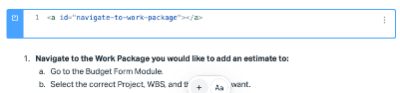
-
EXAMPLE (in Table of Contents):
- Introduction
- After the table of contents, add a short introductory paragraph (2-3 sentences).
- Clearly summarize what the article covers and what the reader will learn. Include a short explanation on the article’s purpose and importance.
Formatting Guidelines:
- Font for photos: Helvetica, Bold, Size 21 for text (size can be adjusted depending on photo, however, adjust accordingly).
- Body style for the article: Normal Text option.
- If breaking down by sections include section title in Heading 3 font. (e.g., Section 1 - Downloading the Schedule Template).
- Steps:
-
Bold the main step (e.g., of how it looks, 1. Download the Schedule Template:)
- If there is something to be mentioned but it doesn’t fit in the hierarchy, add it after the ”:” in the step title or use Shift+Return to add it below. (e.g., 3. Configure MTDC Settings: Inside the MTDC tab, you will set three options.)
- After step title, only bold keywords within a step, avoid entire sentences if possible.
-
Use numbered bullet formatting in the following hierarchy.


-
Bold the main step (e.g., of how it looks, 1. Download the Schedule Template:)
- If there is a part of the article that is not step-by-step (e.g., Key Concepts):
-
Use the regular bullet point function in HelpScout.

-
Use the regular bullet point function in HelpScout.
Visuals:
- Images:
- Include a screenshot (or whatever is best to capture an image of Dash360 software on your screen) after each step.
- Crop the top (search bar) to keep images simple and focus.
-
Add arrows or boxes in the designated color:

- E.g. of an image:
- Callouts (post-it note style, placed under the most relevant step):
- Yellow: Common Issues
- Green: Additional Notes from Practice
- Red: Common Errors
- Blue: Tip(s)
- Grey: How it works (explanation of how it works)
- process wheel (icon)
- Pencil (icon)
- Delete (icon)
- Carrot (for drill-down or flout)
- Column chooser
- Three way to filter on budget form:
- Filter button in column
- Magnifying glass in column
- Create a filter button
- Green funnel is not a filter button it is more of an “of” or “go” button.
- Utilize a key concepts section at the end of the article to explain terminology.
- This should be following a regular bullet point system. Bold the key term. and add a short definition at the end.