3. Download the Codes Data Template from the Dash360 Import/Export tab
4. Copy and Paste your data into the Codes Data Template
a) Code File Name - Name of Code File
b) Code File Description - Description of Code File
c) Code File Name Link - Used when updating data in the Dash360 system. Can leave blank
d) Code File Description Link - Used when updating data in the Dash360 system. Can leave blank
e) Link Order - Used when updating data in the Dash360 system. Can leave blank
f) Code Name - WBS Code
g) Code Description - WBS Name
5. Save your file
6. Choose your file from the Import tab
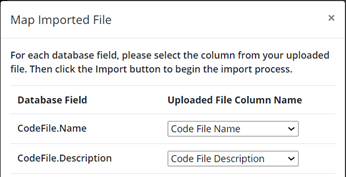
7. Ensure columns were mapped correctly (Database Field matches Column Name)
3. Download the Codes Data Template from the Dash360 Import/Export tab
4. Copy and Paste your data into the Codes Data Template
a) Code File Name - Name of Code File
b) Code File Description - Description of Code File
c) Code File Name Link - Used when updating data in the Dash360 system. Can leave blank
d) Code File Description Link - Used when updating data in the Dash360 system. Can leave blank
e) Link Order - Used when updating data in the Dash360 system. Can leave blank
f) Code Name - WBS Code
g) Code Description - WBS Name
5. Save your file
6. Choose your file from the Import tab
7. Ensure columns were mapped correctly (Database Field matches Column Name)