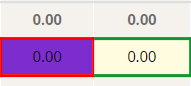
The color of each cell is determined by which threshold has been tripped. In the example above, a cost variance threshold (red shading) and a schedule variance threshold (purple shading) have been tripped. The yellow outline indicates a custom Variance Narrative request from an Administrator. The Administrator has requested a Variance Narrative for this data point even if it is not currently tripping a threshold.
Clicking on a cell will bring up the modal allowing you to create or edit a variance narrative.
The color of each cell is determined by which threshold has been tripped. In the example above, a cost variance threshold (red shading) and a schedule variance threshold (purple shading) have been tripped. The yellow outline indicates a custom Variance Narrative request from an Administrator. The Administrator has requested a Variance Narrative for this data point even if it is not currently tripping a threshold.
Clicking on a cell will bring up the modal allowing you to create or edit a variance narrative.
 Note: To change what reporting period you are collecting the narrative for, you must close the modal and select the new reporting period from the top filters.
After a narrative has been collected for the Work Package, the cell the data populates will be outlined in green as seen below.
Note: To change what reporting period you are collecting the narrative for, you must close the modal and select the new reporting period from the top filters.
After a narrative has been collected for the Work Package, the cell the data populates will be outlined in green as seen below.