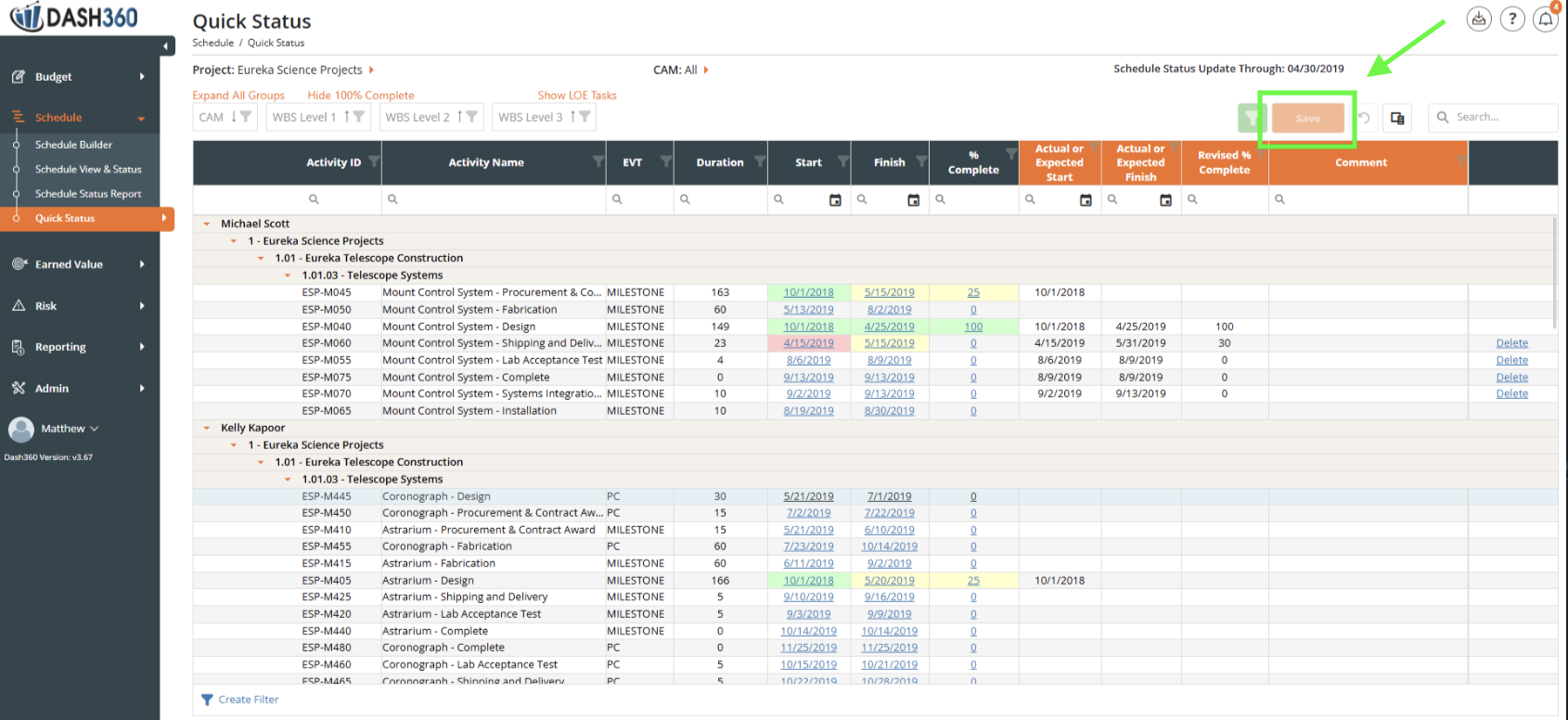
- The Quick Status feature in Dash360 serves as a powerful tool for maintaining up-to-date and accurate project timelines. This feature is typically only utilized for Projects that are in Execution.
- The Quick Status tool is used by Project Mangers, PMCS Managers, and CAMs during the monthly reporting process to reflect real-time changes in Activities’ Status.
- After schedule updates are completed using the Quick Status tool, the Project Controls Team will export out all of the updates and load them into the Source Schedule, which is typically held in an Enterprise Scheduling Tool, such as Primavera P6.
- After the Schedule is finalized in the Enterprise Scheduling Tool for Month End, the Schedule is Imported back into Dash360 to Calculate Earned Value and concluded the reporting period.
Accessing Quick Status
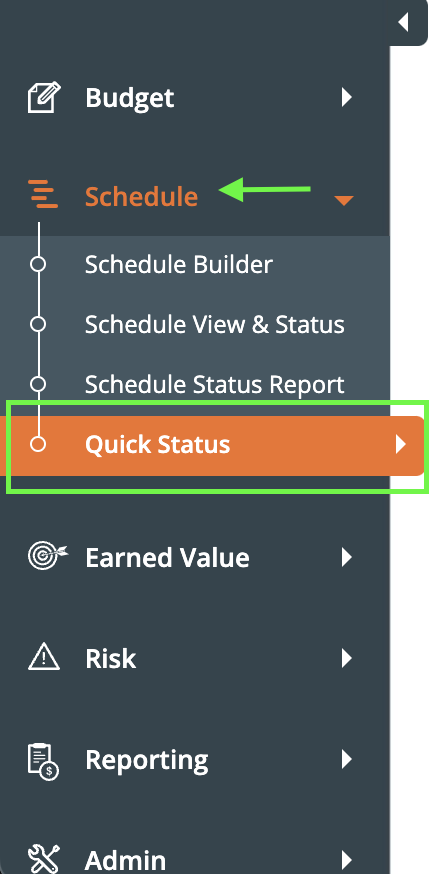
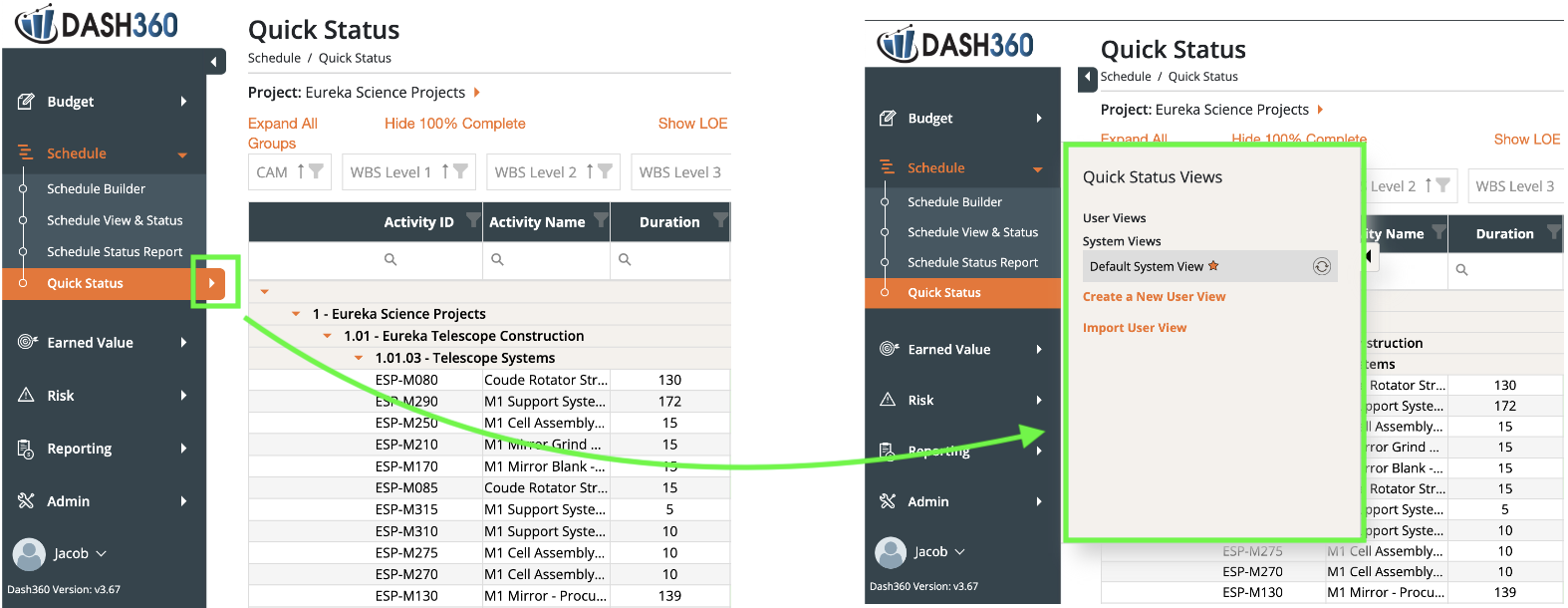
- Navigate to Schedule -> Quick Status
-
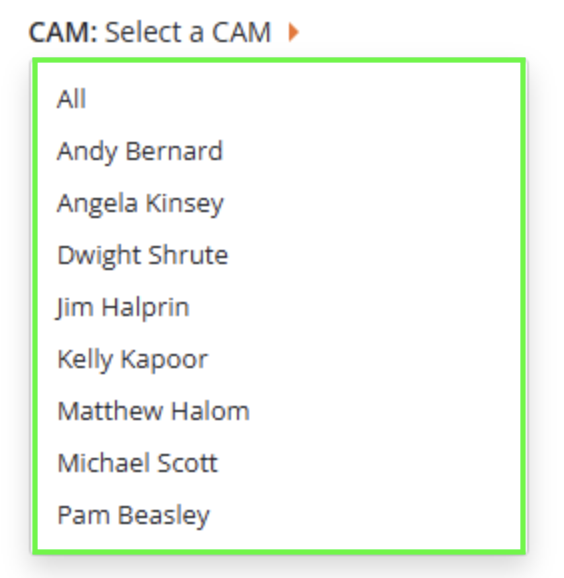
Choose which Project you are providing Schedule Updates for. Also choose if you’d like to look at All Activities, or only activities assigned to Work Packages owned by a particular CAM.
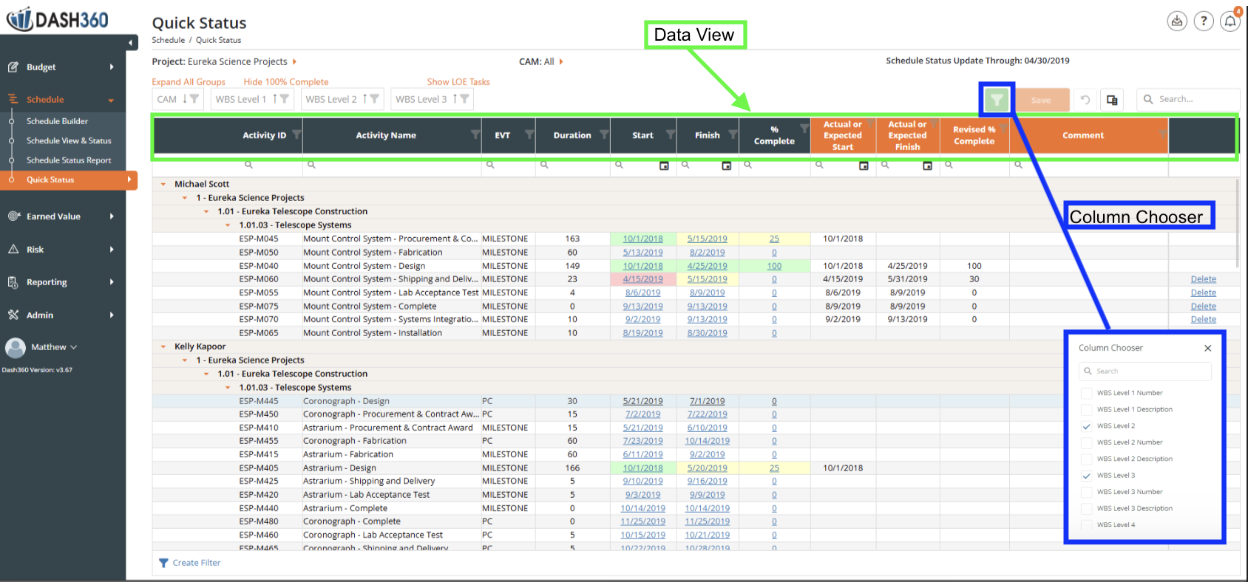
- Once you have selected both the work package and CAM, you will be met with the data view. Here you can design your view - Select the “Column Chooser” to customize the data in the table by selecting desired columns, such as WBS Level, EVT, WP Weight, and WP Notebook Fields. Then you can Group Columns by using the Drag and Drop Feature.
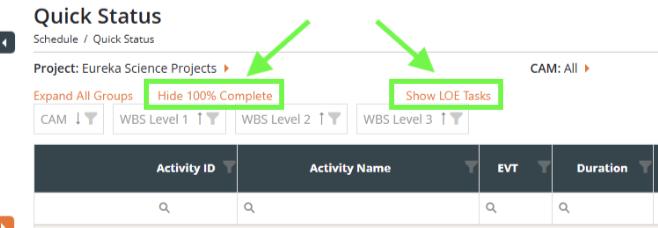
- Choose which Activities to Show on your View
- You have already Filtered by WP, when you made the “CAM” selection.
- If you are a CAM, it is probable that you will want to select only your name to see the specific Activities assigned to your WPs.
- You may choose to Show or Hide Activities that are 100% complete.
- You may choose to Show or Hide Activities assigned to WP with EVT LOE.
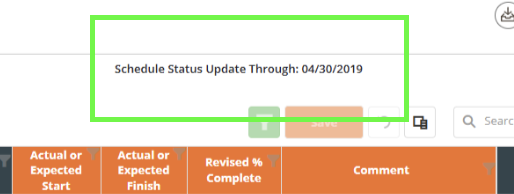
Providing Quick Status Updates
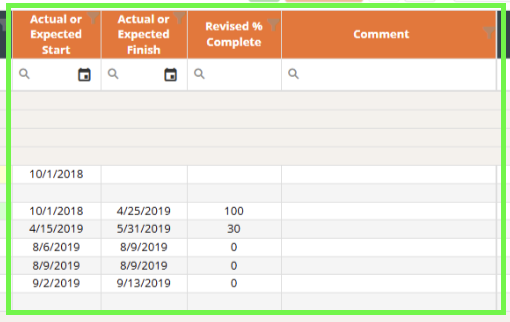
- The Navy Columns in the table show the Data for the current Schedule, while the Orange Columns are for providing updates to the Schedule.

- Start
- Finish
- % Complete
- Actual or Expected Start
- Actual or Expected Finish
- Revised % Complete
- Comments
- This is a good place to indicate logical relationships changes, Activity Owner changes, etc.
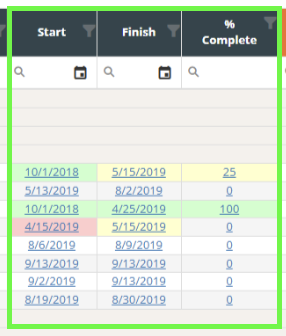
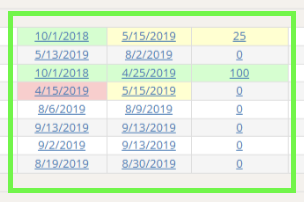
- The Data Grid is color coded to provide insight on where updates are necessary
- Green: The Activity has already started, or already finished.
- Yellow: The Activity has already started, but is not expected to finish in the current month.
- Red: The Activity has already started, and it is expected to finish in the current month.
- After making updates, make sure to save them by clicking the Orange Save Button to record the status updates. These changes will now be available for an Admin to Review in the Admin -> “User Status Update” page.