Table of Contents:
How to Input Actuals Reporting Loading actuals into Dash360 is a straightforward three-step process conducted through Excel imports, similar to how budget is imported for Resource Assignments. How to Input Actuals:- Establish resource codes for each actual account you plan to track in the same Project Resource File.
- Here is a sample of a common resource code:
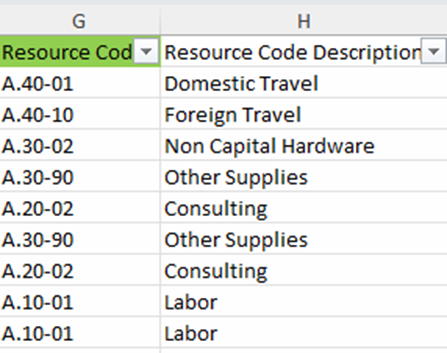
- A.Labor.Chart of Account #
- A.Nonlabor.Chart of Account #
- A.Travel.Chart of Account #
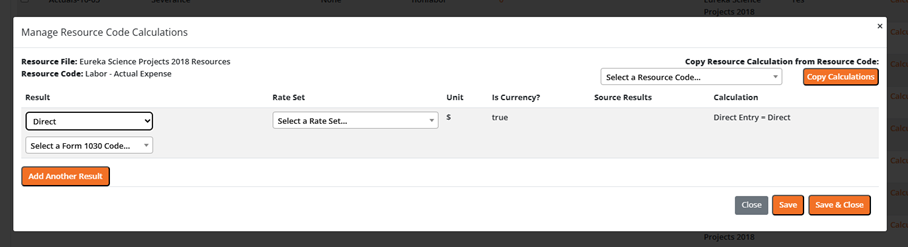
- Set up Resource Calculations for Actuals to use direct entry as the only result. Use the Bulk Edit Feature to efficiently configure calculations for all Actual Resource Codes.
- Import Actuals:
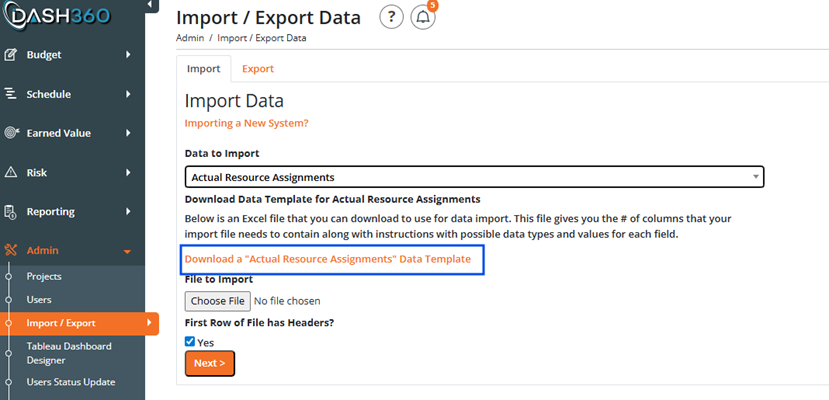
- Navigate to Admin Module.
- Import/Export tab.
- Use the “Actuals Resource Assignment” Import to load your actuals through Excel.
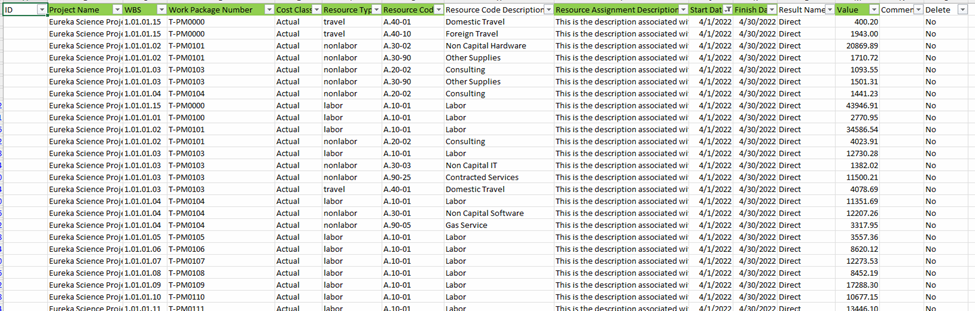
- Activity ID Column - If you are adding a new resource assignment, then leave this field blank. If you are trying to edit or delete a resource assignment, then first export Resource Assignments from Dash360 and this field will be supplied for you by the system. Do not change this field or enter your own value here or you will get an unexpected result.
- This import also only allows the same Resource Code once per work package. It is not necessary to supply the Resource Assignment ID as Dash360 will assign it automatically if there is an existing record where the following fields already match for the record (WBS, WP, Cost Class, Resource Code, and Resource Assignment Description).
- Cost Class Curves – This report provides a graphical view of budget versus actuals over time, making it easy to visualize spending trends and variances. You can find this report in the Reporting Module.
- CPR – Although this report is designed for earned value management and shows variances based on earned value, the Dash360 CPR also includes a “Balance” column that displays the delta between budget and actuals (Budget - Actuals). This makes it a useful tool for both earned value analysis and straightforward budget variance tracking.
- Compare Cost Classes Report – This report allows you to compare actuals versus budget. Note that this report displays the full budget rather than just the budget allocated to date. You can find this report in the Reporting Module.
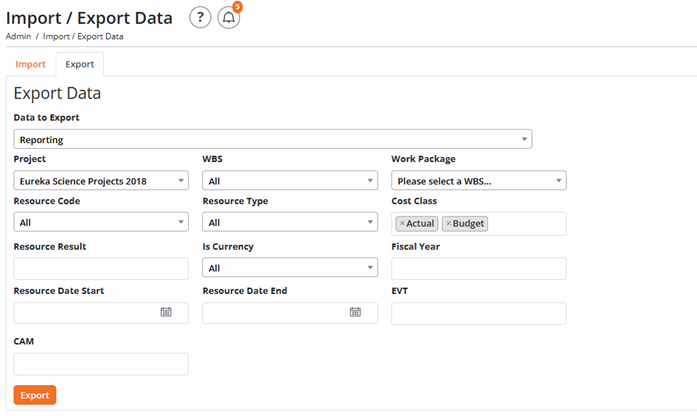
- There are many exports you can do to see Actuals and Budget. A good report that you can use is this one below.