

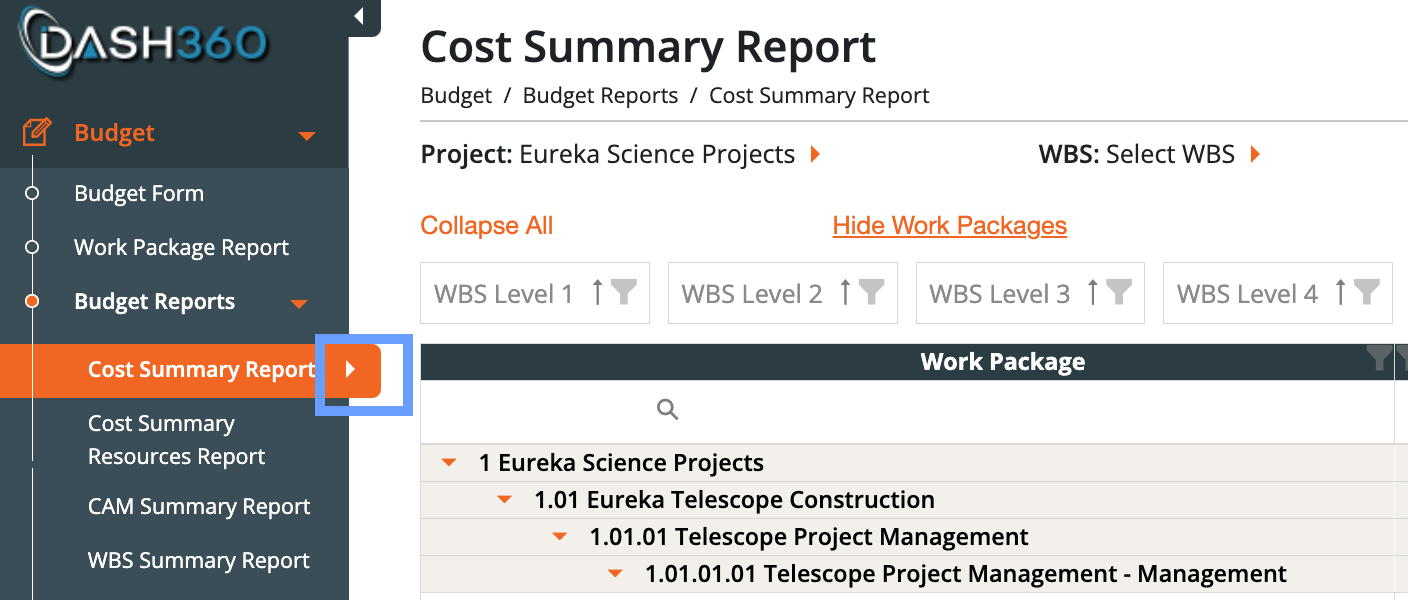
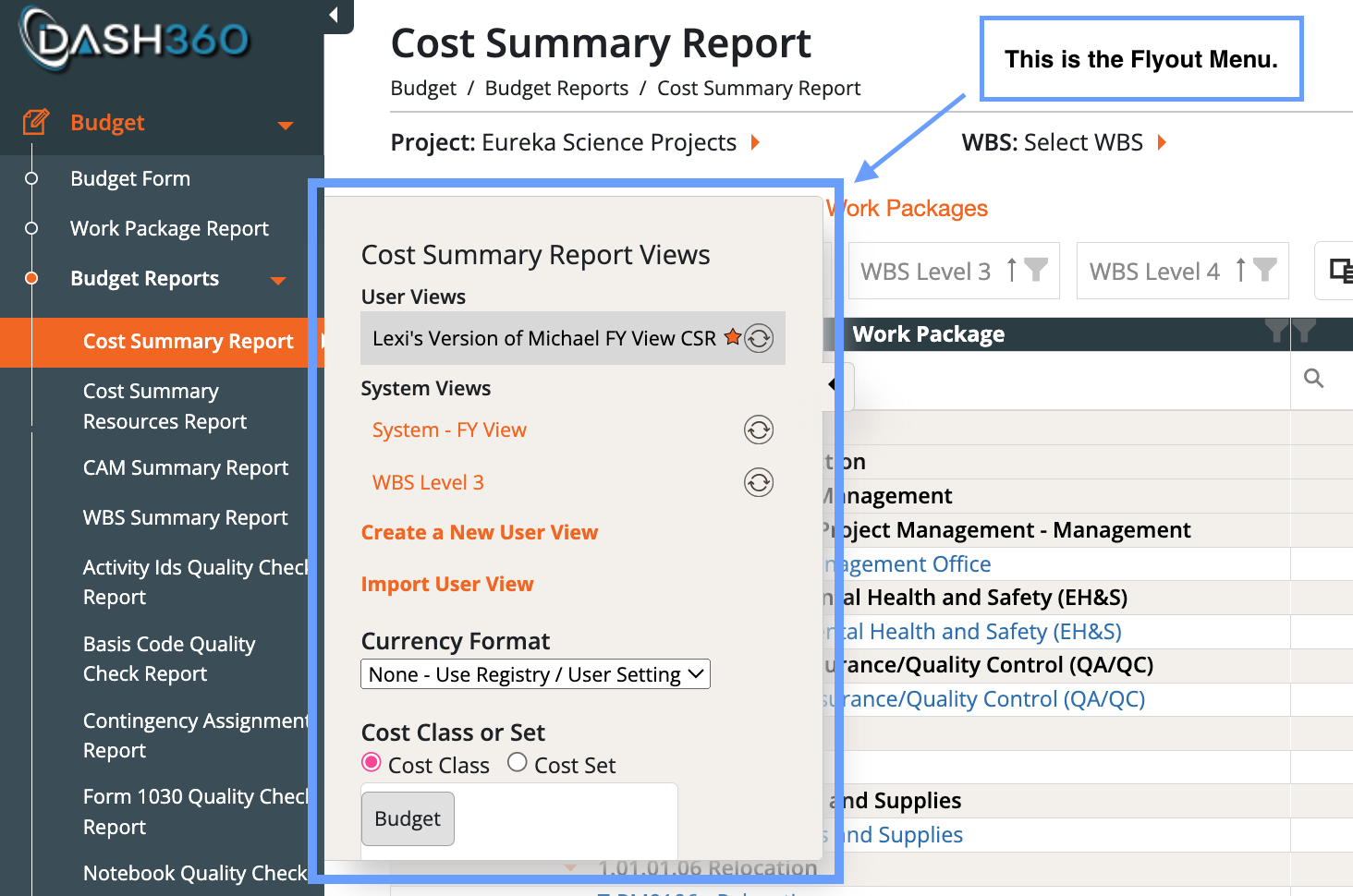
- User Views
- A User View is a personalized configuration of a report or page.
- Adjust filters, table layouts, and settings to your preference (e.g., filtering the Cost Summary Report for a specific CAM).
- Save your setup by creating a new User View — it saves automatically.
- You can create multiple User Views and switch between them anytime.
- Click the process wheel and set a User View as your default view so it opens automatically on new pages.
- A User View is private unless you choose to share it. You can share a User View with another user if needed.
- System Views
- Only administrators can create or edit a System View by copying an existing User View.
- All users can access a System View, but only admins can modify it.
- Currency Box:
- K = values displayed in thousands.
- M = values displayed in millions.
- Cost Class and Cost Set:
- Quickly switch between cost classifications and sets.
- Filtering:
- Filter data (e.g., CAMs) directly from the flyout menu.
- Budget Form, Schedule, and Reports have different flyout options.
- Schedule Page can include a bottom view to display extra details, apply filters, or choose specific activities to view.
- Flyout menus vary depending on the page you’re on. It is suggested to explore each to understand available options.
- User Views save automatically.
- No need to manually save changes.
- Set a default view to streamline your workflow.