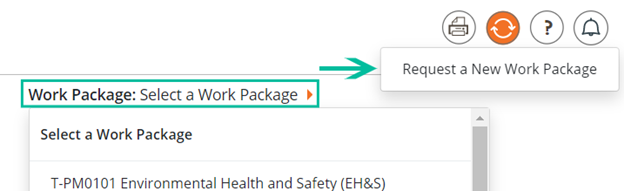
 *Note: To create a Work Package with no prior approval, the current account logged into Dash360 must be an Administrator.
To ASSIGN**,** MOVE**,** COPY**,** RENAME or DELETE a Work Package, a Work Package must be selected in the Work Package Filter.
ASSIGN**:** After selecting Assign an Existing Work Package, a modal will show with a dropdown list containing all UNASSIGNED Work Packages. Selecting a Work Package from the dropdown will assign the Work Package to a Cost Estimate under the currently selected WBS filter.
*Note: To create a Work Package with no prior approval, the current account logged into Dash360 must be an Administrator.
To ASSIGN**,** MOVE**,** COPY**,** RENAME or DELETE a Work Package, a Work Package must be selected in the Work Package Filter.
ASSIGN**:** After selecting Assign an Existing Work Package, a modal will show with a dropdown list containing all UNASSIGNED Work Packages. Selecting a Work Package from the dropdown will assign the Work Package to a Cost Estimate under the currently selected WBS filter.

 Work Package T-T50070 - M1 Assembly will be assigned to WBS 1.01.01.07 Project Management Control System (PMCS)
MOVE**:** Selecting Move Work Package will open a modal (seen below) that will move the CURRENTLY selected Work Package to a desired location within the WBS structure.
Work Package T-T50070 - M1 Assembly will be assigned to WBS 1.01.01.07 Project Management Control System (PMCS)
MOVE**:** Selecting Move Work Package will open a modal (seen below) that will move the CURRENTLY selected Work Package to a desired location within the WBS structure.
 Work Package T-TS0070 M1 Assembly will be moved to WBS 1.01.01.04 Travel
COPY**:** To copy an already existing Work Package, select the Work Package you wish to copy from the filters at the top of the page.
Work Package T-TS0070 M1 Assembly will be moved to WBS 1.01.01.04 Travel
COPY**:** To copy an already existing Work Package, select the Work Package you wish to copy from the filters at the top of the page.
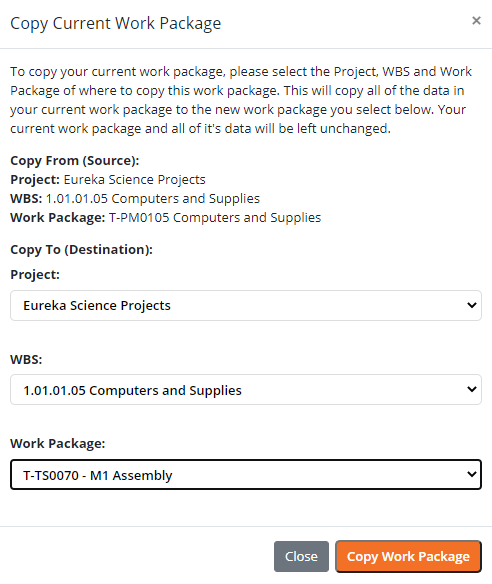
 Then select Copy Work Package from the process menu
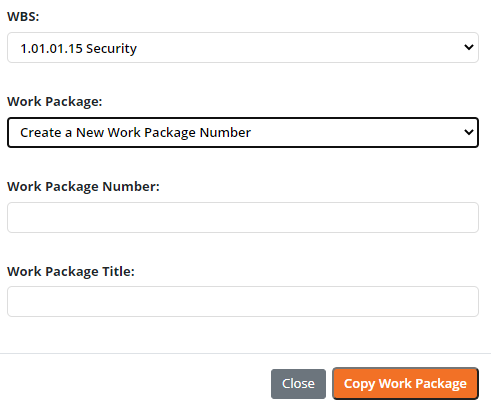
  A modal will show allowing you to select the desired destination of the copied Work Package. Unassigned Work Packages can be chosen for the copy’s name and number, or a new Work Package name and number can be created for the copy.
  Copying to an Unassigned Work Package: