

Overview
The CPR Cache page lets administrators view, generate, and delete the cached Cost Performance Report (CPR) data for each project. CPR data is stored as a generated snapshot per project and reporting period; this cache is what the CPR Report reads when users open it. When CPR data is stale or needs to be rebuilt after an estimate update, administrators use this page to regenerate it.Permissions
Administrator role required.Selecting a Project
Use the Project inline filter at the top of the page to select which project’s CPR cache to view. Selecting a project immediately loads its cache entries into the grid.CPR Cache Grid
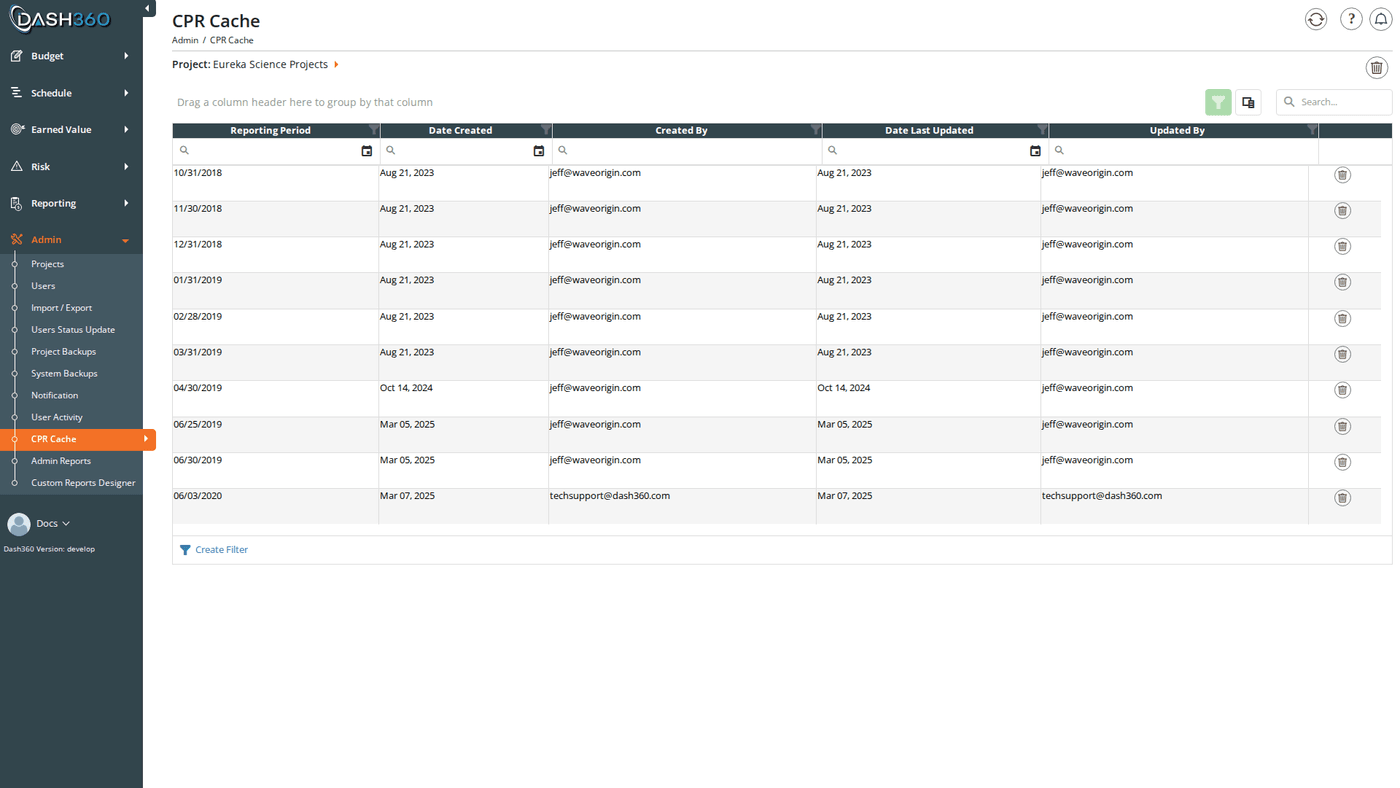
After selecting a project, the grid shows one row per cached CPR snapshot. Each row represents one reporting period’s generated data:
The grid supports a search panel, filter row (Apply Filters button), header filters, filter panel, grouping panel, and column chooser. Paging is set to 20 rows per page, configurable up to 100.
Generating CPR Data
CPR cache is generated one reporting period at a time via the Generate CPR Cache for a Reporting Period option in the process icon menu (the gear/process icon in the top-right of the page header).Steps
- Select a project using the Project inline filter. If no project is selected, the generate option will show an error.
- Click the process icon (top right) to open the process menu.
- Click Generate CPR Cache for a Reporting Period.
- The Generate CPR Cache modal opens. It is pre-titled with the selected project name.
- Select a Reporting Period from the dropdown. The dropdown is populated with all dates from the project’s earned cost estimate time-phase records, in descending order.
- Click Generate.
Generate CPR Cache Modal Fields
If the selected project has no earned cost estimate time-phase records, the modal will not open and an error is shown: “There are no Reporting Periods for this Project.” Earned records are created during resource assignment imports or when earned value is calculated.
Deleting CPR Data
Delete a Single Entry
Click the Delete (trash) icon on any row. A confirmation dialog asks: “Are you sure you want to delete this CPR?” Confirm to remove the CPR snapshot for that reporting period. The CPR Report will not be able to display data for that period until the snapshot is regenerated.Delete All CPR Data for a Project
The Delete All button (red trash icon in the top-right header) removes every CPR snapshot for the selected project at once. A confirmation dialog asks: “Are you sure you want to delete All CPR Reporting Periods?” The Delete All button is only visible when the grid contains at least one row. It is hidden automatically when no cache entries exist.Timestamps
The Date Created and Date Last Updated columns display timestamps converted to the timezone configured via theTime-Zone registry setting. All CPR cache timestamps are stored in UTC and displayed in your local time.
When to Regenerate CPR Data
- After a large resource assignment import
- After approving schedule status updates that affect earned value
- After running Calculate Earned Value from the Projects process menu
- When users report that CPR report data appears outdated or incorrect
- After restoring a project from backup