

Overview
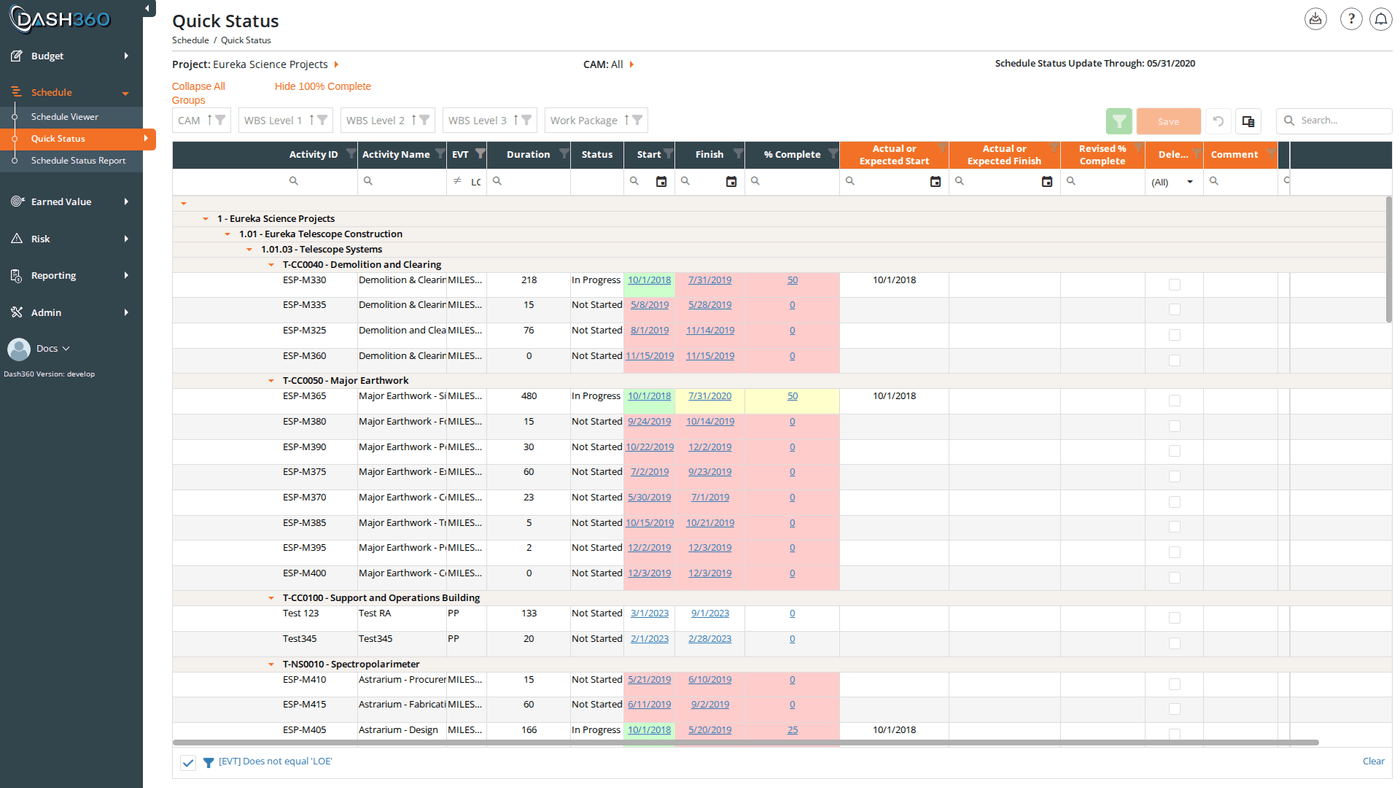
Quick Status is the primary way Control Account Managers submit schedule updates. It displays activities assigned to your work packages with color-coded status indicators, and lets you enter revised dates and percent complete directly in the grid. When you are done, you save your changes and submit them to your administrator for review and approval. Once approved, those changes are written back into the live schedule. URL:/Schedule/QuickStatus/Index
Prerequisites
- Select a project and CAM from the inline filters in the page header.
- You must have Schedule access for at least one work package in the selected project.
Page Layout
The page header contains two inline filters: Project and CAM. Once a CAM is selected, the Schedule Status Update Through: [date] label appears in the header, showing the cut-off date for this update cycle. Above the grid, two quick-action links are available:- Expand All Groups / Collapse All Groups: toggles all WBS group rows at once
- Hide 100% Complete / Show 100% Complete: hides or shows activities already at 100%
Reading the Grid
Grouping
Activities are grouped by CAM, then WBS Level 1, WBS Level 2, and WBS Level 3 by default, then by Work Package. Expand or collapse groups by clicking the group row or using the Expand/Collapse link above the grid.Default Filter
On first load with a system view, Level of Effort (LOE) activities are automatically filtered out. Only measurable activities requiring status updates are shown.Color-Coded Cells
Three read-only columns use background color to signal status at a glance: Start column:
Finish column:
% Complete column:
Columns
Editable columns (shown with an orange column header):
Read-only columns (for reference):
Hidden columns (available via the column chooser):
WBS Level 1–9, WBS Number, WBS Description, Work Package Number, Work Package Description, # of Activity Steps, Work Package Weight, custom fields, and notebook category columns.
Entering Status Updates
Quick-Entry Shortcuts
Clicking the read-only Start cell copies the scheduled start date directly into Actual or Expected Start, giving you a starting point to edit. The same applies to the Finish cell → Actual or Expected Finish, and % Complete → Revised % Complete. This saves typing when the scheduled date is close to the actual date.Auto-Populate on 100% Complete
When you enter 100 in Revised % Complete and move to the next cell, the grid automatically fills in the Actual Start and Actual Finish dates from the scheduled dates if those fields are empty.Fill Down (Ctrl + Drag)
To apply the same value to multiple consecutive rows:- Hold Ctrl. Small triangle handles appear in the lower-right corner of each editable cell.
- Click and drag the triangle handle downward across the rows you want to fill.
- Release to apply the value from the starting cell to all rows in the dragged range.
Marking an Activity for Deletion
Check the Delete checkbox on any row to flag that activity for deletion from the schedule. The row displays with strikethrough text and the Actual/Expected date fields are cleared. The deletion is part of the submission and takes effect only after administrator approval.Activity Steps
If Activity Steps are enabled for the project, a Steps button appears in the row actions column. Click it to open the Activity Steps modal for that activity.Activity Steps Modal
The modal shows two sets of columns side by side; the current baseline values (read-only) and the revised values you can edit: Read-only (baseline):
Editable:
Clicking a read-only cell copies its value into the corresponding Revised field for quick editing.
Adding a step: Click Add Row to insert a new step. Fill in the Revised Step ID, Revised Step Description, Revised Weight, and Revised % Complete for the new step.
Deleting a step: Check the delete option on a step row. The step displays with strikethrough text.
Step percentages and weights roll up to calculate the activity’s overall Revised % Complete on the main grid.
Validation Rules
Dash360 enforces validation rules when you save. If any rule is violated, an error message appears and no data is saved until all errors are corrected. Columns with errors display a red outline with an orange background. The rules are configurable by your administrator (some may be turned off for your project). Key rules include:
If a rule fires, a message describes exactly what is required. Contact your administrator if a rule prevents a valid update; rules can be adjusted in Admin > Quick Status Rules.
Saving and Submitting
When your updates are complete, click Save in the grid toolbar.Auto-Send (if enabled)
If the project is configured for automatic submission, your changes are immediately sent to the administrator without any further steps. A success message confirms they have been sent.Review and Send to Admin (standard flow)
If auto-send is not enabled, the Send Quick Status to Admin for Approval modal opens. It shows all of your pending updates in a review grid with the following columns:
You can delete individual entries from the modal grid before sending if you change your mind about a specific activity.
Click Send to Admin to submit all listed updates. The updates are sent to Schedule > Schedule Status Updates where your administrator reviews and approves them.
Submitted changes do not appear in the live schedule until an administrator approves them in Schedule Status Updates.
Withdrawing a Pending Update
If you need to withdraw an update that has been submitted but not yet approved, locate the row in Quick Status and click Delete Status in the row actions. This removes the pending submission. You can then re-enter corrected values and resubmit. If the deletion was accidental, click Restore Status to bring the pending update back.Saved Views
Quick Status supports named saved views that preserve your column layout, grouping, filters, and sort settings. A System View loads by default.When viewing a system view, the message “Currently viewing a system view. Changes will not be saved.” appears at the top right of the grid.