

Overview
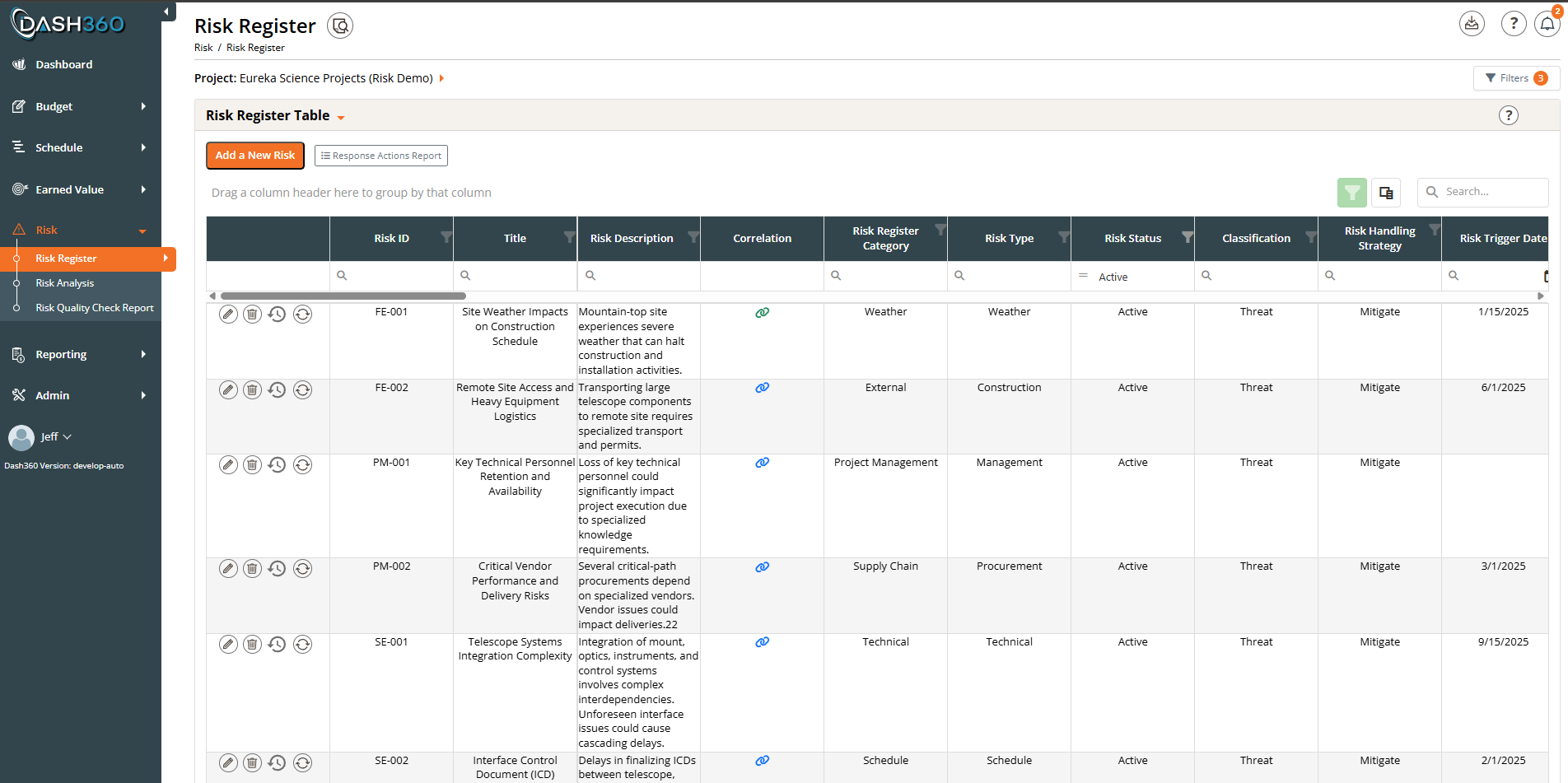
The Risk Register is the central workspace for identifying and managing project risks. It tracks each risk’s probability, cost and schedule impact, mitigation plans, and status throughout the project lifecycle. The register is organized into collapsible sections: the main risk grid, heatmaps, and burn down / analytics charts.The cost and schedule Monte Carlo simulation now lives on the Risk Analysis page, where it runs as one unified engine over these same risks. See How the Dash360 Monte Carlo Works for the full methodology.
/Risk/RiskRegister/Index
Video walkthrough
A full tour of the Risk Register: adding and editing risks, the Risk and Mitigated Risk impact model, heat maps, delta analysis, and the burn down charts.Setting the register up for the first time (risk IDs, categories, types, and thresholds) is covered separately in How to Set Up Risk.
Prerequisites
- A project must be selected to view the Risk Register.
- To add or edit risks, your account must have Full Access to the Risk module for the selected project. Accounts with Read-Only access can view risks but cannot make changes.
- Risk ID Prefixes must be configured before adding risks. An administrator sets these up in Admin > Projects > Edit Project. Examples:
PR-,SED-,RISK-. - Risk thresholds (Cost, Probability, and Schedule) must be configured for the project before the Add/Edit modal can be opened. If thresholds are missing, an error message appears and the modal does not open.
Risk Register Table
The filter bar

- Risk Status (multi-select): one or more statuses to show. Defaults to Active.
- Classification: Threats Only, Opportunities Only, or All. Defaults to Threats Only.
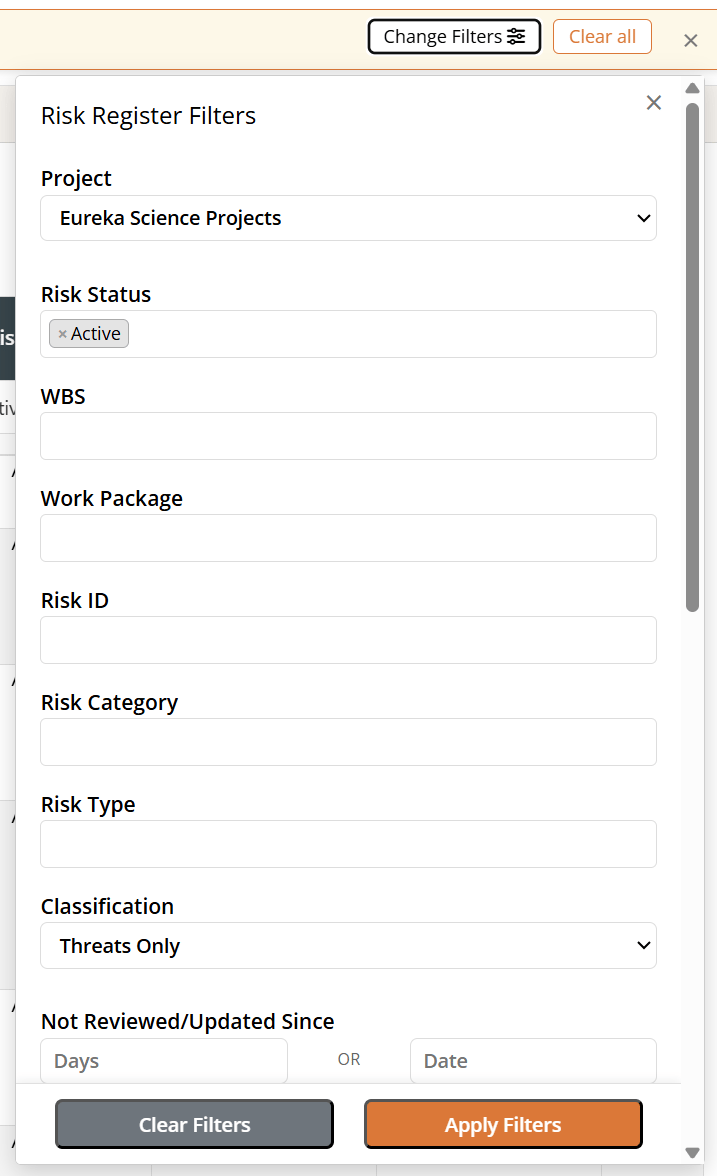
Available Risk Status Definitions:
Grid Columns
The grid exposes a large set of columns. Many are hidden by default and can be turned on with the column chooser (see Grid Features). The impact columns come in two parallel sets, Risk (before your response plan) and Mitigated Risk (after it); see Risk Impact Section for how those values are entered.The Risk and Mitigated Risk labels are configurable per project (they default to “Risk” and “Mitigated Risk”). An administrator can rename them in the project registry, so your project may show different wording throughout the register, the Add/Edit modal, the heatmaps, and the analytics charts.
Identification, mapping, and people
Impact columns (Risk and Mitigated Risk)
Each column below exists twice: a Risk … version (before the response plan) and a Mitigated Risk … version (after it). For example, Risk Probability and Mitigated Risk Probability, or Risk Total Cost Exposure and Mitigated Risk Total Cost Exposure.Audit and custom columns
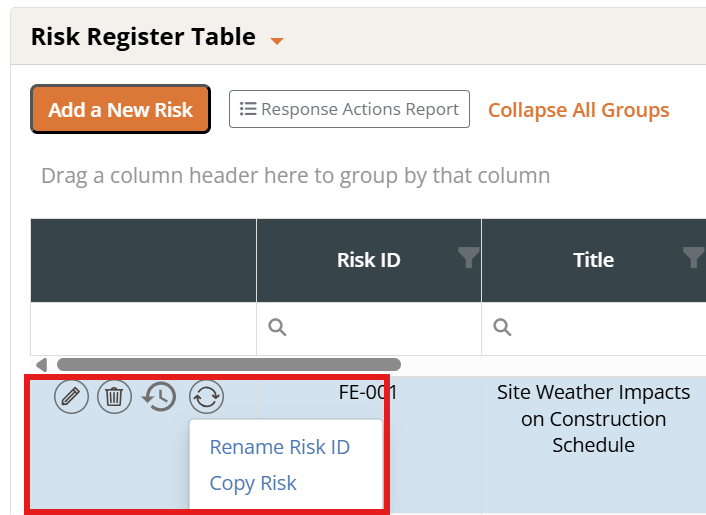
Row Actions
Toolbar Controls
Above the grid, on a single row:- Add a New Risk: opens the Add/Edit modal to create a new risk
- Response Actions Report: opens a report of all response actions across the register (appears once a project is loaded)
- Expand All Groups / Collapse All Groups: toggles all grouped rows
Add or Edit a Risk
Click Add a New Risk in the toolbar, or click the Edit icon on any existing risk row. Both open the Add/Edit Risk modal, which contains four collapsible sections.Validation
The following fields are required. Saving without them shows an error and the modal does not close:- Risk ID Prefix (add only)
- Title
- Risk Category
- Risk Type
- Cost Impact
- Probability
- Schedule Impact
General Section
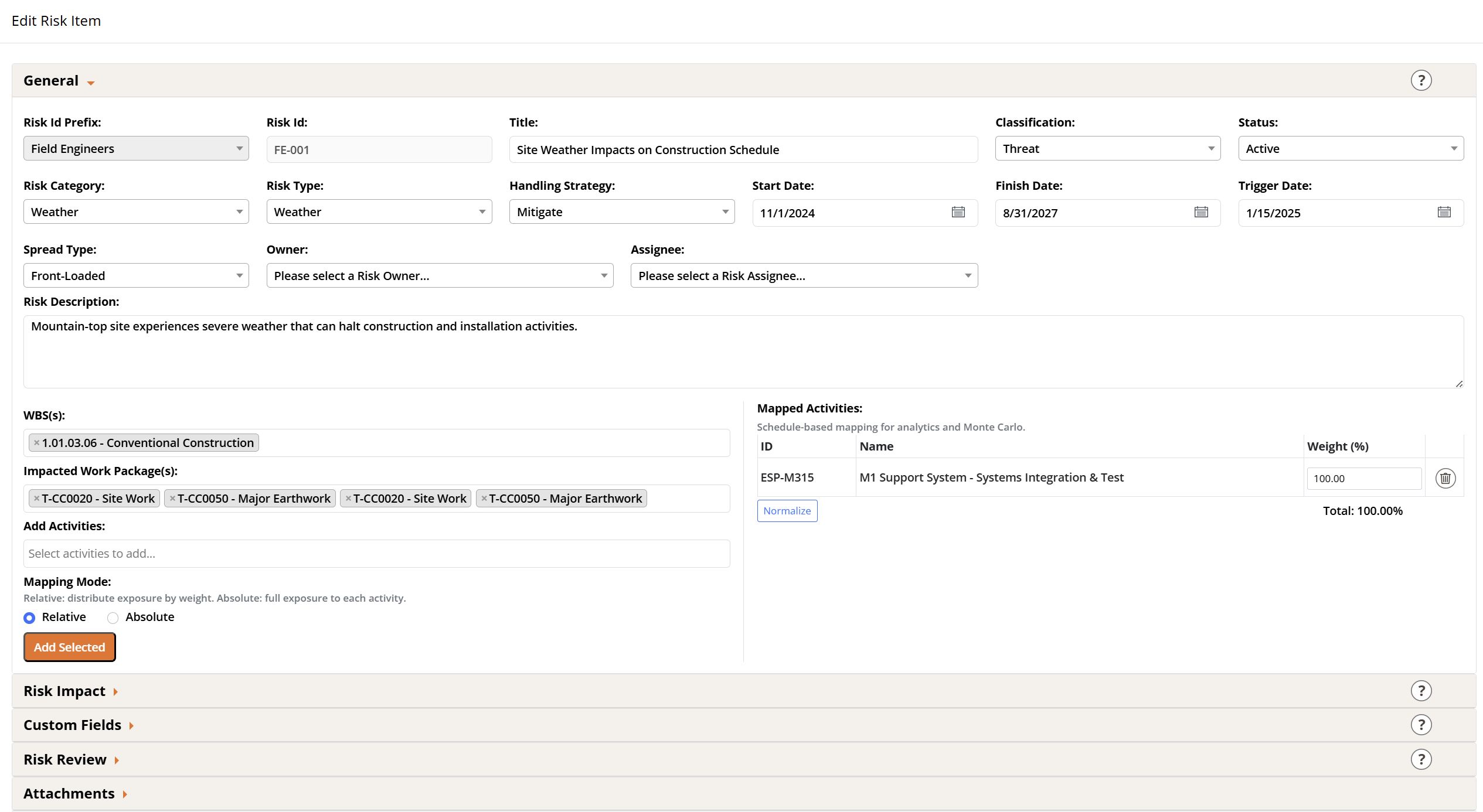
Risk IDs are assigned sequentially at save time and cannot be manually entered on a new risk. The Risk Id and Risk Id Prefix fields are locked (disabled) when editing an existing risk. To change a Risk ID, use Rename Risk ID from the process icon menu.
Activity Mapping

Activity Mapping is routing, not correlation. It decides where a risk’s schedule impact lands; it does not link risks together. For how mapping differs from Risk-to-Risk and Activity-to-Activity correlation, see Correlation and Activity Mapping.
- Add Activities: a multi-select of project activities. Choose one or more, then click Add Selected to move them into the Mapped Activities grid.
- Mapping Mode: how the risk’s schedule impact is routed across its mapped activities:
- Relative (default): distribute the impact across activities by each activity’s Weight (%).
- Absolute: apply the full impact to each mapped activity.
- Mapped Activities grid: lists each mapped activity with its ID, Name, and editable Weight (%), plus a remove button. A running Total is shown; use Normalize to scale the weights so they sum to 100%. A warning appears if the weights do not total 100%.
Risk Impact Section
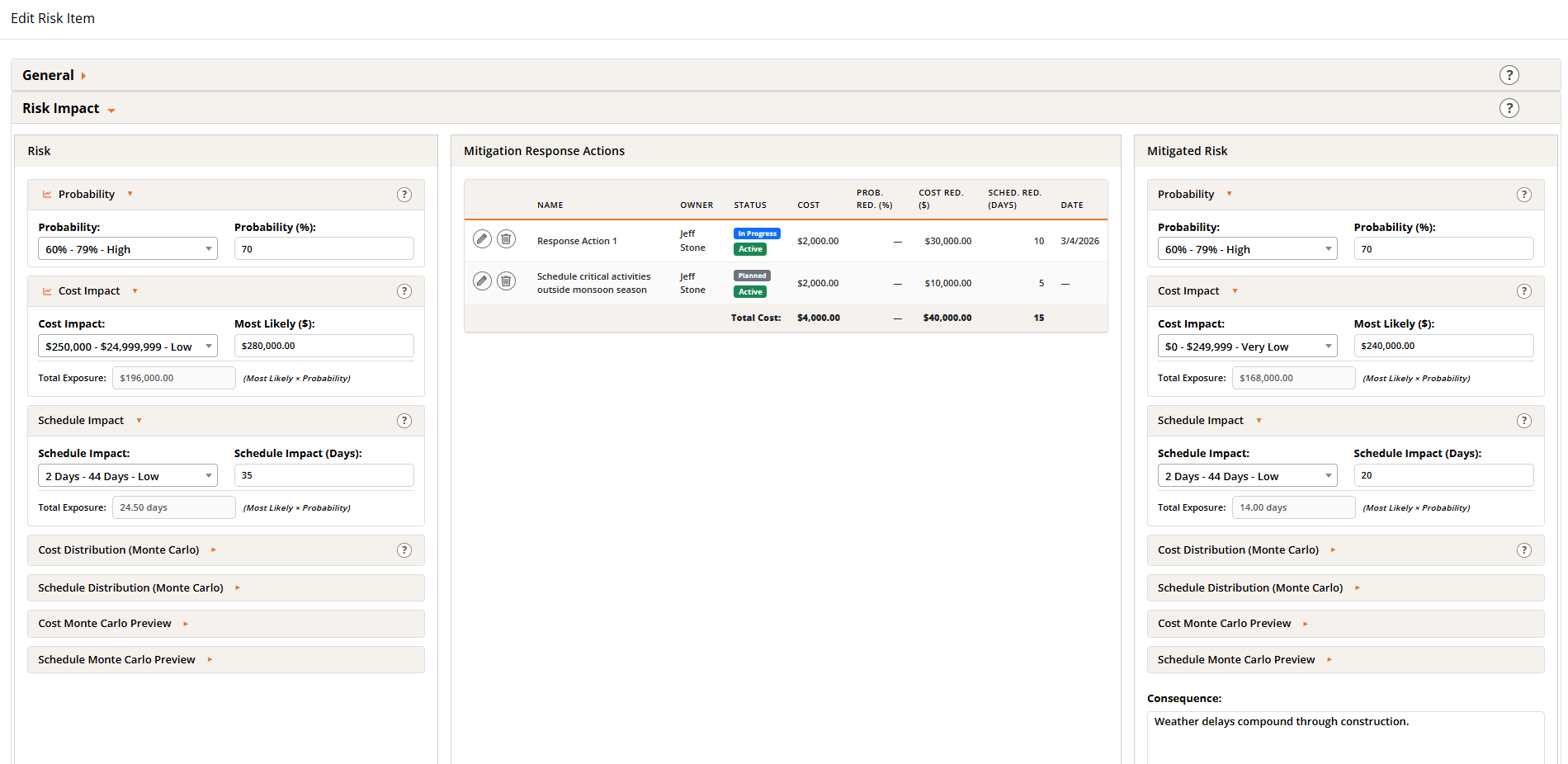
In Lite mode, the fields whose only consumer is a Pro feature (Start Date, Finish Date, and Add Activities, which feed time-phasing, the schedule simulation, and the activity drivers) show a PRO badge, and the Correlation grid column is hidden. In Pro mode all of them are fully available.Probability and Cost Impact carry no badge, because they are the primary inputs to the cost Monte Carlo on both tiers.
Risk column
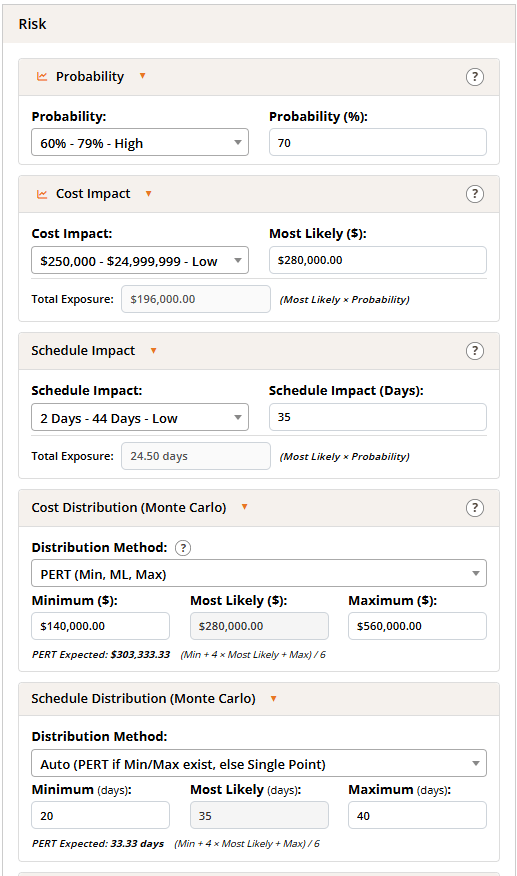
The Risk Assessment sub-section appears only when it is enabled in the project registry. If it is turned off, the three narrative fields are hidden.
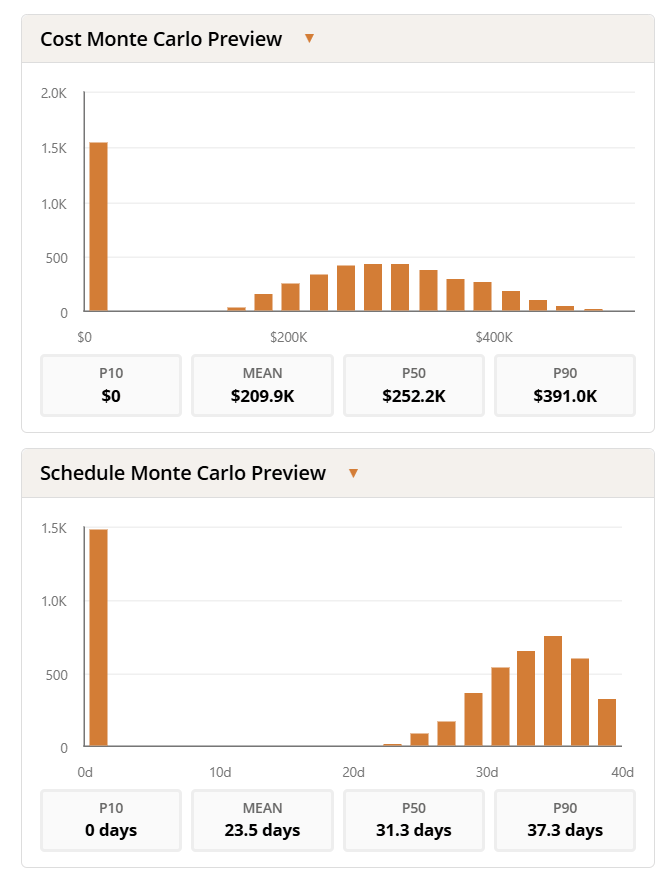
The Distribution Method options each need different inputs: Single Point uses Most Likely only; Triangular and PERT use Min, Most Likely, and Max; Uniform uses Min and Max only. Auto picks PERT when a Min/Max exist, otherwise Single Point. See How the Dash360 Monte Carlo Works for how each shape is sampled.
Response Actions (Mitigate and Enhance)
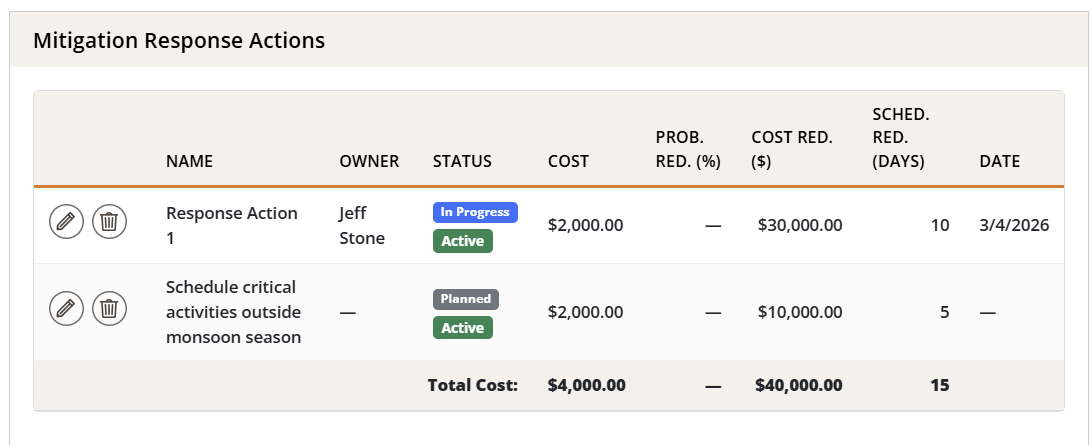
The action table totals the response cost and the combined reductions so you can see the net effect at a glance.
Mitigated Risk column
The Mitigated Risk column holds the impact after the planned response. How many columns the section shows, and whether the Mitigated Risk side is editable, depends on the Handling Strategy: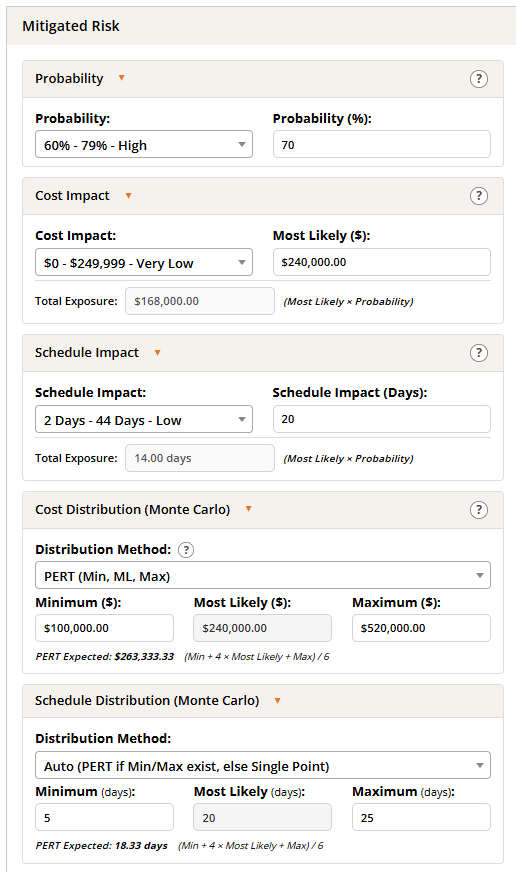
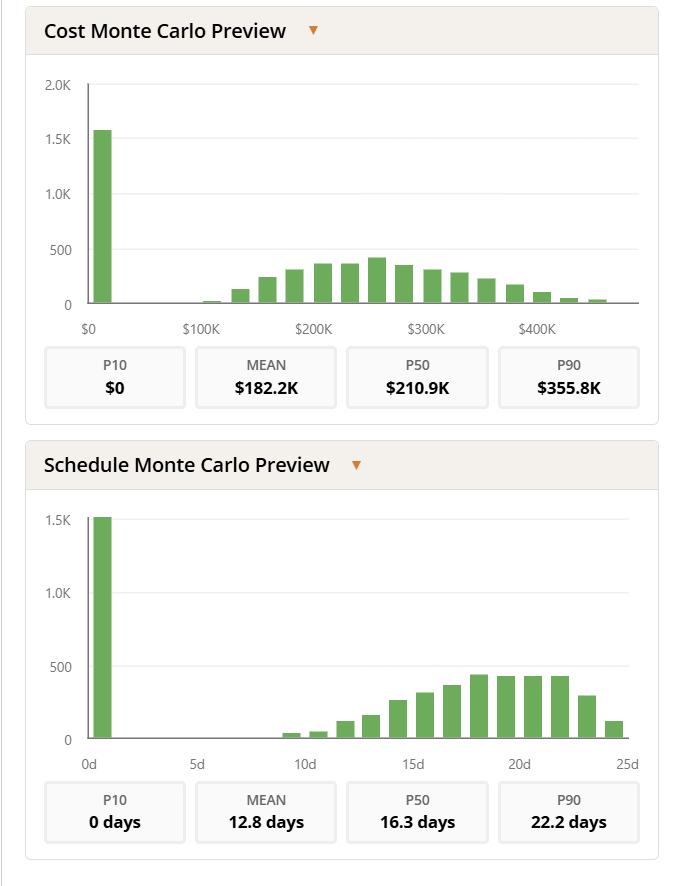
These Risk and Mitigated Risk values, their distributions, and the response actions are exactly what the cost and schedule Monte Carlo samples on the Risk Analysis page. Threats add cost and time; opportunities subtract. See How the Dash360 Monte Carlo Works.
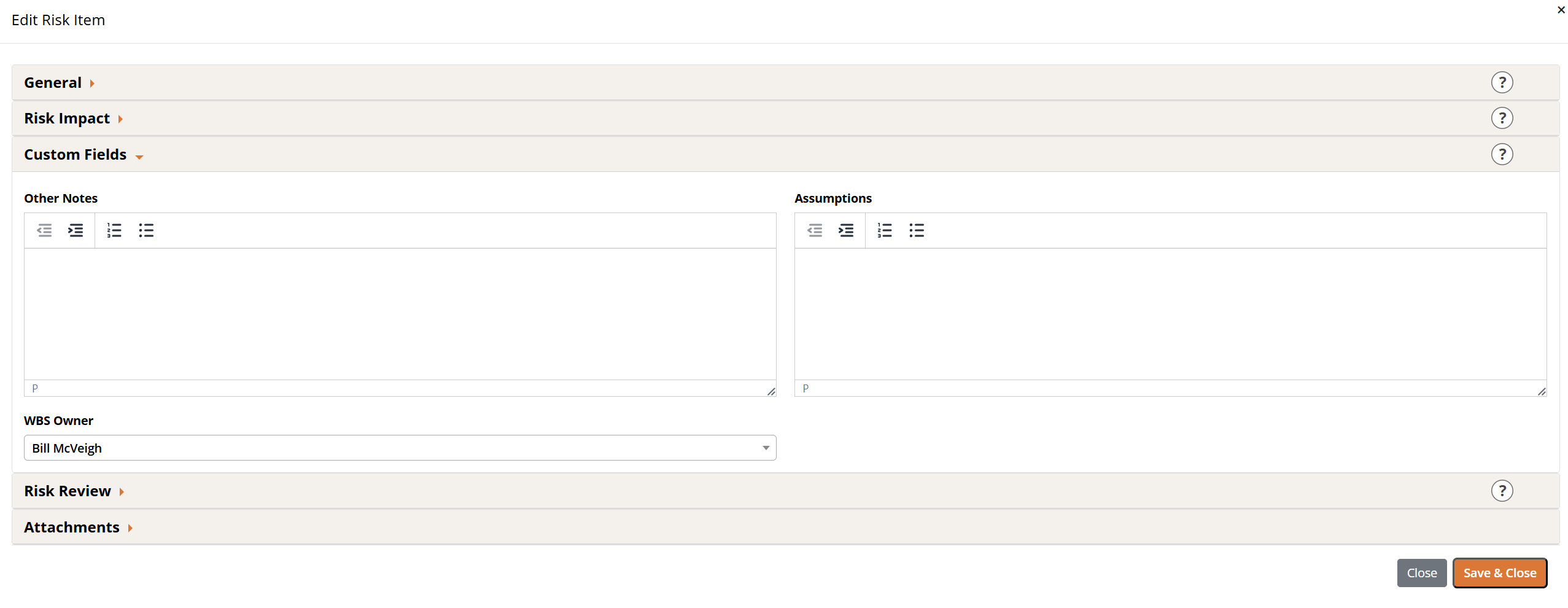
Custom Fields Section
Risk Review
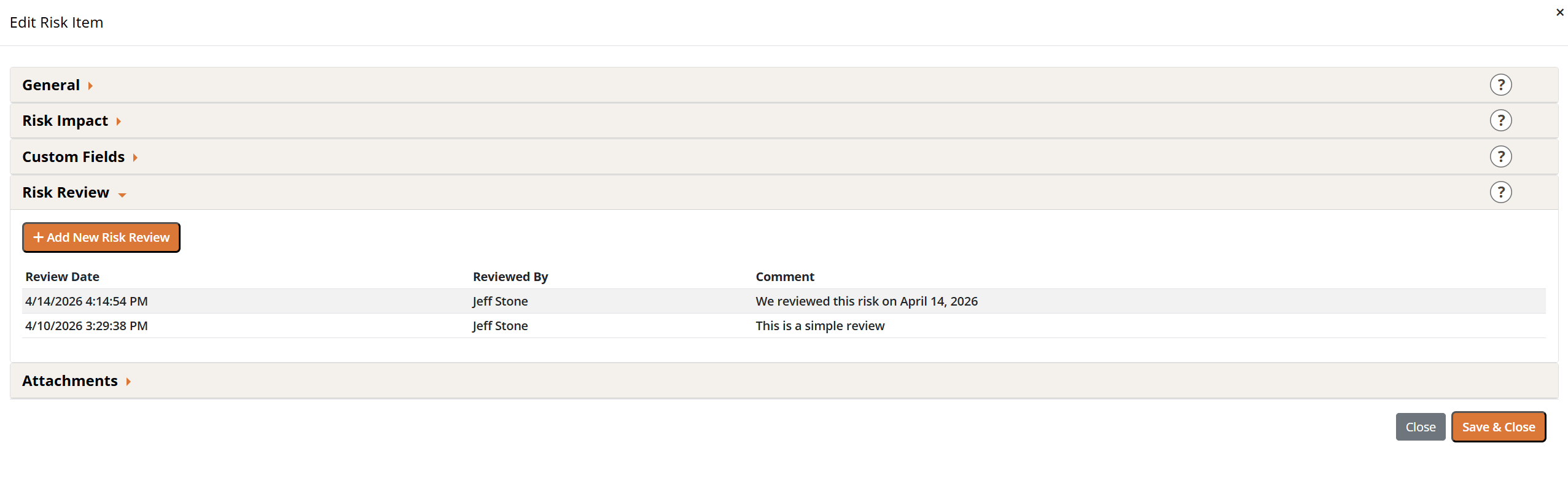
The Risk Review section appears only when reviews are enabled in the project registry. It is hidden while adding a brand-new risk (you must save the risk first).
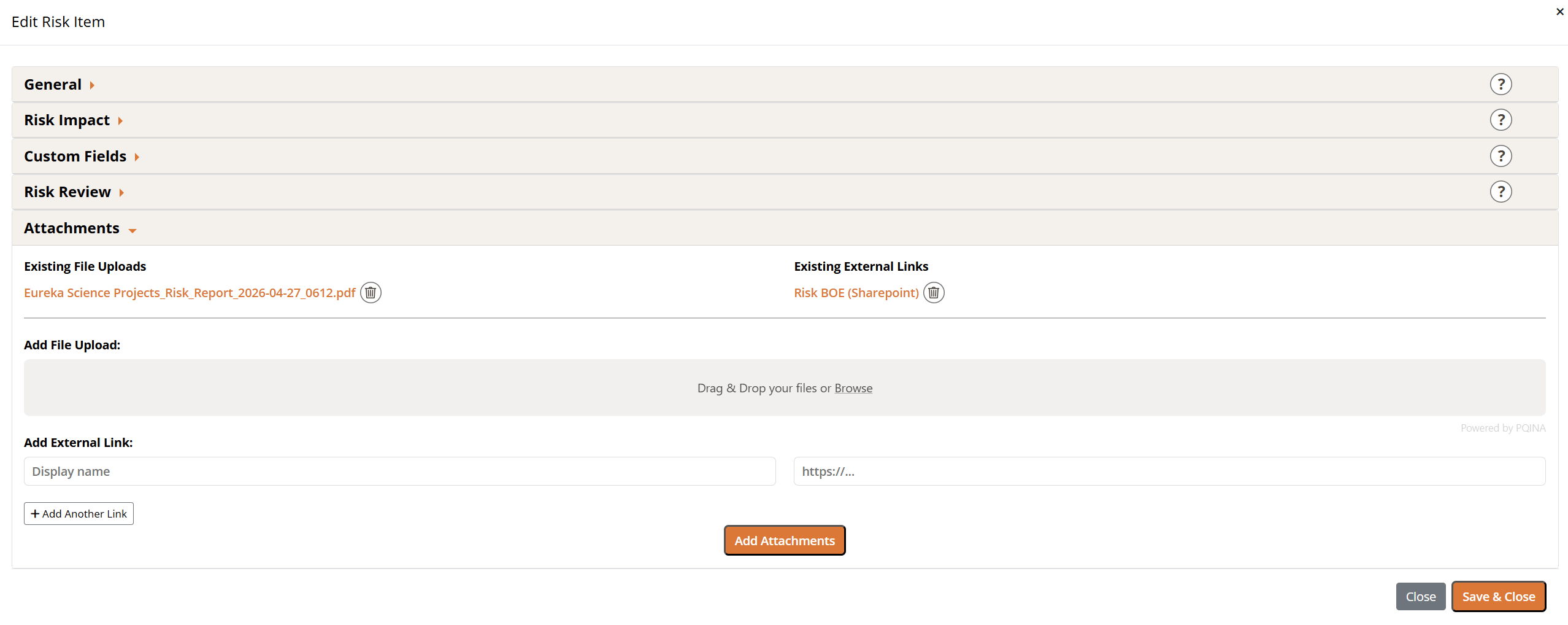
Attachments
Rename a Risk ID
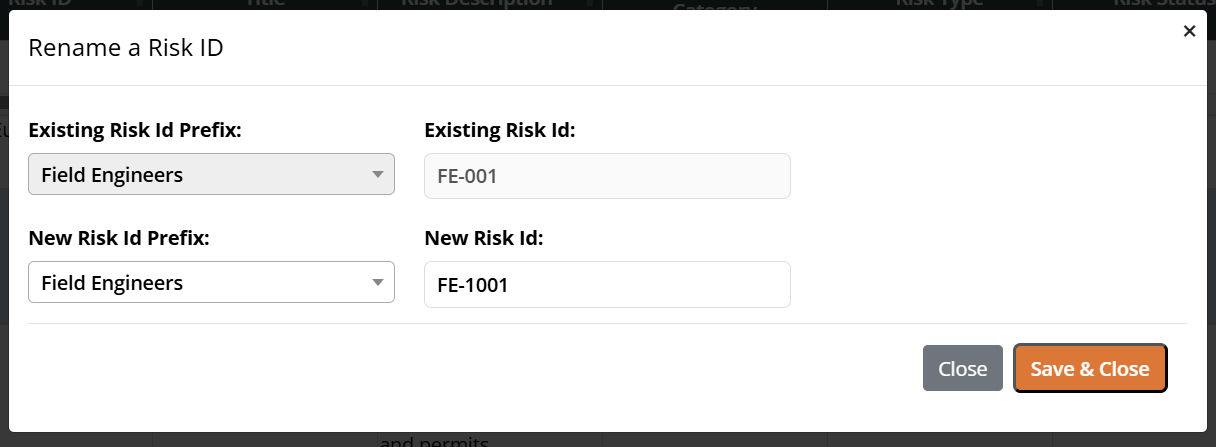
- Click the process icon (gear icon) on the risk row.
- Select Rename Risk ID.
- In the modal, the Existing Risk ID Prefix and Existing Risk ID are shown as read-only.
- Select a New Risk ID Prefix: the New Risk ID field auto-populates with the next sequential ID for that prefix.
- Optionally edit the New Risk ID manually.
- Click Save & Close.
Copy a Risk
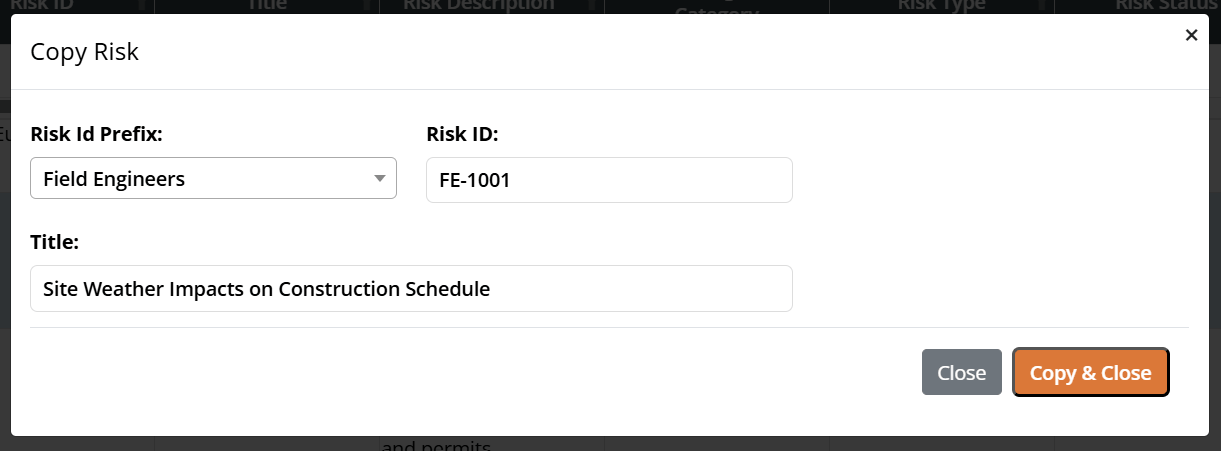
- Click the process icon (gear icon) on the risk row.
- Select Copy Risk.
- In the modal:
- Select a Risk ID Prefix for the new risk; the Risk ID field auto-populates.
- Enter a Title for the new risk.
- Click Copy & Close.
Delete a Risk
Click the Delete icon on the risk row and confirm.Risk Register Heatmaps
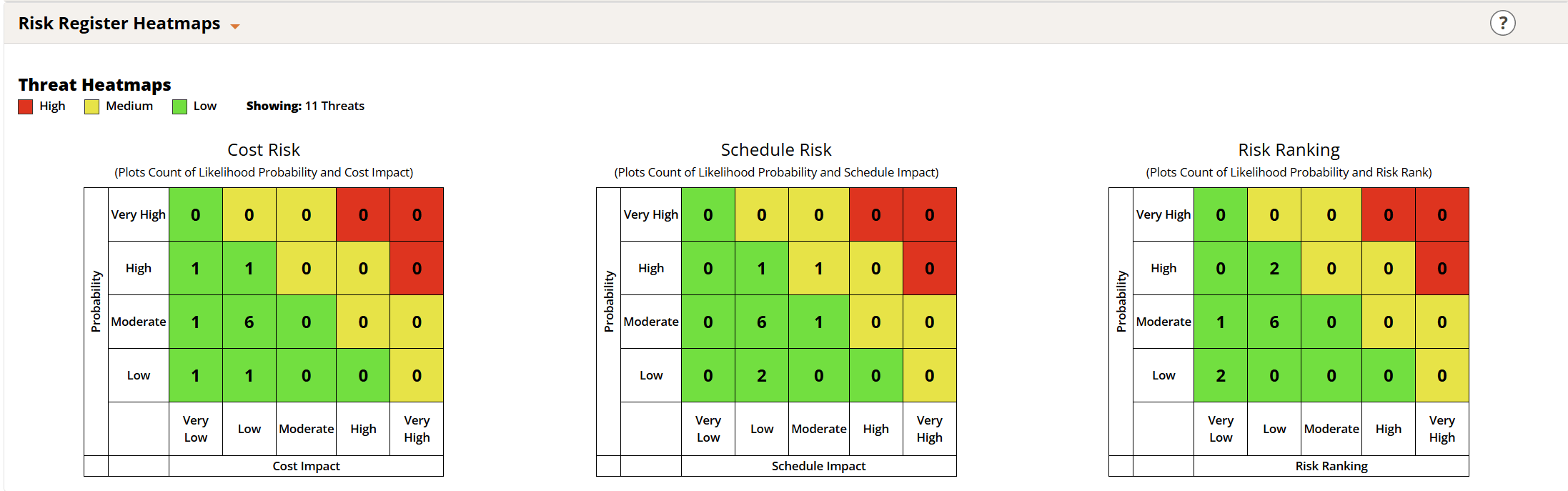
Each cell shows the count of risks falling in that probability/impact range. Clicking any cell filters the Risk Register grid to show only the risks in that range. To clear the filter, use the grid’s filter panel (the funnel icon above the grid).
Two controls reshape what these heatmaps show: the Classification filter (which sets of heatmaps appear) and the Response Mode (which values plot in them).
Threat, Opportunity, or both (Classification filter)
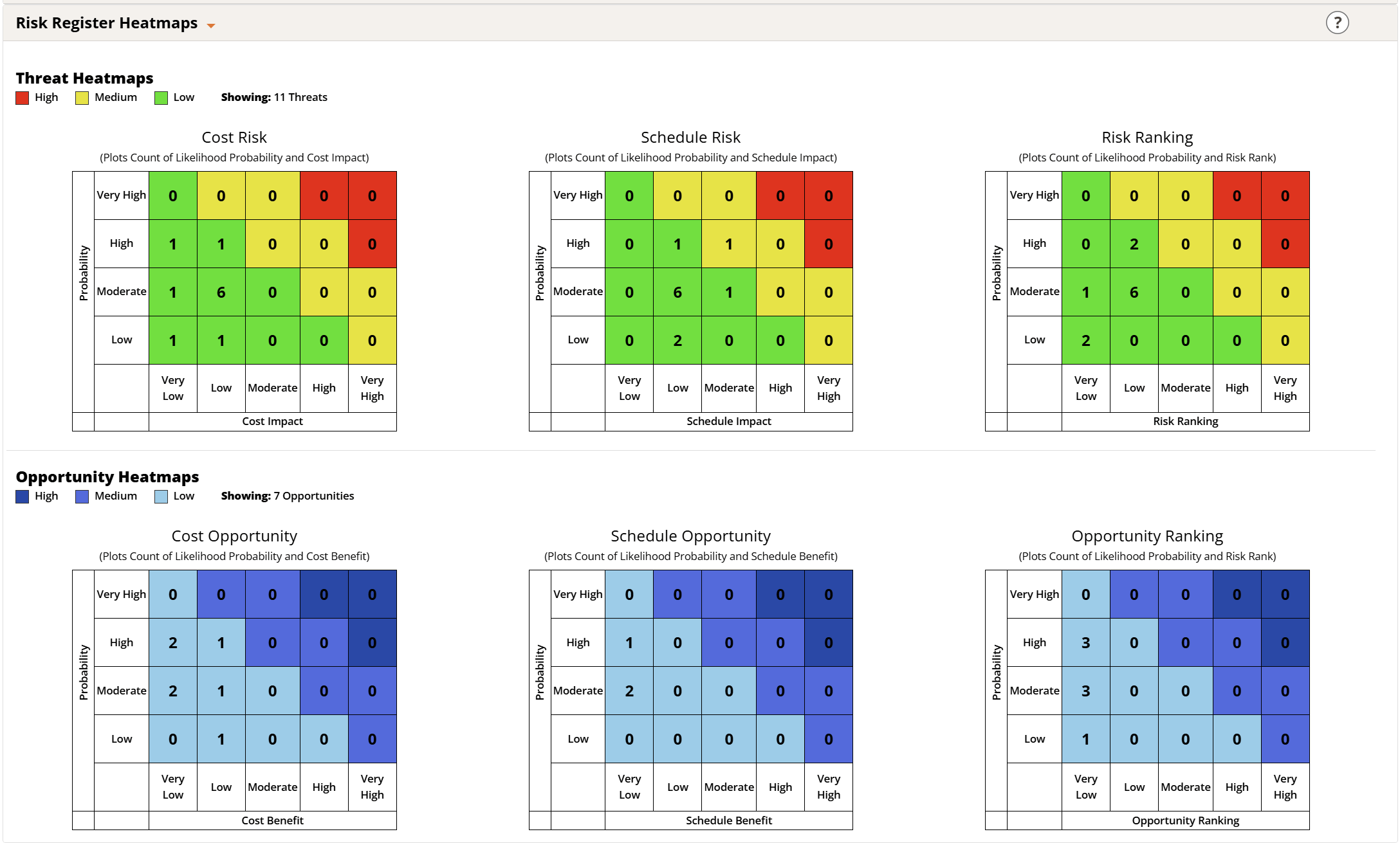
Each section shows a Showing: N Threats / N Opportunities count so you can see how many risks are plotted. Because threats and opportunities use opposite color scales, “high” always reads as the corner you care about most in either set.
Risk, Mitigated Risk, or Delta (Response Mode)
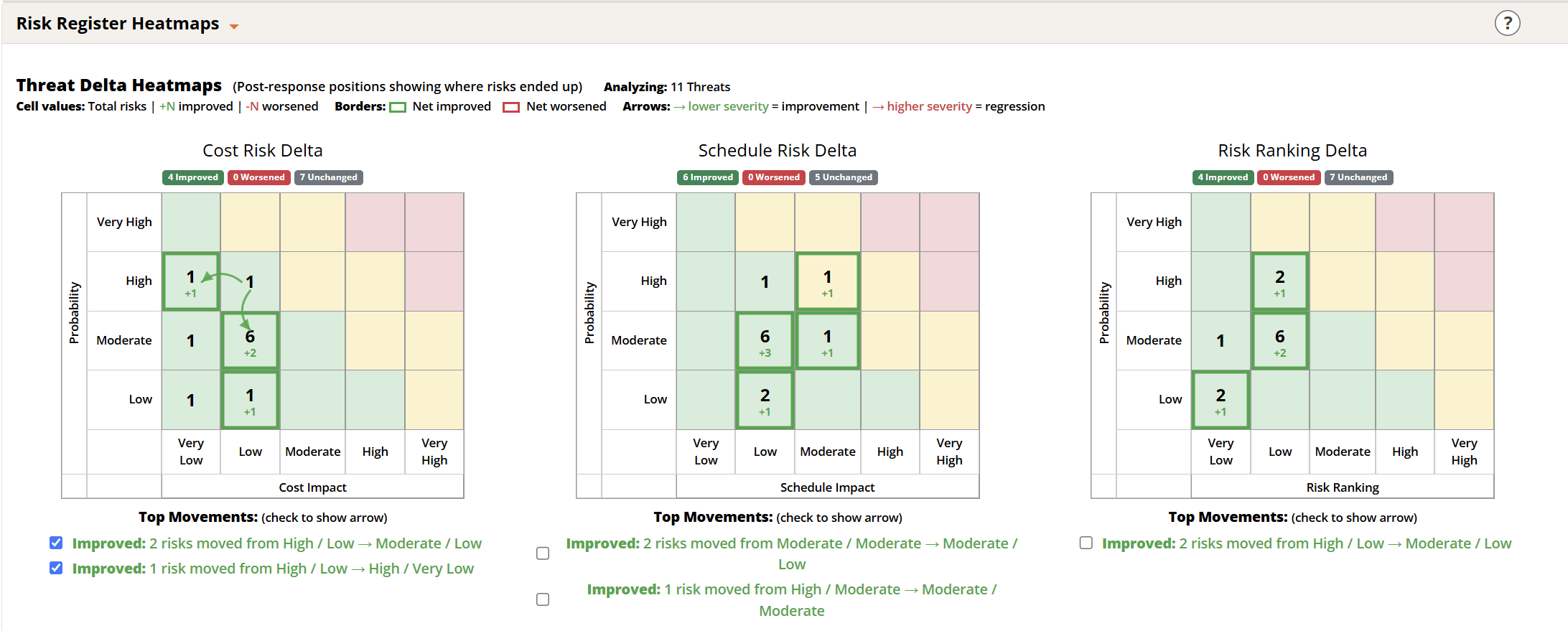
The heatmaps always honor the current Risk Status filter as well, so changing any filter on the bar updates them to match. If risk thresholds have not been configured for the project, the heatmaps display a message prompting your administrator to complete the threshold setup.
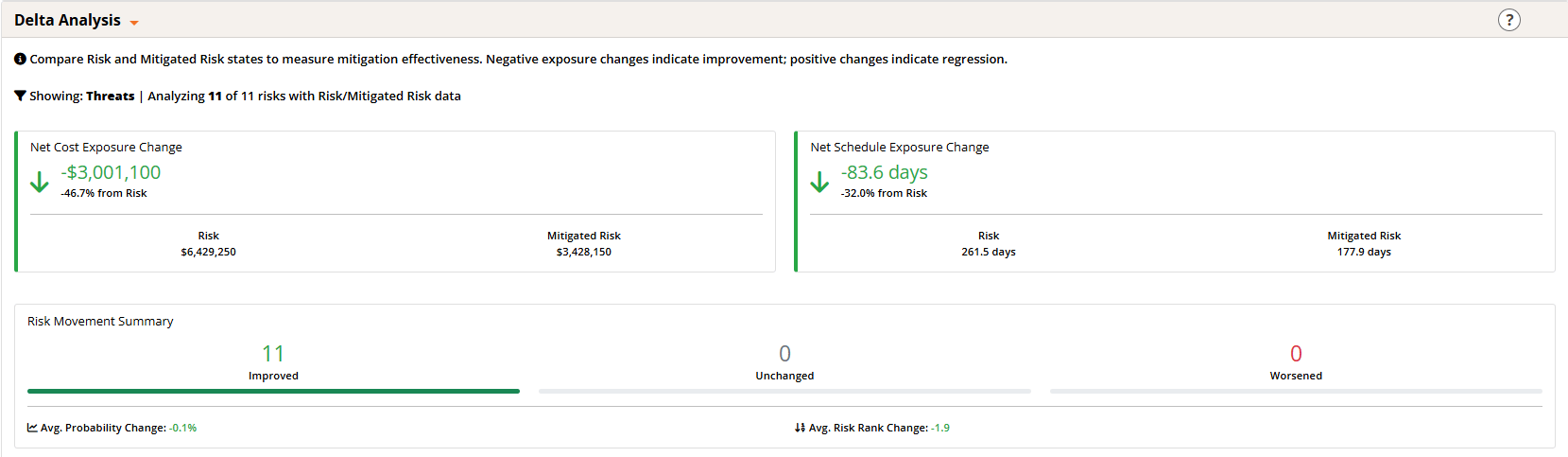
Delta Analysis
Risk vs Mitigated Risk Exposure Comparison
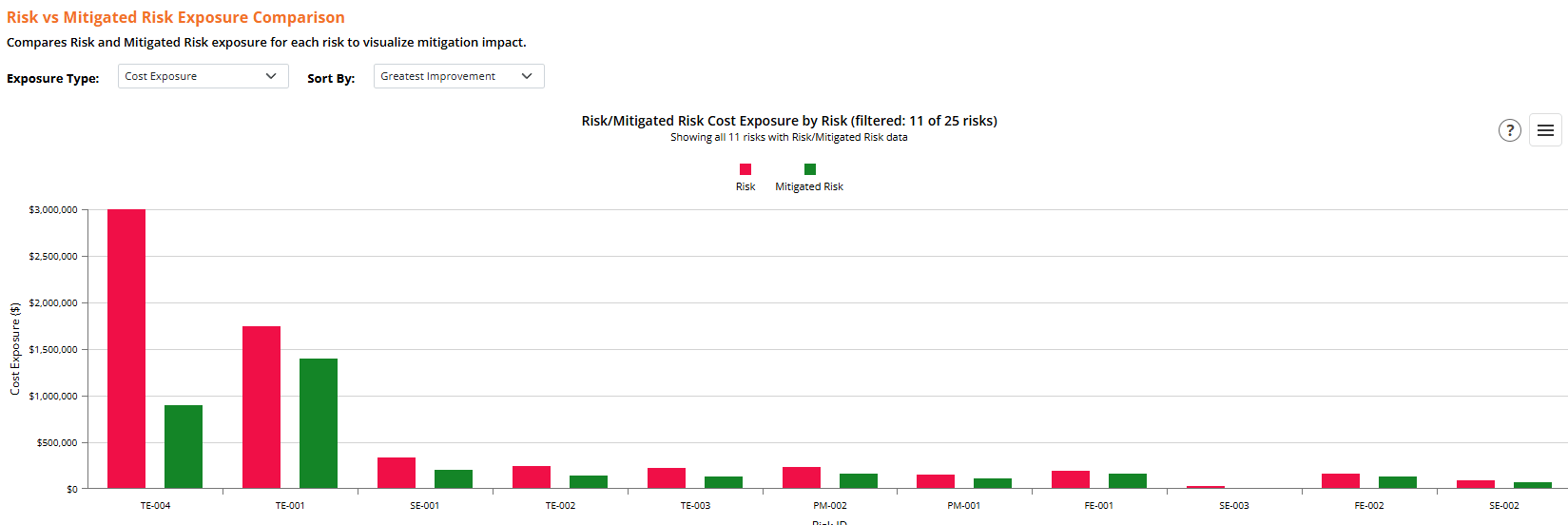
- Exposure Type: Cost Exposure or Schedule Exposure.
- Sort By: Greatest Improvement (default), Risk Exposure, Mitigated Risk Exposure, or Risk ID.
Risk Analytics Burndown
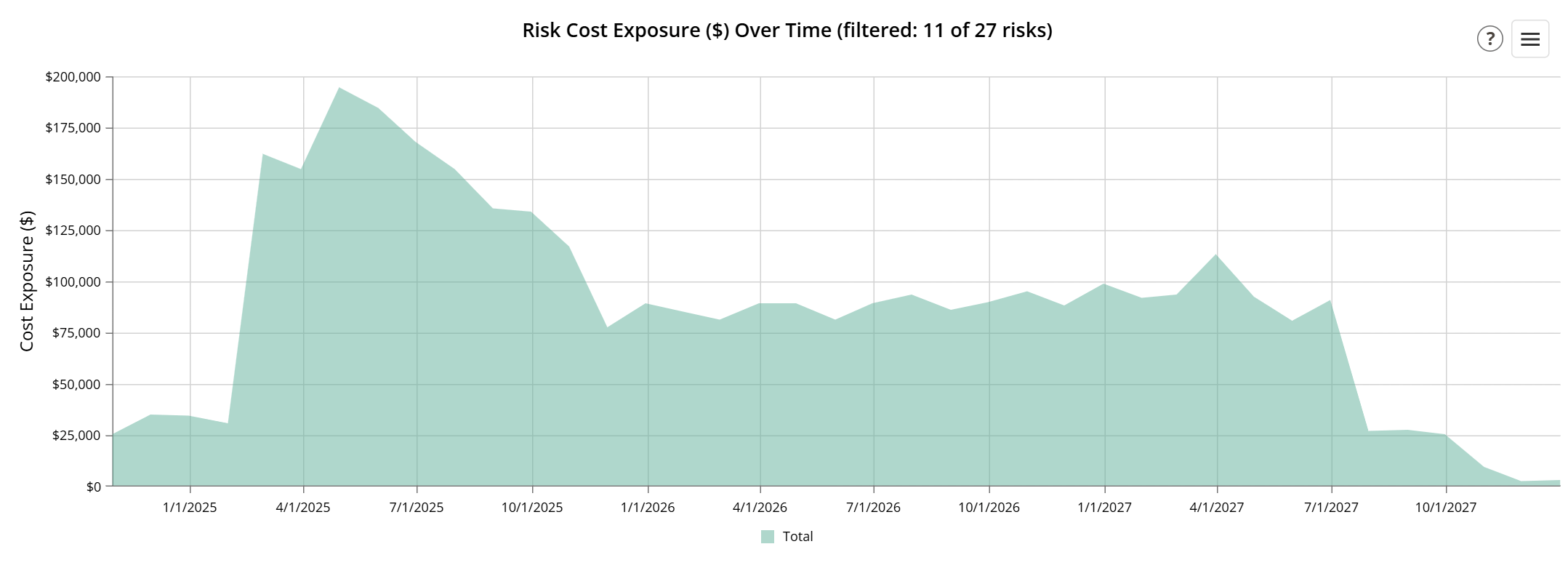
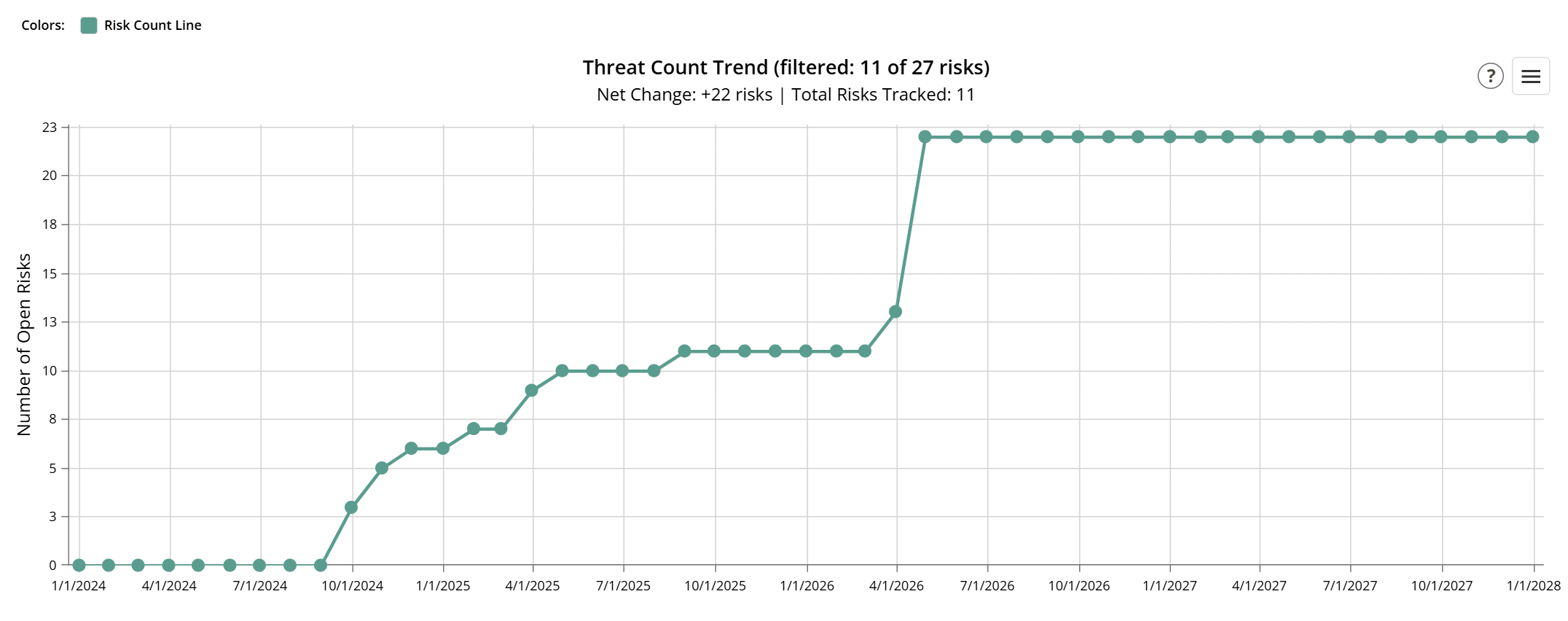
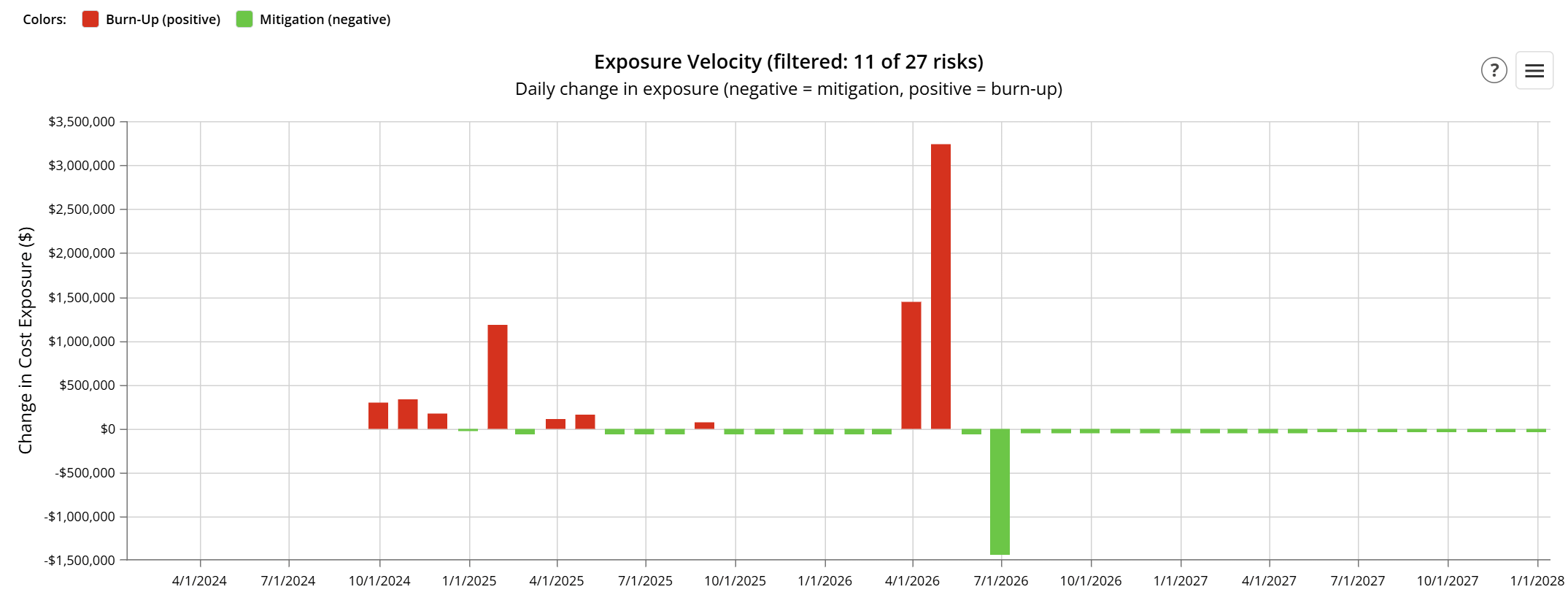
The Risk Analytics Burndown accordion is the time-phased analytics suite for the register. The charts use Mitigated Risk time-phased exposure, so they reflect your residual risk picture after planned responses.Most of these charts require risks to have a Start Date and Finish Date (and a Spread Type) so the system can time-phase their exposure. They build up over time as risks are created and updated; a brand-new register has limited data until risks have been saved with date ranges and the register has been in use.
When a chart has no data
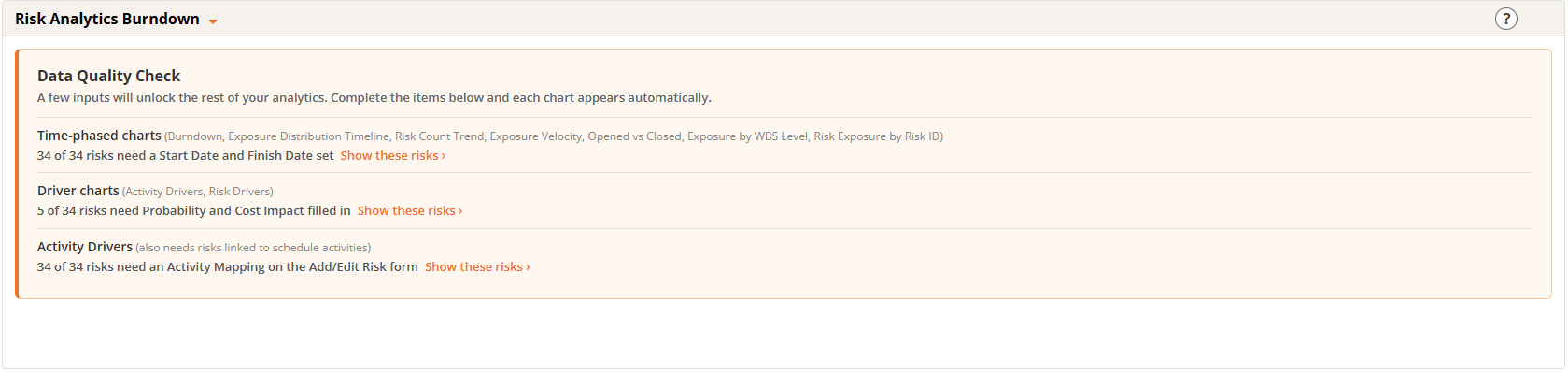
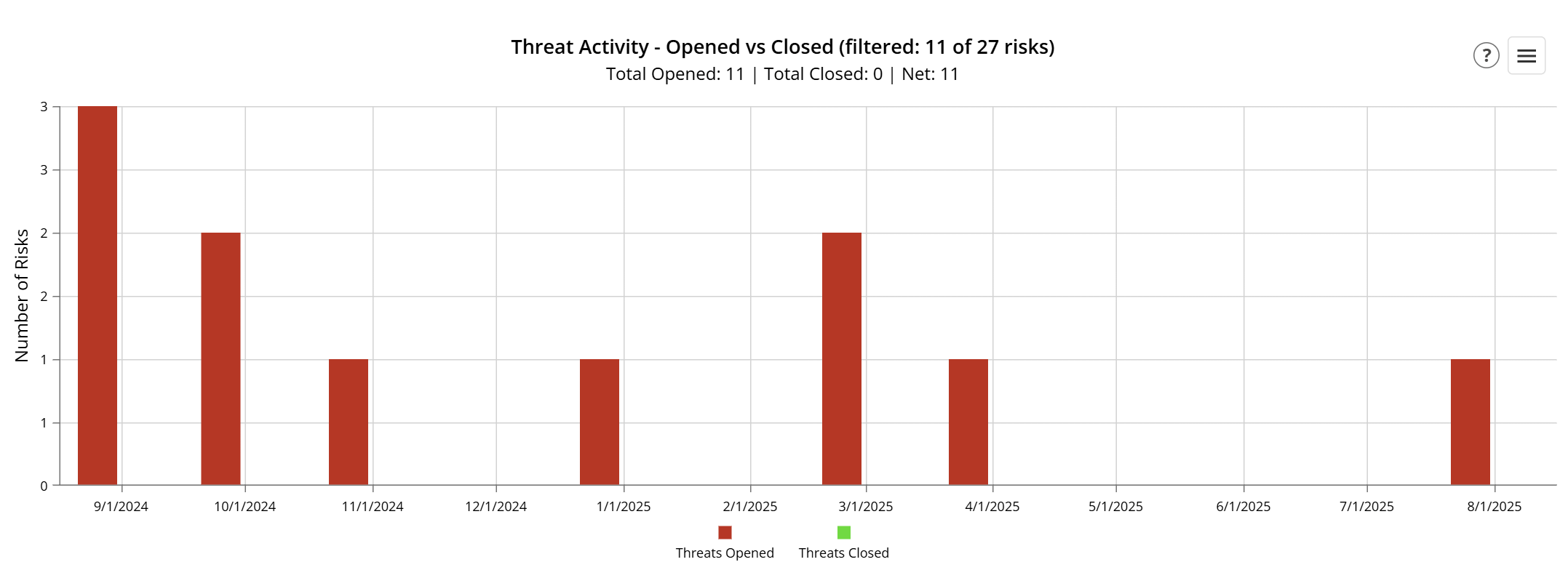
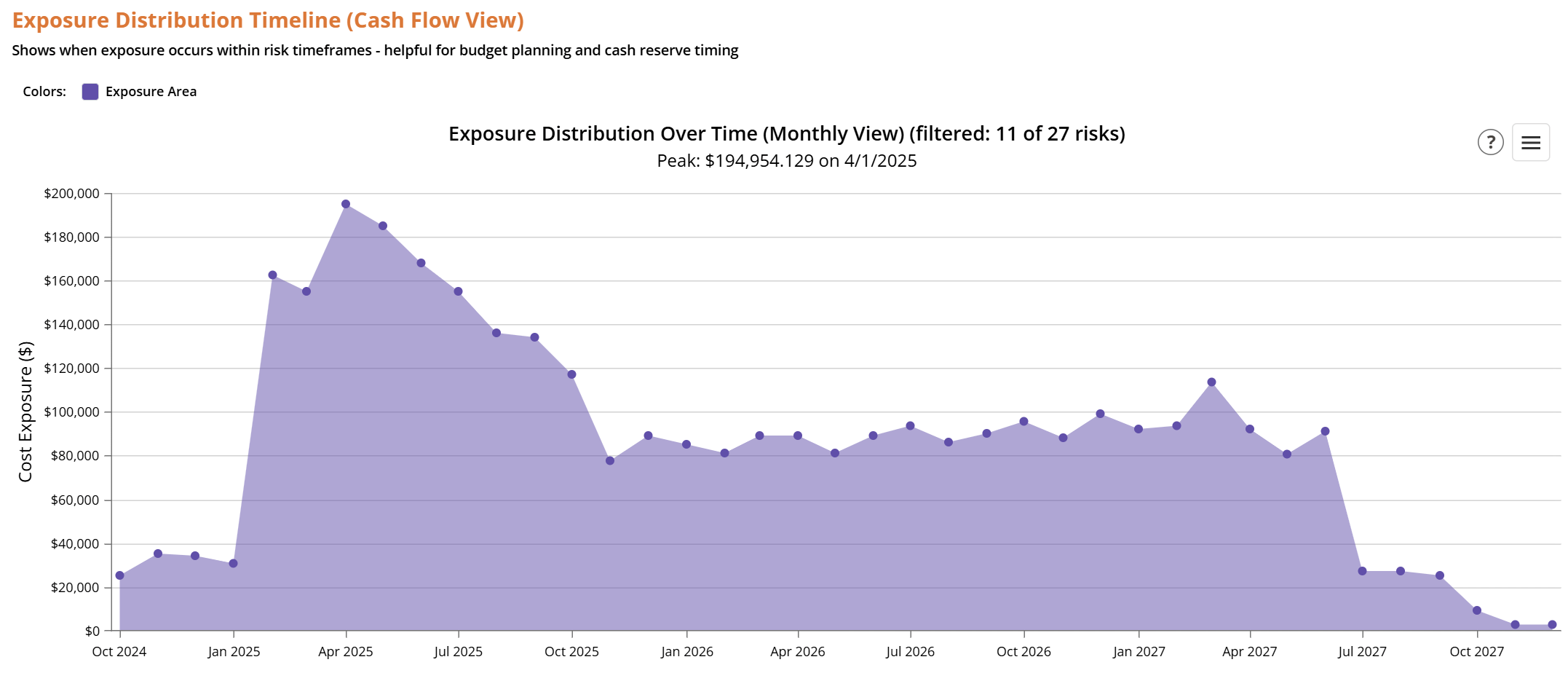
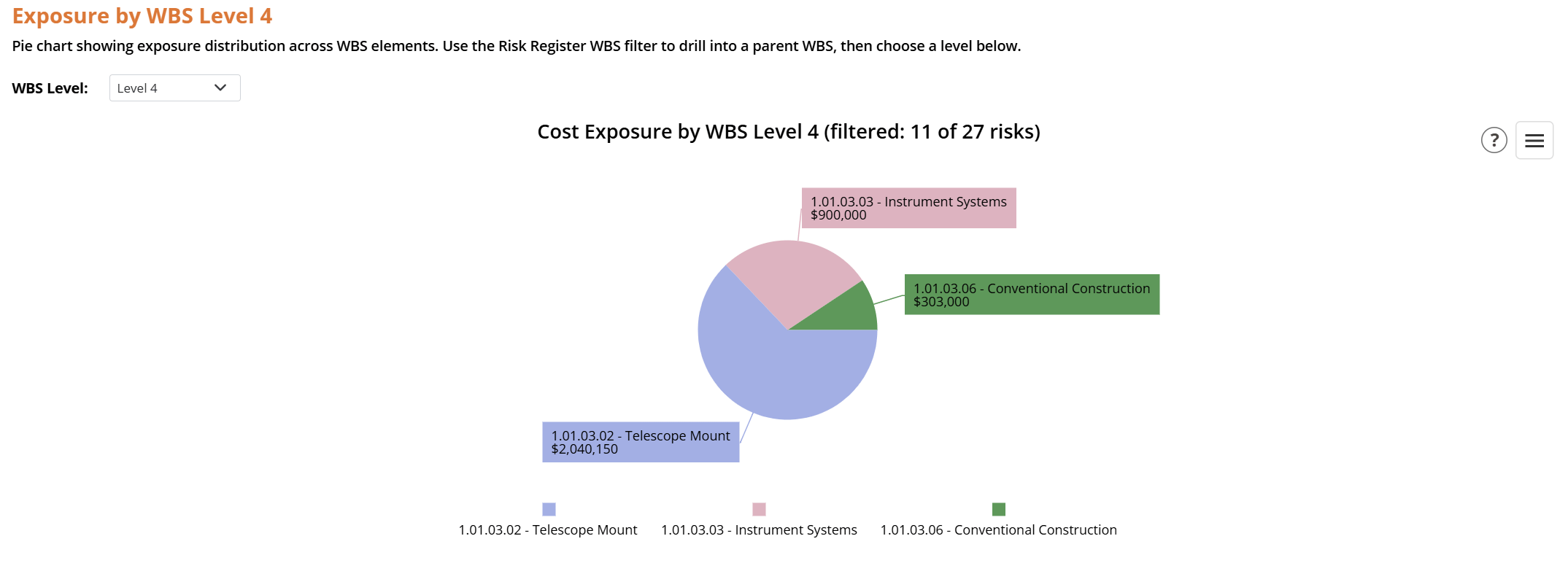
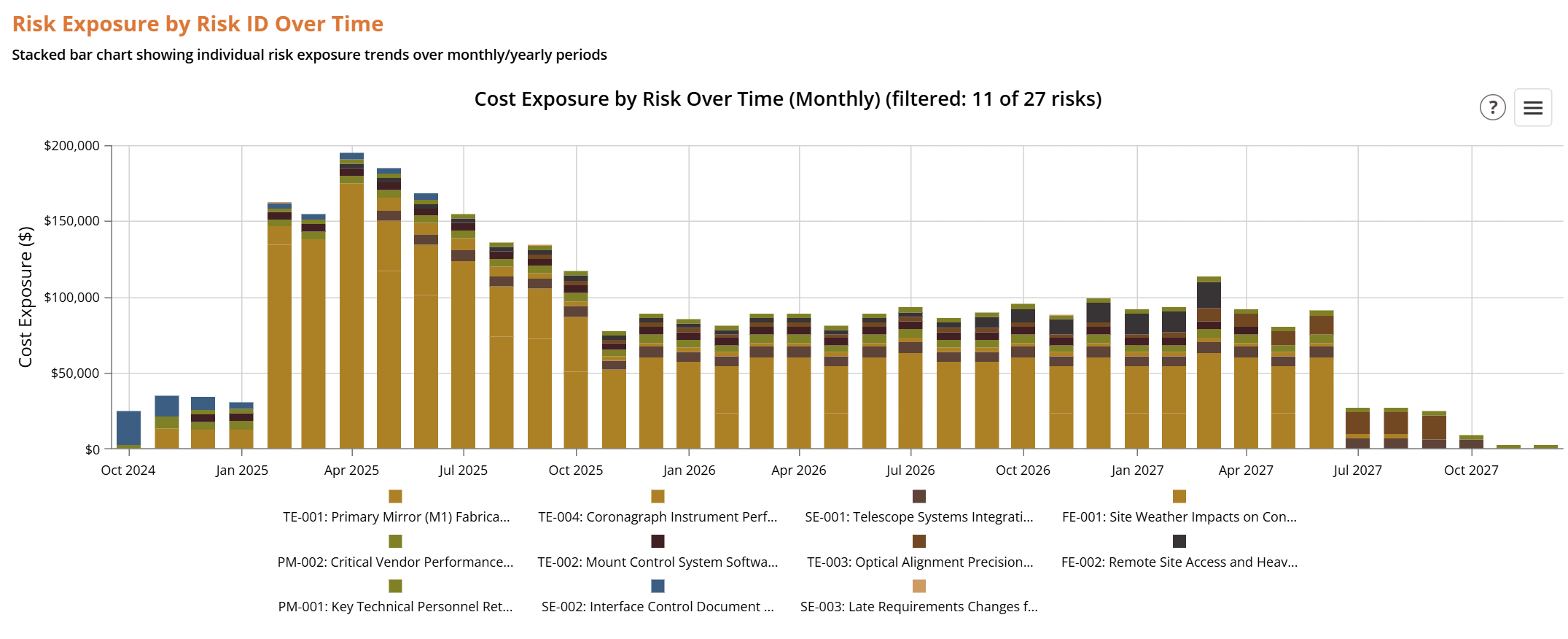
If your project does not yet have the data a chart needs, that chart is hidden and a single readiness summary appears at the top of the panel, instead of a separate “No Data Available” message on every chart. The summary groups what is missing, tells you how many risks are affected, and gives you a direct way to fix it:- Time-phased charts (Burndown, Exposure Distribution Timeline, Risk Count Trend, Exposure Velocity, Opened vs Closed, Exposure by WBS Level, Risk Exposure by Risk ID) need each risk to have a Start Date and a Finish Date.
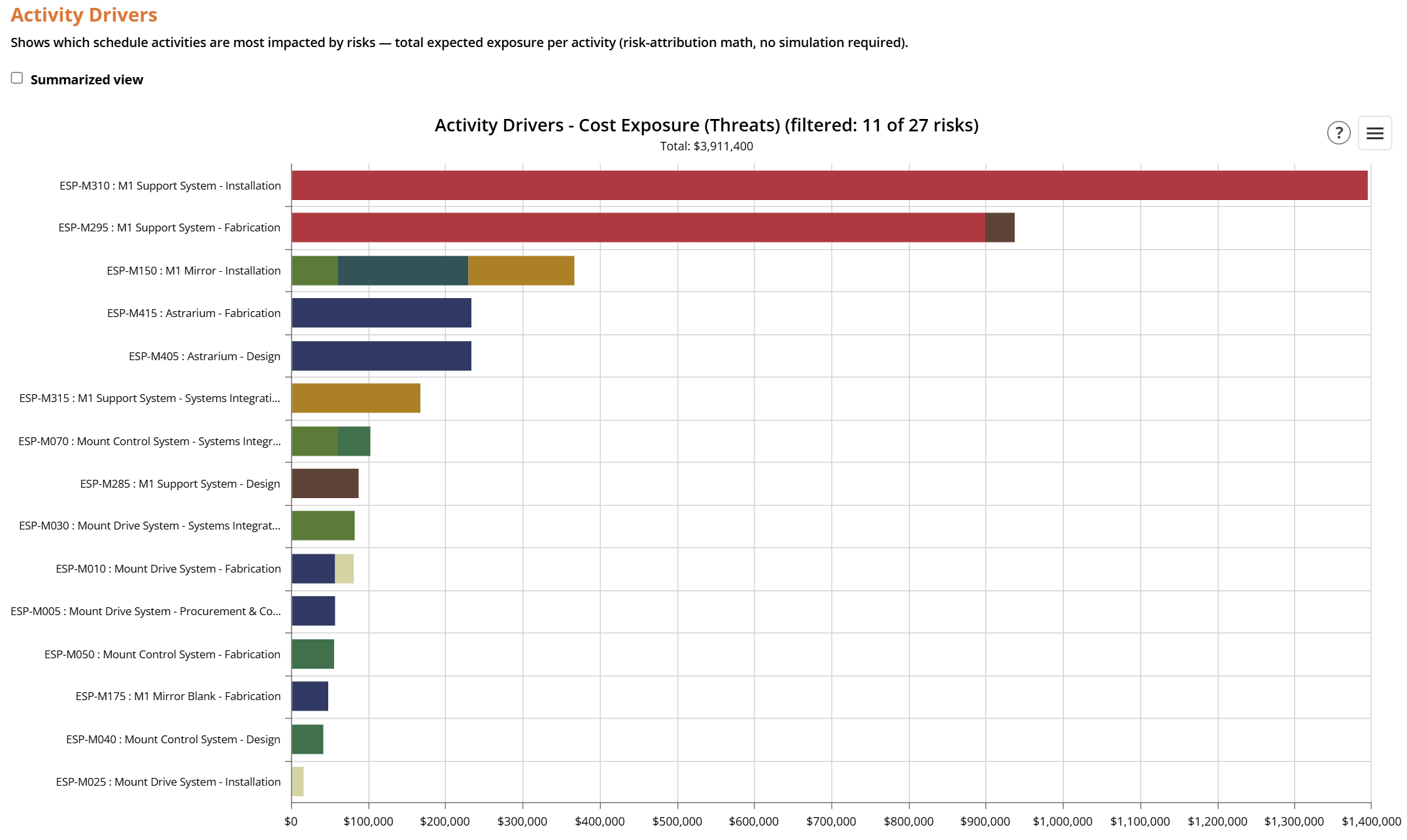
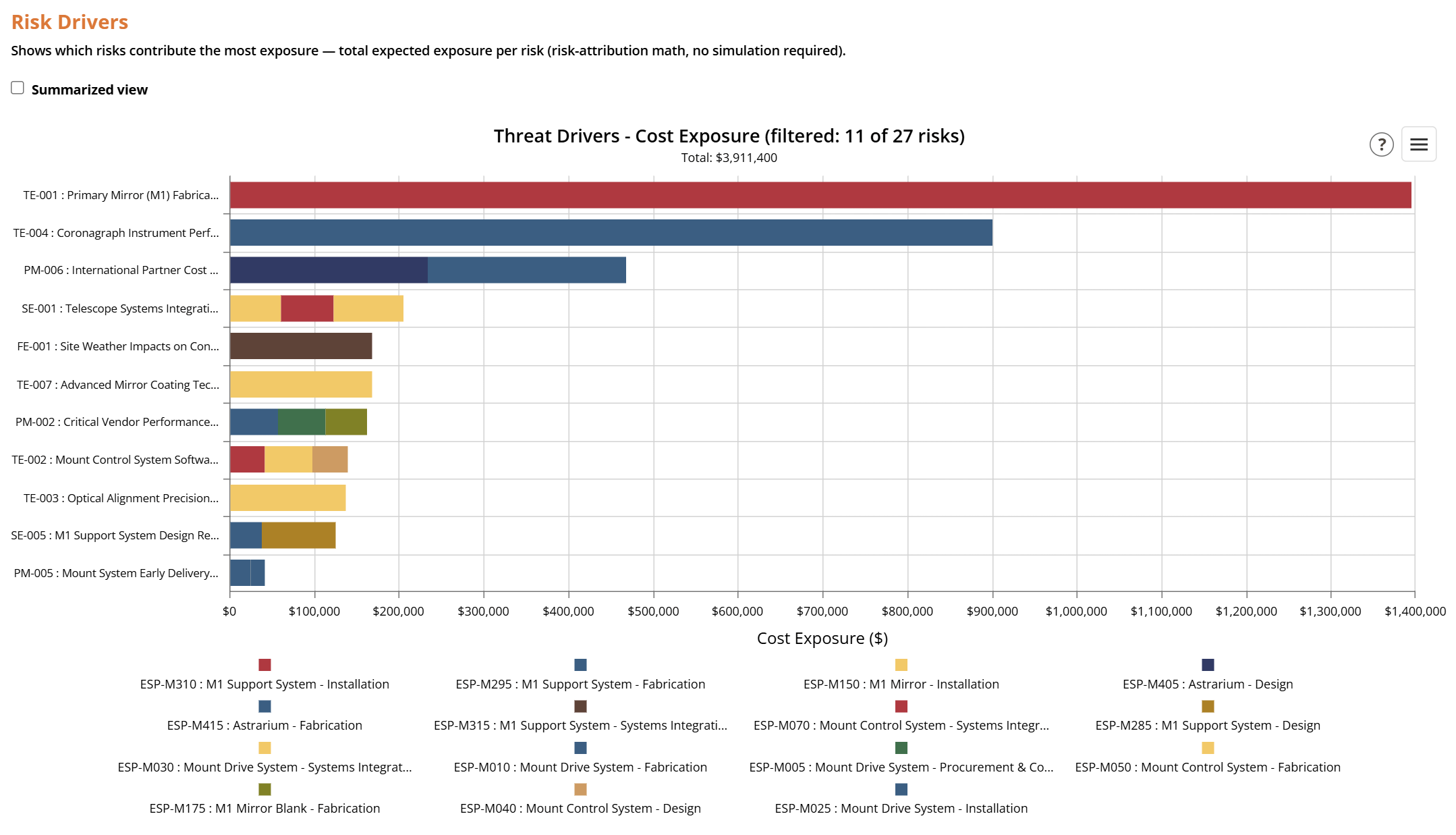
- Driver charts (Activity Drivers, Risk Drivers) need Probability and Cost Impact on each risk; Activity Drivers also needs risks linked to schedule activities through Activity Mapping.
Analytics filters
The Analytics group in the left-menu Change Filters flyout drives these charts:Risk Exposure Over Time
Risk Count Trend
Exposure Velocity
Risk Activity (Opened vs Closed)
Exposure Distribution Timeline (Cash Flow View)
Exposure by WBS Level
Risk Exposure by Risk ID Over Time
Activity Drivers
Risk Drivers
Monte Carlo Simulations
The cost and schedule Monte Carlo has moved to the Risk Analysis page, where one unified engine simulates both the project cost distribution and the project finish-date distribution from the same risks and uncertainty inputs, with modes, a Scenario Planner, contingency decomposition, and a WBS rollup. See How the Dash360 Monte Carlo Works for the full methodology.Saved Views
The Risk Register grid supports Dash360’s saved views: name and reload a column layout (which columns are visible, their order and widths, grouping, and sort order) so different audiences can each have a purpose-built view. The view selector sits above the grid, split into your own User Views and shared System Views, with options to create a new view, set a default, and import a view. For how to create, load, default, and manage views, see Saved Views.Grid Features
Exporting
Click the Download icon in the page header to open Export Options, then choose Export as Excel or Export as PDF. Each opens a configurable modal so you can build the exact report you need rather than dumping the whole page. Both modals share the same building blocks: Quick Presets at the top, an optional cover, and a checklist of sections to include, each with its own sub-options.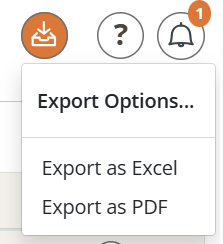
Quick Presets
Presets are one-click starting points; selecting one checks the matching sections, and you can then fine-tune anything (which switches the preset to Custom).Export as Excel
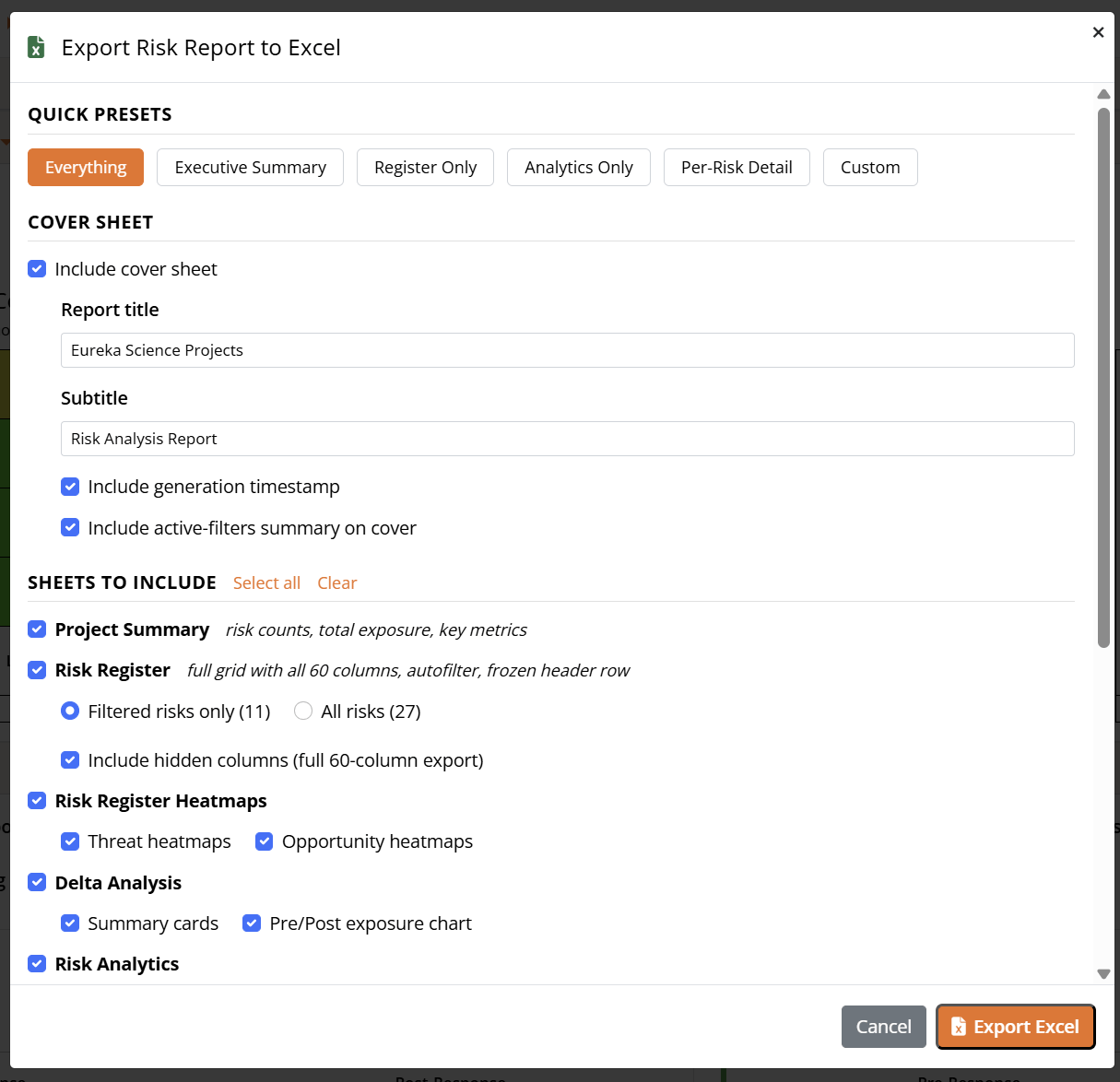
.xlsx workbook. Options:
- Cover Sheet: toggle a cover sheet with a Report title (auto-fills the project name), a Subtitle (defaults to “Risk Analysis Report”), a generation timestamp, and an active-filters summary.
- Sheets to Include (each is a checkbox, with Select all / Clear):
The Risk Register sheet honors the scope choice above; the chart sheets reflect the active filters. Click Export Excel to generate and download the workbook.
Export as PDF
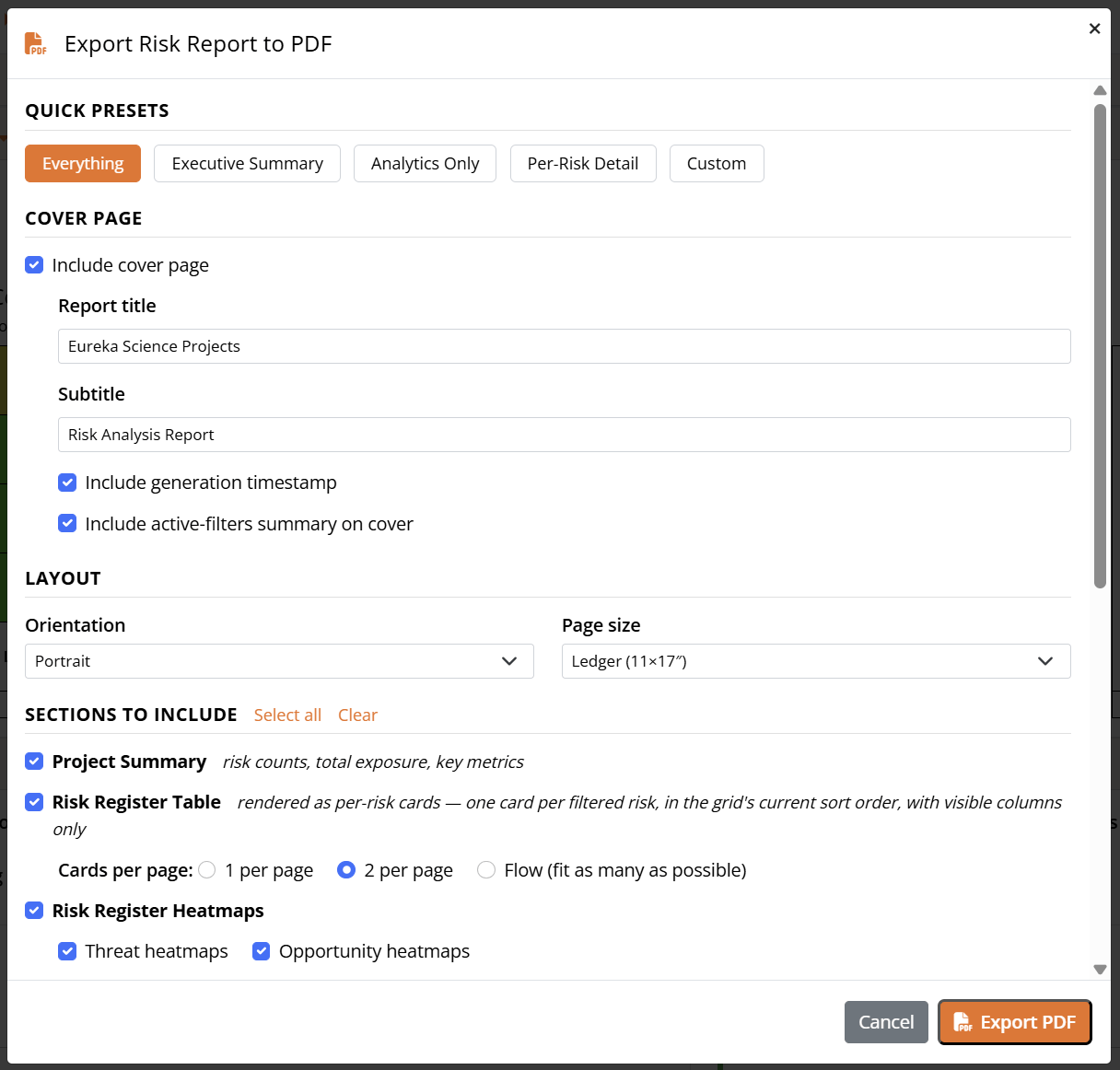
- Cover Page: toggle a cover page with a Report title, Subtitle, generation timestamp, and active-filters summary.
- Layout: Orientation (Portrait by default, or Landscape) and Page size (Letter, Legal, or Ledger; Ledger by default for the wide tables and charts).
- Sections to Include (with Select all / Clear):
Charts reflect the active filters; the Risk Register Table section renders the filtered risks in their current sort order. Click Export PDF to generate and download the report.
When the modal opens it pre-warms the page’s charts in the background so they are ready to capture by the time you click Export. If a chart has never been rendered (its accordion was never opened), give the export a moment to lay it out.