

Overview
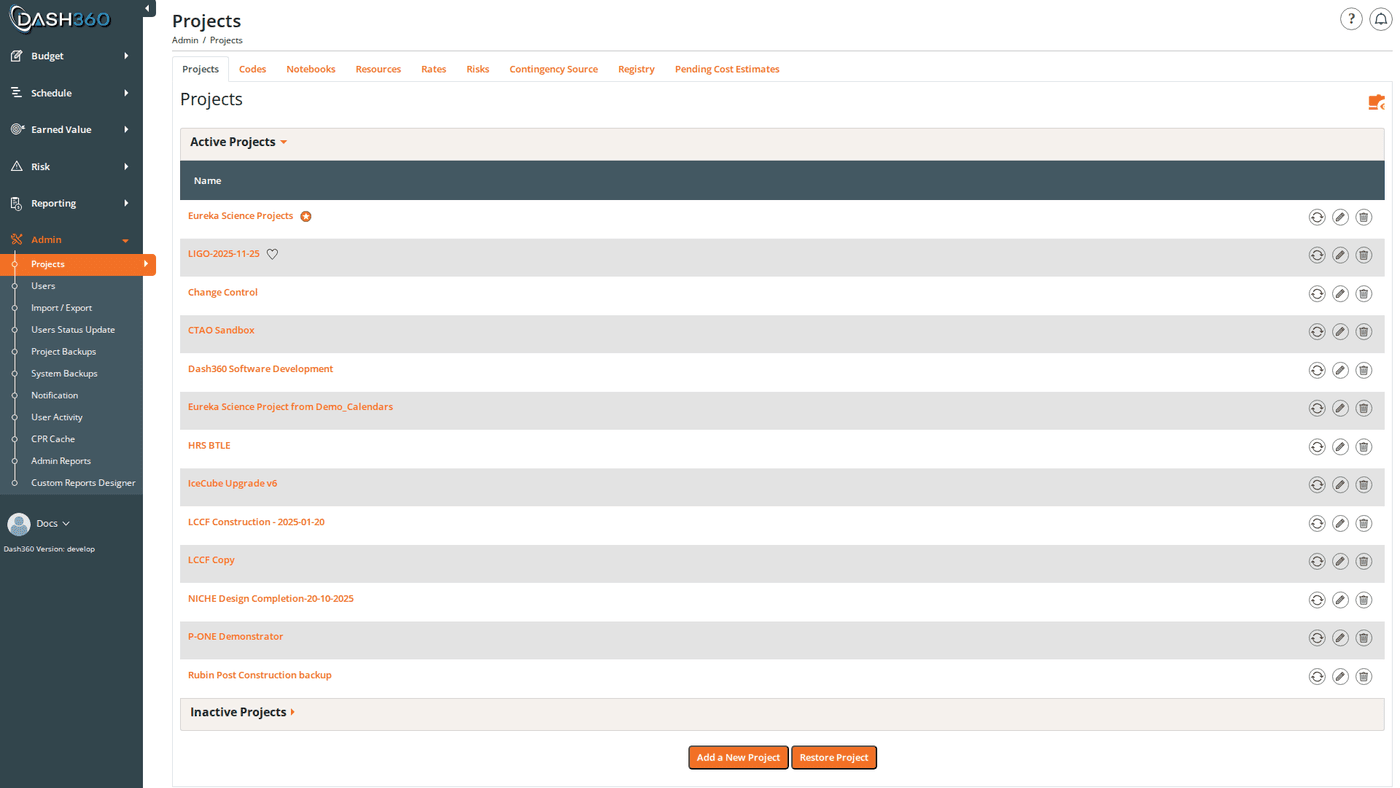
The Projects page is the central hub for all project management in Dash360. Administrators create and configure projects here, control which projects are visible to users, and access the full suite of per-project settings. Every piece of cost estimating, earned value, scheduling, and risk data in Dash360 belongs to a project. Setting up a project correctly (with the right code files, rate files, registry settings, and configuration) determines what users can do and see.Permissions
Administrator role required for all operations on this page.Project List
Projects are organized into two collapsible groups: Active Projects and Inactive Projects. Each row shows the project name and a set of status indicators on the right side.Row Indicators
Expanded Project Panel
Click a project name to expand its panel. The panel shows the files and notebook fields currently configured for the project; a quick reference without opening the full settings form. Configured Files (each with a link to browse the file and an edit button):
Notebook Fields (four tables showing which notebook categories are assigned):
- Work Package Notebook Fields
- WBS Notebook Fields
- Resource Assignment Notebook Fields
- Risk Register Notebook Fields
Creating a Project
Click Add Project to open the project configuration form. The form requires at minimum a project name and the assignment of supporting files (WBS code file, resource file, rate file, registry set). See Edit a Project for a full description of every configuration tab; Properties, General, Cost Classes, Code Files, Thresholds, Signatures, Calendar, Notebooks, and more. After saving, the project appears in the Inactive Projects list. Activate it when it is ready for users.Activating and Deactivating Projects
Use the Active toggle on a project row to control whether that project is visible to non-admin users. Inactive projects do not appear in project selectors in any module.Manage Visibility (Batch)
Click Manage Visibility to open the visibility modal, which shows all projects in two drag-and-drop lists: Active and Inactive. Drag projects between lists to change their visibility, and drag within the Active list to set the display order in project selectors.- The Default Project cannot be moved to Inactive (a validation error prevents it).
- When a project is moved to Inactive, its Favorite flag is cleared.
- Active project order is saved and reflected in all project dropdowns across Dash360.
- Single-project changes apply immediately. Moving multiple projects or mixed operations is queued to a background service.
Setting the Default Project
Mark one project as the Default to have it pre-selected when users open Dash360. Only one project can be the default at a time. Use the Set as Default Project option in the process menu (⋯) on any active, unlocked project row.Marking Favorites
Favorited projects appear at the top of project selection dropdowns across all modules. Use Set as Favorite or Remove as Favorite from the process menu to toggle.Editing a Project
Click the Edit button (pencil icon) on any project row to open the full configuration form. See Edit a Project for a complete field-by-field reference.Process Menu Actions
Each project row has a process menu (⋯ icon) that exposes all available operations for that project. The actions available depend on whether the project is active and unlocked.Always Available
Active Projects Only
Operation Details
Shift Project Dates
Use Shift Project Dates to move resource assignment dates when a project’s start has been rescheduled. Date shift type (radio):- Number of Months: enter a positive or negative number of months; the new project start date is calculated and displayed before you commit
- Calendar Date: pick an exact new project start date using a date picker
If the project has a reporting period set, a warning displays showing that only data from the reporting period forward will be shifted.
Click Shift Project Dates to execute.
Recalculate Project
Opens a modal with two modes:- Recalculate All: recalculates the entire project (default)
- Recalculate by Custom Filters: limits recalculation to a specific WBS, Work Package, Cost Class, and/or Resource Code
Copy Project
When Copy Project Code Files is checked, individual checkboxes appear for each file type: WBS Code File, WP Code File, Activity Code File, Basis Code File, Resource Code File, Contingency Source File, Registry Set, and Rate File. Uncheck any file type you want the copy to share with the original instead of duplicating.
Backup and Restore
Backup Project: downloads the full project as an Excel (.xlsx) backup file immediately. Backup Project to Another Server: same as Backup, with an additional Include Users checkbox to embed user account data in the backup for server migration. Restore Project: upload a previously downloaded backup file to recreate a project.
The file is uploaded to S3 and then processed server-side. The project list refreshes when the restore is complete.
Delete a Project
Click the Delete button (trash icon) on a project row. A confirmation modal offers two options: Option 1: Delete Project Snapshot Only Removes the project record but preserves all associated code files (WBS, WP, Resource, Rate, Registry, etc.) for use by other projects. Option 2: Delete Project Snapshot and Its Associated Files Removes the project and the code files assigned to it. Individual checkboxes let you control which associated files are deleted; each is pre-checked by default:- WBS Code File
- WP Code File
- Activity Code File
- Basis Code File
- Resource Code File
- Contingency Source File
- Registry Set
- Rate File
- All assigned Notebook Fields (Work Package, WBS, Resource Assignment, Control Account, Risk Register)
Shared Files
A project’s code files, resource files, rate files, and registry sets can be shared with other projects. When a file is shared, any change to that file affects all projects using it. The project list shows which files are shared using indicator icons on each project row.Shared files are powerful for maintaining consistency across related projects; for example, a program with multiple projects that all use the same WBS structure. Be aware that editing a shared file will affect every project that references it. Use Option 1 (Snapshot Only) when deleting projects that share files.