

Overview
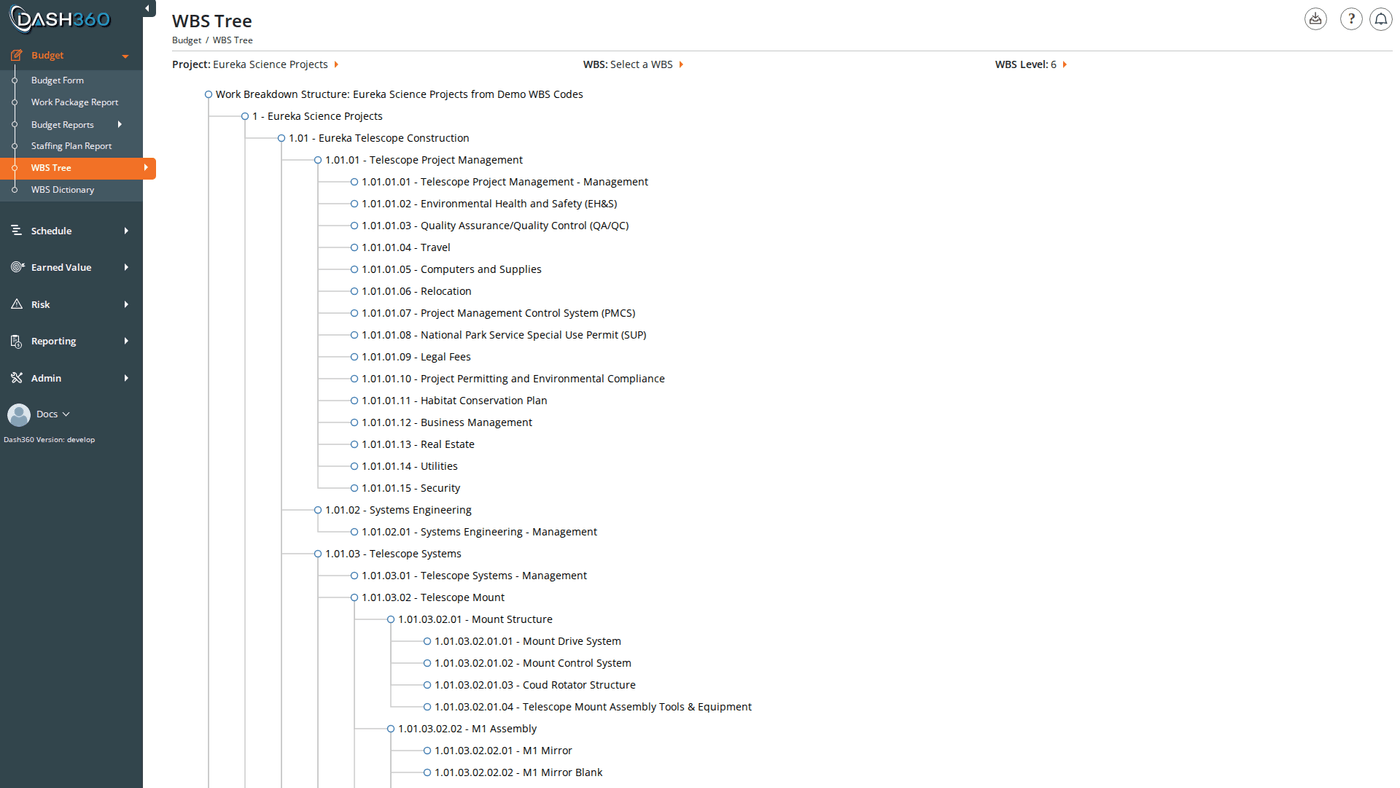
The WBS Tree renders your entire Work Breakdown Structure as a navigable collapsible hierarchy. Expand and collapse branches to explore the structure, filter by depth or starting node to focus on a specific area, and click any node to view and edit its dictionary notebook fields. URL:/Estimating/WBSTree/Index
Prerequisites
- A project must be selected before the tree renders.
Filters
The three inline filters appear across the top of the page.
Changing WBS or WBS Level immediately re-renders the tree.
Navigating the Tree
The WBS Tree is an SVG-based collapsible hierarchy. The root node shows the name of the project’s WBS code file (for example, “Work Breakdown Structure: Master WBS”). Each child node shows the WBS code and description. Clicking a node:- If the node has children, it collapses or expands them with an animated transition.
- The node becomes selected (highlighted) and a book icon appears next to it.
WBS Dictionary Modal
Clicking the book icon on a selected node opens the WBS Dictionary modal. The modal title shows the WBS code and description of the selected element.Notebook Fields
All notebook categories configured for the project appear as labeled fields. In an unlocked project, the fields are editable. In a locked project, the fields are read-only. Field types you may encounter:File Attachments
Existing file links for the WBS element are listed below the notebook fields. Each entry has a Delete button to remove it. If your project has file uploads enabled (configured by the administrator), a File Upload control appears below the existing links. Use it to drag and drop or browse for one or more files to attach to this WBS element. Uploaded files appear as downloadable links visible to all users who can access this WBS element.Saving
Click Save to commit all notebook field changes and any new file uploads. A success message confirms the save, and the modal closes.If the project is locked, the Save button is disabled and fields are view-only.
Navigating Between Elements
The modal header includes pagination controls (First, Previous, a page number input, Next, and Last) that step through WBS elements in order. Use these to update multiple WBS entries in sequence without closing and reopening the modal.Exporting
Click the Download icon in the top right and select Export WBS Tree to PDF. The export captures the current visible tree as rendered on screen and saves it asWBSTree.pdf. For large trees, the PDF spans multiple pages. The export reflects the current WBS and WBS Level filter selections; only what is currently visible is included.