

Overview
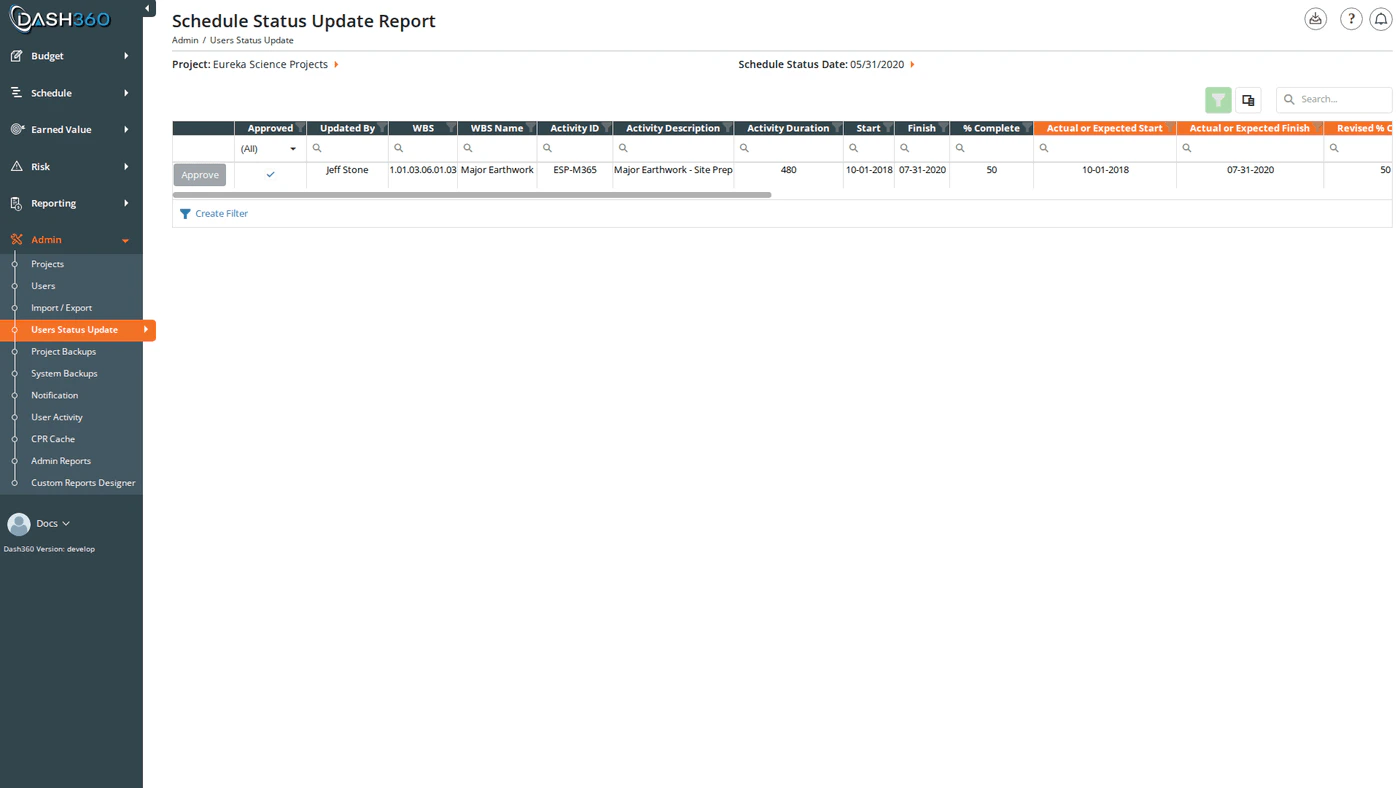
The Schedule Status Updates page is where administrators review, approve, or delete the schedule updates submitted by Control Account Managers through the Quick Status page. Each row shows one pending submission: the CAM’s proposed changes to a single activity alongside the current schedule values, so you can compare before approving. Approved changes are immediately written back to the live schedule. URL:/Admin/UsersStatusUpdate/Index
This page only shows submissions that have been sent to the administrator. Quick Status entries that a CAM has saved but not yet submitted do not appear here. CAMs submit their updates using the Send to Admin button in Quick Status.
Permissions
This page is accessible to administrators only.Filters
Select a project to load submissions. An optional Schedule Status Date dropdown filters to submissions from a specific status period; the dropdown is populated with distinct dates from the available submissions.Reading the Grid
Each row represents one submission for one activity from one CAM:
The five orange-header columns (Actual or Expected Start, Actual or Expected Finish, Revised % Complete, Delete Activity, Comments) are the CAM-submitted values; the same columns that were editable in Quick Status.
Approving Submissions
Approve a Single Submission
Click Approve on a row to immediately apply that submission to the live schedule. Once approved, the Approve button for that row becomes disabled (shown in grey); already-approved rows cannot be re-approved. What happens when a submission is approved:- The activity’s start date, finish date, duration, percent complete, and activity name are updated in the live schedule.
- Any added predecessors and successors are created as task links in the schedule. Any removed predecessors and successors are deleted.
- If Delete Activity was checked, the activity and all of its task links are permanently removed from the schedule.
- If the submission includes activity step changes, those are applied to the live schedule steps: new steps are created, existing steps are updated, and deleted steps are removed.
Approve All
The Approve All button appears in the grid toolbar when the current view contains at least one unapproved submission. Click it to approve all unapproved submissions in sequence. The button hides automatically once all submissions in the view are approved.Deleting a Submission
Click Delete on a row to discard a submission without approving it. The submission is removed and the CAM’s proposed changes are not applied to the schedule. The CAM can re-enter and resubmit corrected values through Quick Status.Unlike CAMs (who cannot delete their own approved submissions), administrators can delete any submission; including ones that have already been approved.
The CAM’s View
CAMs have a complementary read-only view of their own submissions at/Schedule/ScheduleStatusReport/Index. That page shows all submissions for their work packages (including ones not yet sent to the administrator) and includes a Send Schedule Status Updates to the Admin button to submit unsent entries. Administrators reviewing a submitted update can refer the CAM back to that page if corrections are needed.
Exporting
Click the Download icon and select Export to Excel to download the current grid view asSchedule Status Update Report.xlsx.