

Overview
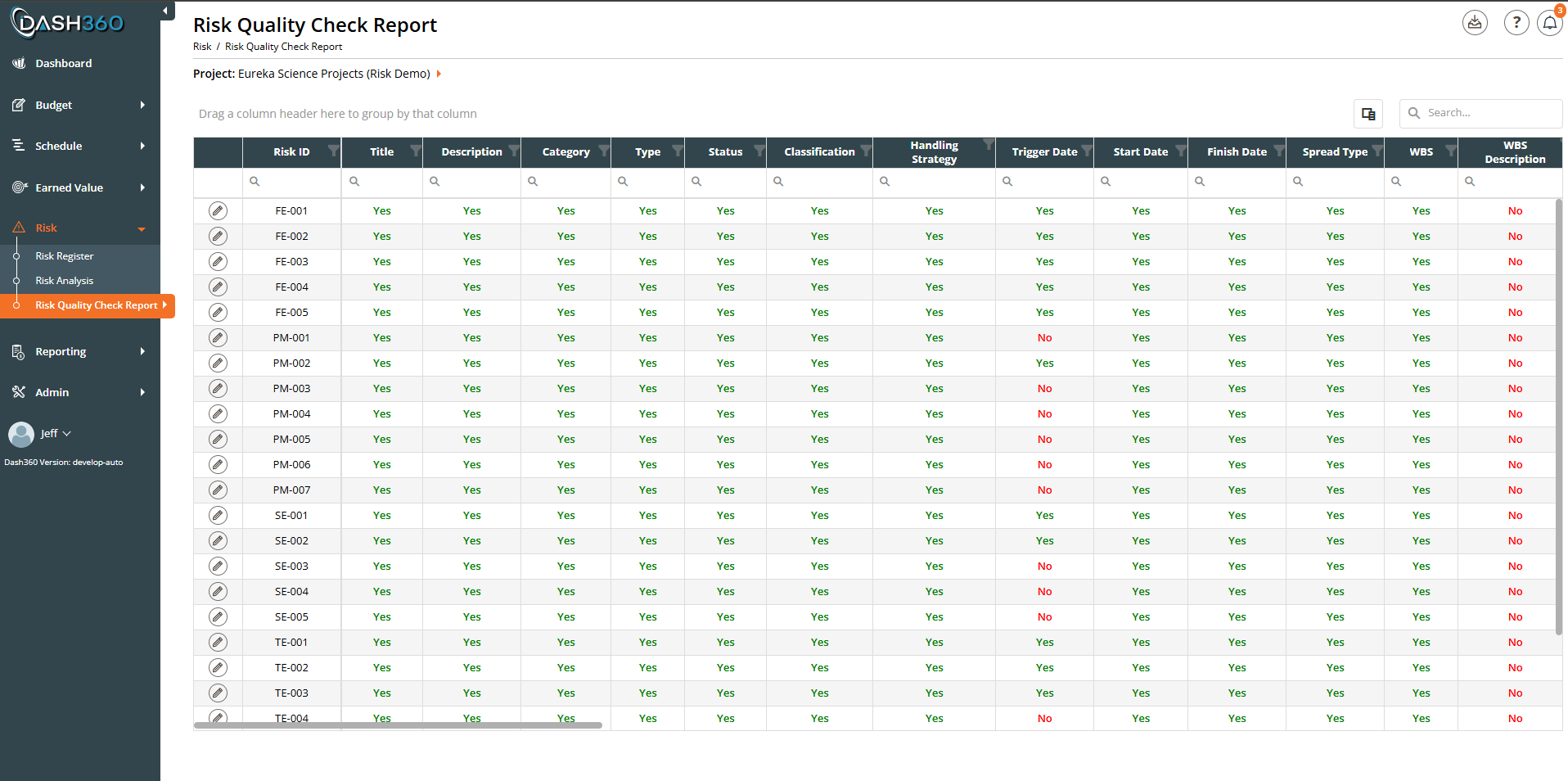
The Risk Quality Check Report is a completeness audit of your Risk Register. It lists every risk in the project as a row and, for each field that matters, shows a simple Yes or No indicating whether that field has been filled in. Green Yes means the field is populated; red No means it is missing. This makes it easy to spot data gaps before they undermine analysis: a risk with no probability, no cost impact, or no activity mapping will not contribute correctly to the Monte Carlo on the Risk Analysis page, and this report surfaces exactly which risks need attention and in which fields. URL:/Risk/RiskQualityCheckReport/Index
Prerequisites
- A project must be selected (use the Project: picker at the top of the report).
- The project’s Risk Register should contain risks; the report has one row per risk.
- Your account needs access to the Risk module to open the report.
How to read the report
Each row is one risk (identified by its Risk ID). The Edit icon and Risk ID are fixed to the left as you scroll. Each remaining column is a field from the Risk Register, and the cell shows whether that field is filled in for that risk:- Yes (green): the field is populated with a usable value.
- No (red): the field is empty or unset.
- Category, Type, Owner, Assignee: a record must actually be linked (not just typed).
- Activities: the risk must be mapped to at least one schedule activity.
- Probability, Cost Most Likely, and Schedule Impact (Risk and Mitigated Risk): the value must be present and non-zero, since a zero there usually means “not estimated yet”.
- Trigger Date, Start Date, Finish Date, Last Reviewed Date: an actual date must be set.
Editing a risk from the report
Each row has an Edit (pencil) icon fixed on the far left. Click it to open the full Add or Edit Risk form for that risk without leaving the report. When you save, the grid reloads automatically so the Yes/No columns reflect your change; a field you just filled in flips from red No to green Yes right away. This lets you fix data gaps in place: scan for the red cells, edit the risk, and confirm the column turns green.Columns checked
The report checks the same fields you enter on the Add or Edit a Risk form, grouped here for reference.Identification and classification
Dates and time-phasing
Mapping and people
Risk and Mitigated Risk
Each impact field is checked twice: once for the Risk (pre-response) values and once for the Mitigated Risk (post-response) values. These two labels are configurable per project and default to “Risk” and “Mitigated Risk”, so your column headers read, for example, Risk Probability and Mitigated Risk Probability.Other
Custom fields
If your project defines custom (notebook) fields on the Risk Register, each one is added as its own column and checked the same way: Yes when a value has been entered for that risk, No when it is blank.Showing the underlying value
Every checked field also has a hidden ”… Value” column (for example, Title Value or Risk Cost Most Likely Value) that shows the actual stored value rather than Yes/No. These are hidden by default; turn them on with the column chooser (the icon above the grid) when you want to see what is actually entered, not just whether something is.Grid features
The report is a full data grid, so you can slice it to focus on the gaps that matter:Exporting
Click the Download icon in the page header and choose Export as Excel. The file is saved asRiskQualityCheckReport.xlsx with the Yes/No color coding preserved (green Yes, red No) and the orange header styling, so the audit is easy to read and share outside the application.