

Overview
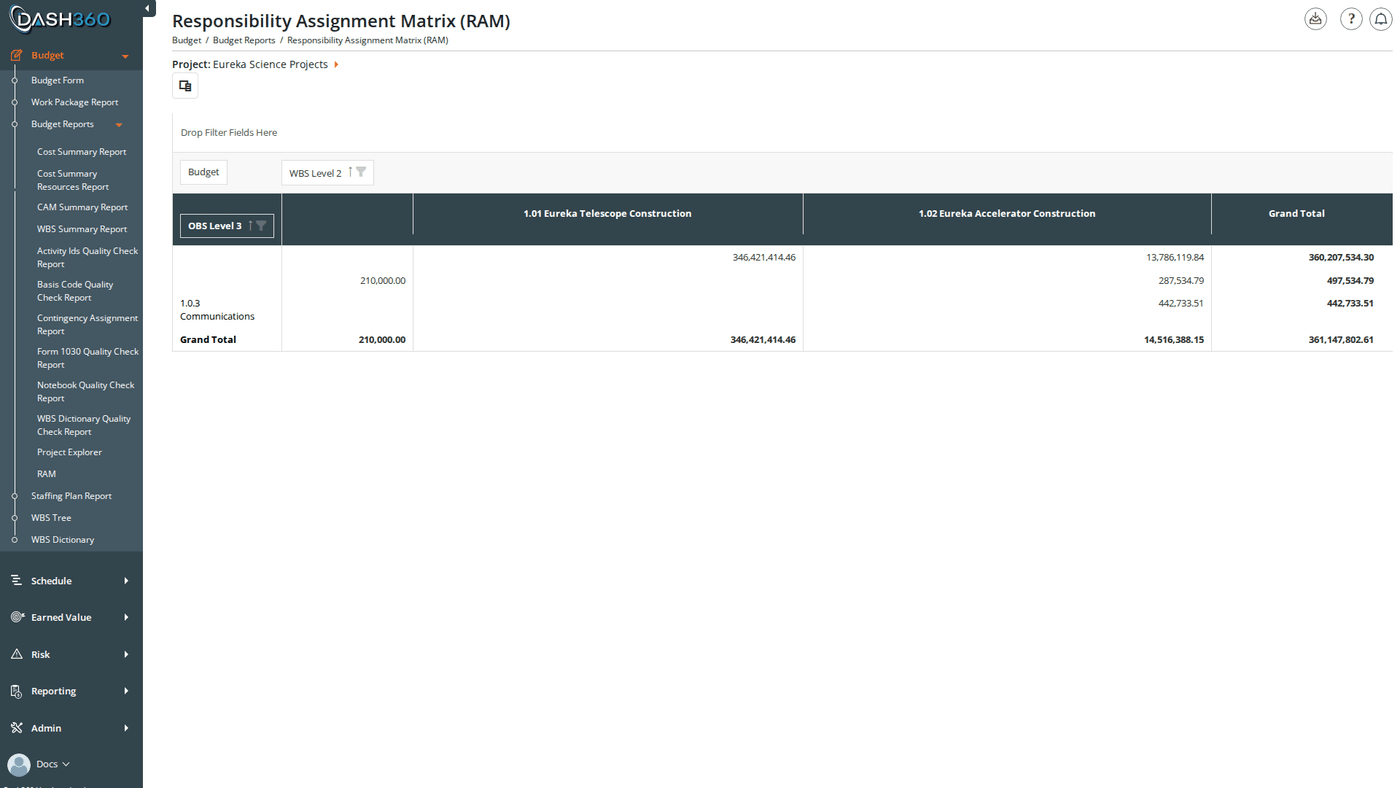
The RAM (Responsibility Assignment Matrix) Report maps your project’s Work Breakdown Structure against the people and organizations responsible for each element. It is an interactive pivot grid: fields can be dragged between four named areas (Rows, Columns, Data, Filter) to reshape the view on the fly, letting you answer different questions from the same data without running a separate report. By default the RAM shows WBS Level 2 on columns and CAMs on rows, with Budget cost displayed in the cells. If your project uses a hierarchical Organizational Breakdown Structure (OBS), the OBS hierarchy replaces the flat CAM list on rows; giving you a compliance-ready responsibility matrix for government contracting or formal project governance. URL:/Estimating/CostEstimatingReports/RAM
The report is also listed under Budget > Budget Reports and under Reporting. It opens with your current project preselected; choosing a different project here also changes the current project for the rest of Dash360.
Prerequisites
- A project must be selected before the report loads.
- Estimating module access is required.
How the Pivot Grid Works
The RAM is built on a pivot grid with a field panel across the top of the report. The panel has four drop zones:
To change the layout, drag any field chip from one zone to another. For example, drag WBS Level 1 from the unused fields list into the Rows zone to group by top-level WBS instead of CAM. Changes apply immediately without reloading the page.
The Field Chooser button (column chooser icon in the toolbar) opens a popup with all available fields organized by zone. Use it to add fields that aren’t currently shown anywhere in the panel. Click Apply to update the grid, or Cancel to discard your changes.
Default Layout
When a project is first selected, the pivot grid loads with this default configuration:- Columns: WBS Level 2
- Rows: CAM (or OBS Level 3 if the project uses hierarchical OBS)
- Data: Cost
- Filter: Cost Class, set to Budget
Available Fields
All fields listed below are available in the field panel and Field Chooser:Organizational Fields
WBS Fields
Cost Fields
Notebook and Code Fields
Filters
Cost class selection is handled directly in the field panel through the Cost Class field in the Filter zone rather than a separate filter control.
OBS Modes
The row structure of the RAM depends on how the project’s OBS is configured: Non-hierarchical OBS (default): The CAM field appears in the Rows area. Each row represents one CAM, and cells show that CAM’s cost for each WBS column. Hierarchical OBS: When the project has a hierarchical OBS structure configured, the OBS levels (1–9) are built as separate fields and OBS Level 3 defaults to the Rows area. The CAM field is still available in the field panel and can be added to any zone. This mode supports multi-level OBS drill-down directly within the pivot grid.Pivot Grid Features
Saved Views
Saved Views save the full pivot grid state; which fields are in which zone, any active filters, and sort order. Use the View selector to:- Switch between saved views instantly
- Save your current layout as a new user view
- Load a system view created by an administrator