

Calculated Field Cookbook
This page is a recipe book of calculated fields you can copy, plus a troubleshooting guide for when a formula does not return what you expect. For how the calculated-field builder works (naming, validation, the library), see Fields and Calculated Fields.This page is part of the Report Studio guide.
Quick reference
- Field references go in square brackets:
[Item Cost]. Insert them from the field list to avoid typos. - Operators:
+-*/=<><>andAND,OR,NOT. - Functions:
IF,SWITCH,SUM,AVG,COUNT,MIN,MAX,ROUND,ABS,CEILING,FLOOR,SQRT,POWER,ISNULL,COALESCE, and date/text functions. Text functions includeLEFT,RIGHT,LEN, andSTARTSWITH(text, prefix), which is true when the text begins with the prefix and ignores case. - Row-level vs aggregate: a formula that contains
SUM,AVG,COUNT,MIN, orMAXis an aggregate (calculated across a group or total). Everything else is row-level (calculated once per row).
Recipes
Cost roll-ups
Splitting Budget, Actual, and Earned (row-level)
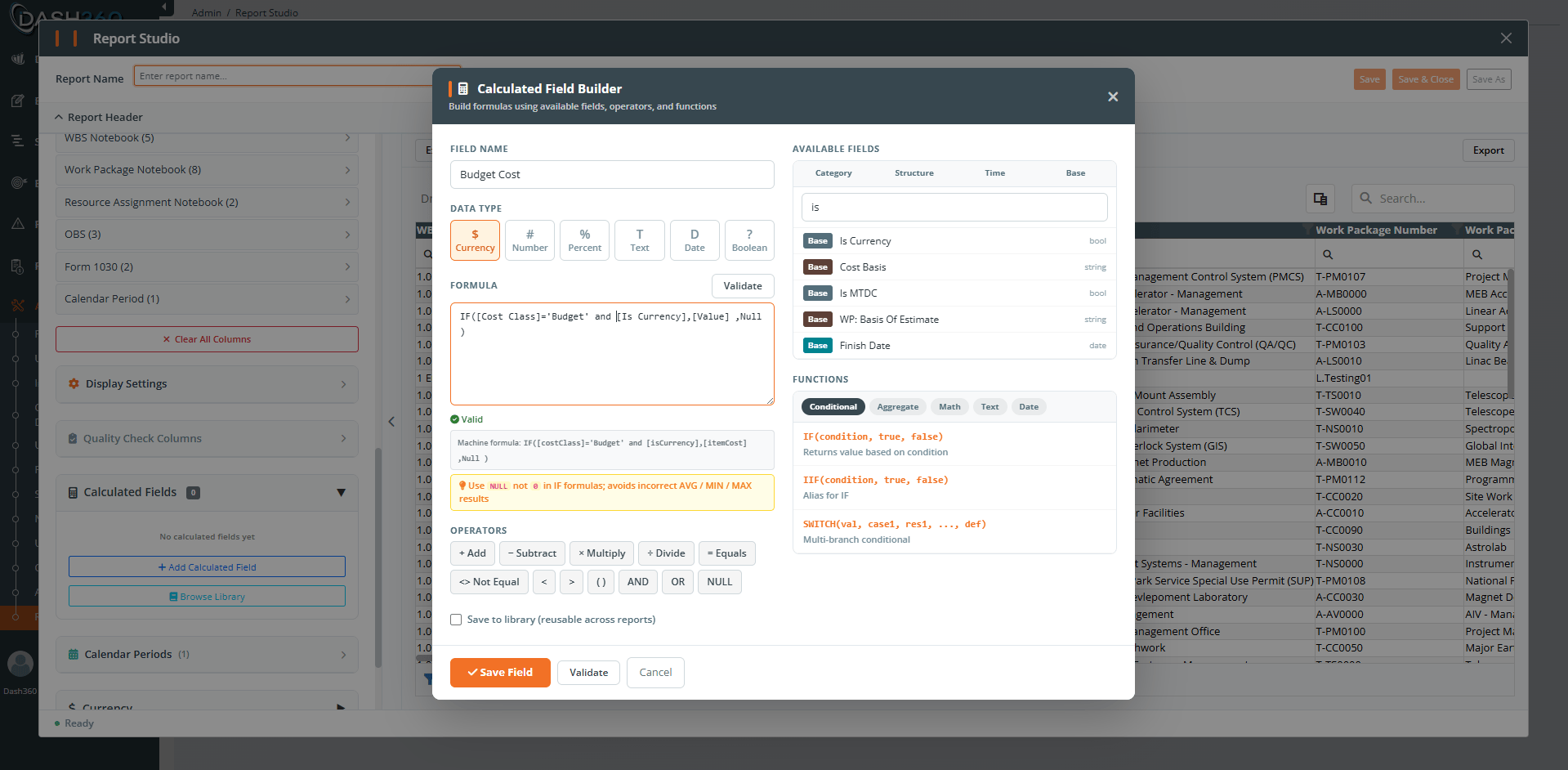
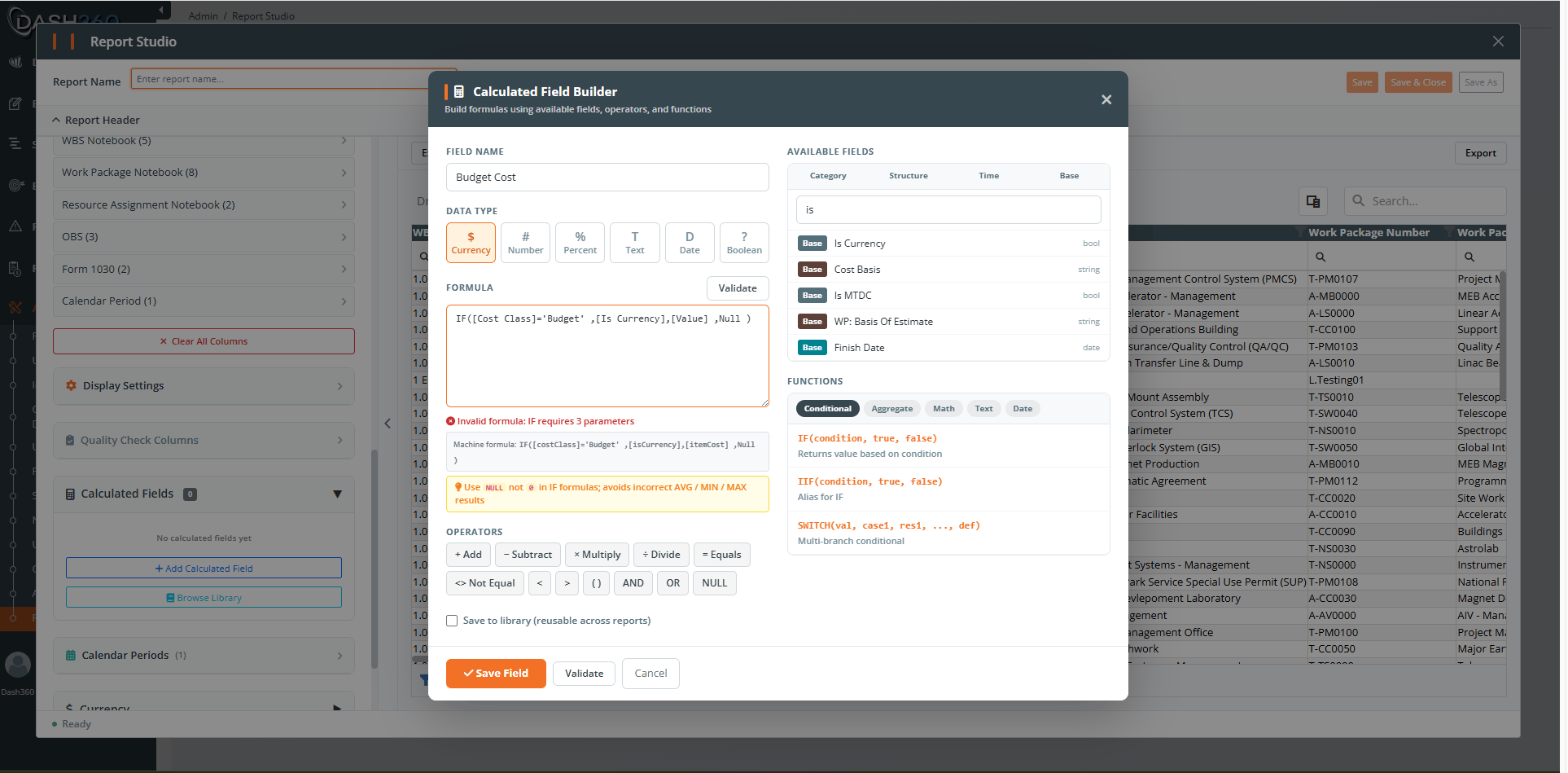
Cost Class arrives as separate rows (a Budget row, an Actual row, an Earned row). Split them into their own columns first:Variance and performance (aggregate)
Once you have the split fields, combine them with aggregates so they total correctly across groups:Percentages
Safe division (avoid divide-by-zero)
If a denominator can be zero, guard it so the result is blank instead of an error:IF:
Conditional labels and buckets
Effective rate
Multi-step (build on earlier fields)
Why a calculated field is not returning the correct result
When a formula validates green but the numbers look wrong, it is almost always one of the following.You returned 0 instead of NULL in an IF
You returned 0 instead of NULL in an IF
IF([CostClass]='Budget', [ItemCost], 0) puts a zero on every non-Budget row. SUM still works, but AVG, MIN, and MAX are now polluted with zeros. Fix: use NULL for the else branch.You mixed row-level and aggregate thinking
You mixed row-level and aggregate thinking
[BudgetCost] - [ActualCost] at the row level subtracts within a single row, but Budget and Actual live on different rows, so one of them is NULL on any given row. To compare them across a group, use aggregates: SUM([BudgetCost]) - SUM([ActualCost]). Rule of thumb: to compare values that come from different rows (like Budget vs Actual), wrap each in SUM (or another aggregate).A divisor is zero or NULL
A divisor is zero or NULL
Division by zero or NULL yields a blank or an unexpected result. Fix: guard the denominator with
NULLIF(..., 0) or an IF(... = 0, NULL, ...) as shown in the recipes above.The field name does not match
The field name does not match
Field references must match the field exactly. A typo, or a field you removed from the report, breaks the reference. Fix: insert fields from the field list rather than typing them, and confirm every referenced field is still in the report.
Cost Class is blended
Cost Class is blended
If your formula sums Item Cost without separating Cost Class, Budget, Actual, and Earned are added together. Fix: split Cost Class with row-level IF fields first (see the recipe), or filter Cost Class on the report.
Dependencies or order
Dependencies or order
Calculated fields can build on each other. The Designer resolves the order automatically, but a circular reference (A uses B and B uses A) is not allowed and is blocked. Fix: break the loop so the chain only flows one way.
Totals look off because of how aggregates roll up
Totals look off because of how aggregates roll up
An aggregate formula is recomputed at each group and at the grand total, not summed up from the rows. For example, an average of averages is not the same as an overall average. Fix: express the metric from its base components at each level, for example
SUM([EarnedCost]) / SUM([ActualCost]) rather than averaging a per-row ratio.The result is right, but the data feeding it is filtered or limited
The result is right, but the data feeding it is filtered or limited
A correct formula on the wrong rows gives the wrong answer. Check the report’s projects, filters, and your permissions. See Understanding Your Data.
Validate and preview before you trust it
The builder helps you catch problems early:- Live validation runs about half a second after you stop typing. A green check means valid; a red icon means a syntax or unknown-field error; a yellow warning flags risks such as possible division by zero.
- A machine formula preview shows how your formula is interpreted when it differs from what you typed.
- The preview on sample data lets you sanity-check the result before saving.
- For aggregate formulas, the validator confirms the aggregate it detected (for example, “Valid (SUM)”).
Where to go next
Fields and Calculated Fields
How the builder works and the shared library.
Understanding Your Data
Snapshots, filters, permissions, and caching.