

Fields and Calculated Fields
Every report is built from fields. This page explains the kinds of fields available in Report Studio, how to add them, and how to create your own calculated fields with formulas.This page is part of the Report Studio guide.
Adding fields
How you add fields depends on the report type:- Pivot Grid: Drag fields from the field list into one of four zones: Rows, Columns, Data, or Filter. The same field can be moved between zones at any time.
- Flat Data Grid: Use the column chooser to check the columns you want. Quick-Add buttons let you add a whole category at once (Cost, Resources, Time, or WBS Structure). Reorder columns by dragging.
- Charts: A short setup picks the grouping field, the value type, and which values to show.
Base fields
Base fields come straight from the project cost data. Common ones include:Cost Class is the field that separates Budget, Actual, and Earned values. It appears as a normal field you can group, filter, or pivot on. See Budget vs Actual below for how to turn those rows into side-by-side columns.
Dynamic fields
Beyond the base fields, the Designer exposes hundreds of project-specific fields that are defined by your data. These appear automatically based on the snapshots you selected:- Notebooks: WBS, Work Package, and Resource Assignment notebook categories
- Resource codes and code codes: Your project’s coding structures
- OBS: Organizational Breakdown Structure
- Calendar periods: Custom reporting calendars (see below)
- Form 1030: Government cost-category mapping
Calendar periods
If your projects use custom reporting calendars, those periods are available as fields. Each calendar fills one of up to ten slots, and you can label periods that fall outside the defined ranges as “Unassigned” with a label you choose.Calculated fields
Calculated fields are columns you create from a formula. They let you derive values that are not stored directly, such as a variance, a percentage, or a performance index.Two kinds of calculated field
There are two kinds, and the Designer detects which one you have built from the formula:
A formula that contains
SUM, AVG, COUNT, MIN, or MAX is treated as an aggregate; everything else is row-level.
Creating a calculated field
1
Open the calculated fields section
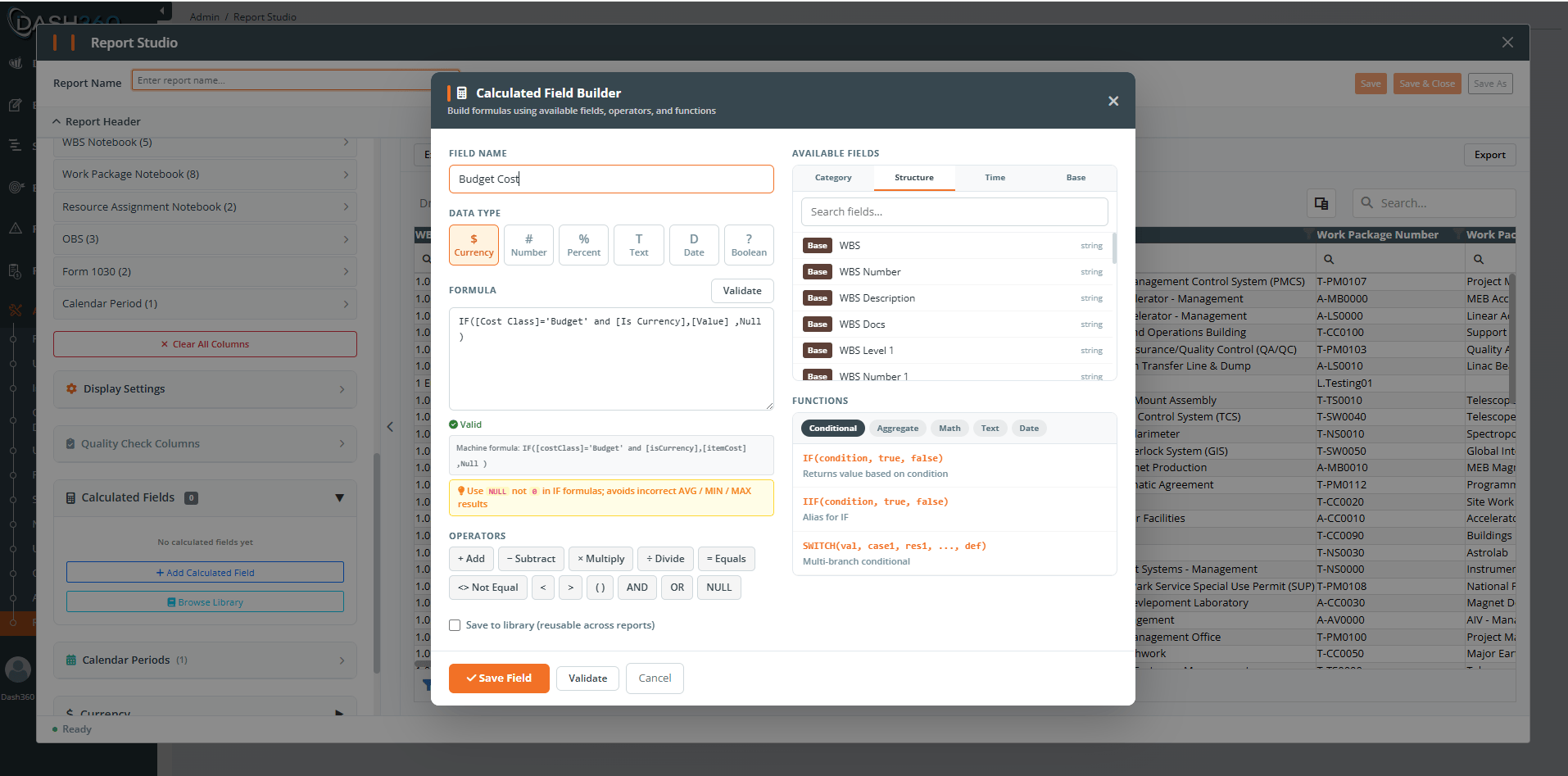
While building a report, open the Calculated Fields section and click to add a new field.
2
Name it
Give the field a clear, descriptive name (for example, “Cost Variance”). Names must be unique within the report.
3
Build the formula
Click field names to insert them as
[Field Name], and add operators and functions. Use parentheses to control the order of calculation.4
Watch the live validation
The Designer validates as you type. A green check means the formula is valid; a red icon shows a syntax error or an unknown field; a warning flags possible issues such as division by zero.
5
Preview and save
Review the live preview on sample data, then save. The field becomes available as a column or chart value, marked with a calculator icon. Hover the column header in the Viewer to see the formula.
Formula syntax
Field references: Wrap field names in square brackets, for example[Item Cost]. Insert them from the field list to avoid typos.
Operators: + - * (or ×) / (or ÷) = <> < > along with AND, OR, and NOT.
Functions available include:
Recipe: Budget vs Actual
A common need is to show Budget and Actual as separate columns and then compare them. Because Cost Class arrives as separate rows (one Budget row, one Actual row), you split it with row-level formulas and then combine with aggregate formulas. Step 1: row-level fields (one value per row)BudgetCost is calculated before CostVariance uses it.
Dependencies and limits
- Calculated fields can reference other calculated fields, creating a chain. The Designer evaluates them in the correct order.
- Circular references are not allowed (Field A references Field B, and Field B references Field A). The Designer blocks them.
- You cannot delete a calculated field that another field depends on; remove or update the dependent field first.
The shared library
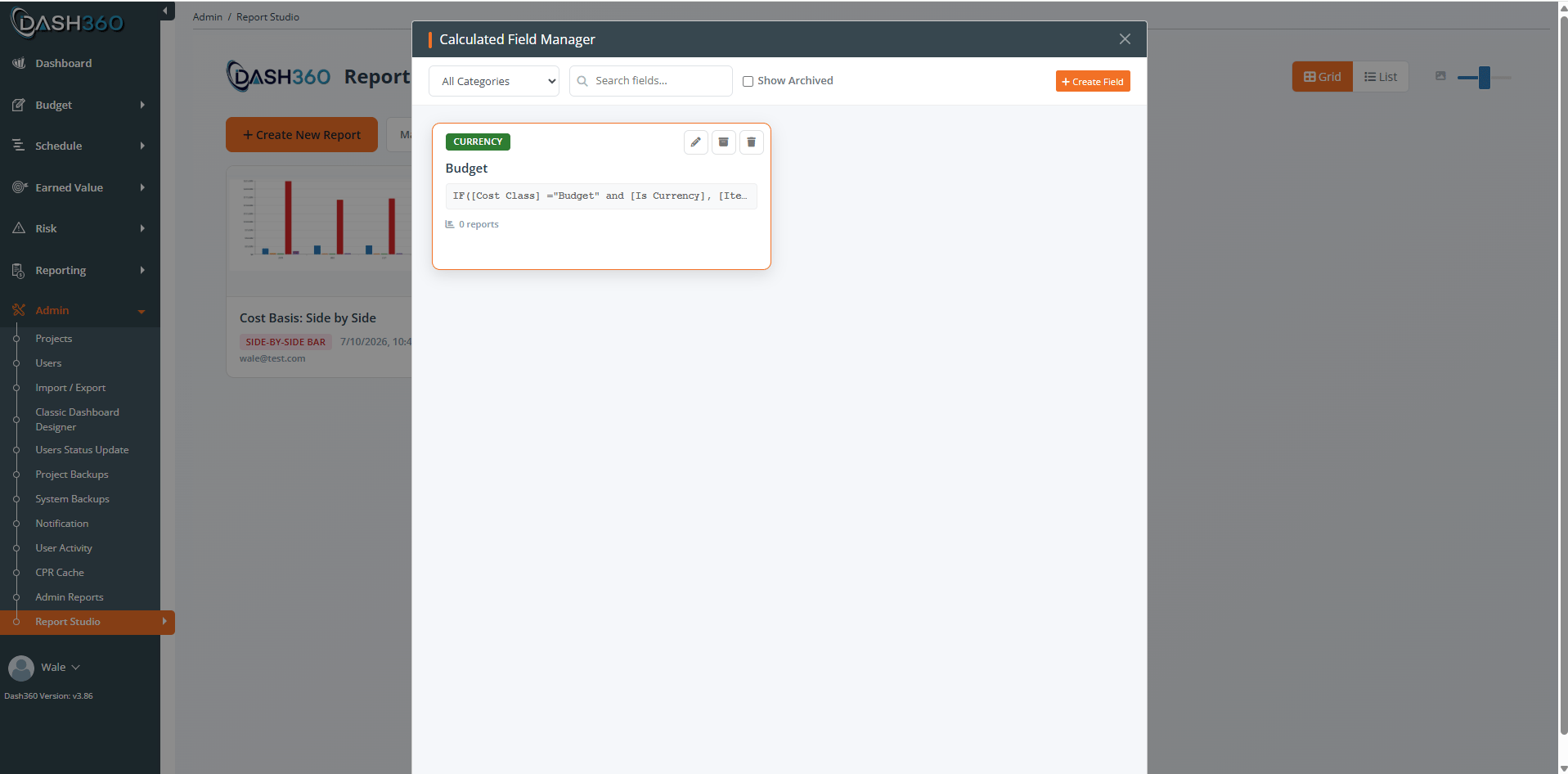
Formulas you expect to reuse can be saved to a shared calculated-field library so you and other Admins can drop them into any report.- Open the library from Manage Library on the landing page, or save a field to the library while building it.
- Library fields behave like inline calculated fields once added to a report.
Where to go next
Calculated Field Cookbook
Ready-to-use formulas and how to fix wrong results.
Report Studio
Overview, the landing page, and building your first report.
Saving and Sharing Reports
Save, control visibility, copy, export/import, and publish.
Understanding Your Data
Snapshots, filters, permissions, and caching.