

Saving and Sharing Reports
Once a report is built, the Designer gives you several ways to save it, control who can see it, and move it between environments.This page is part of the Report Studio guide.
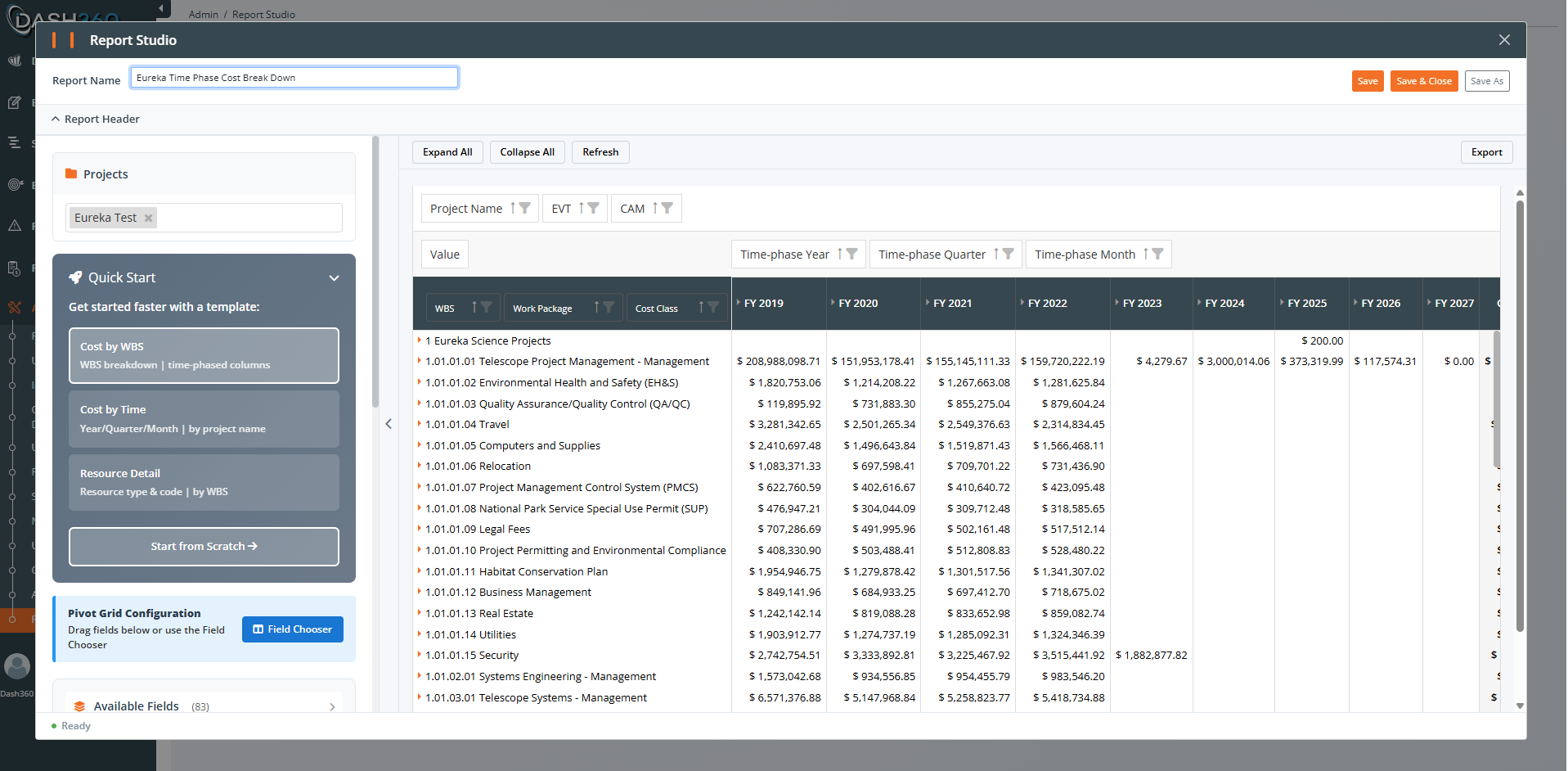
Saving a report
- Click Save in the Designer.
- Enter a report name and an optional description.
- Confirm.
Copying a report
Use Copy (the copy icon on a report card) to duplicate a report under a new name. The copy is independent, so you can experiment or create a variation without changing the original. Copy is the safest way to build a new report that is similar to an existing one.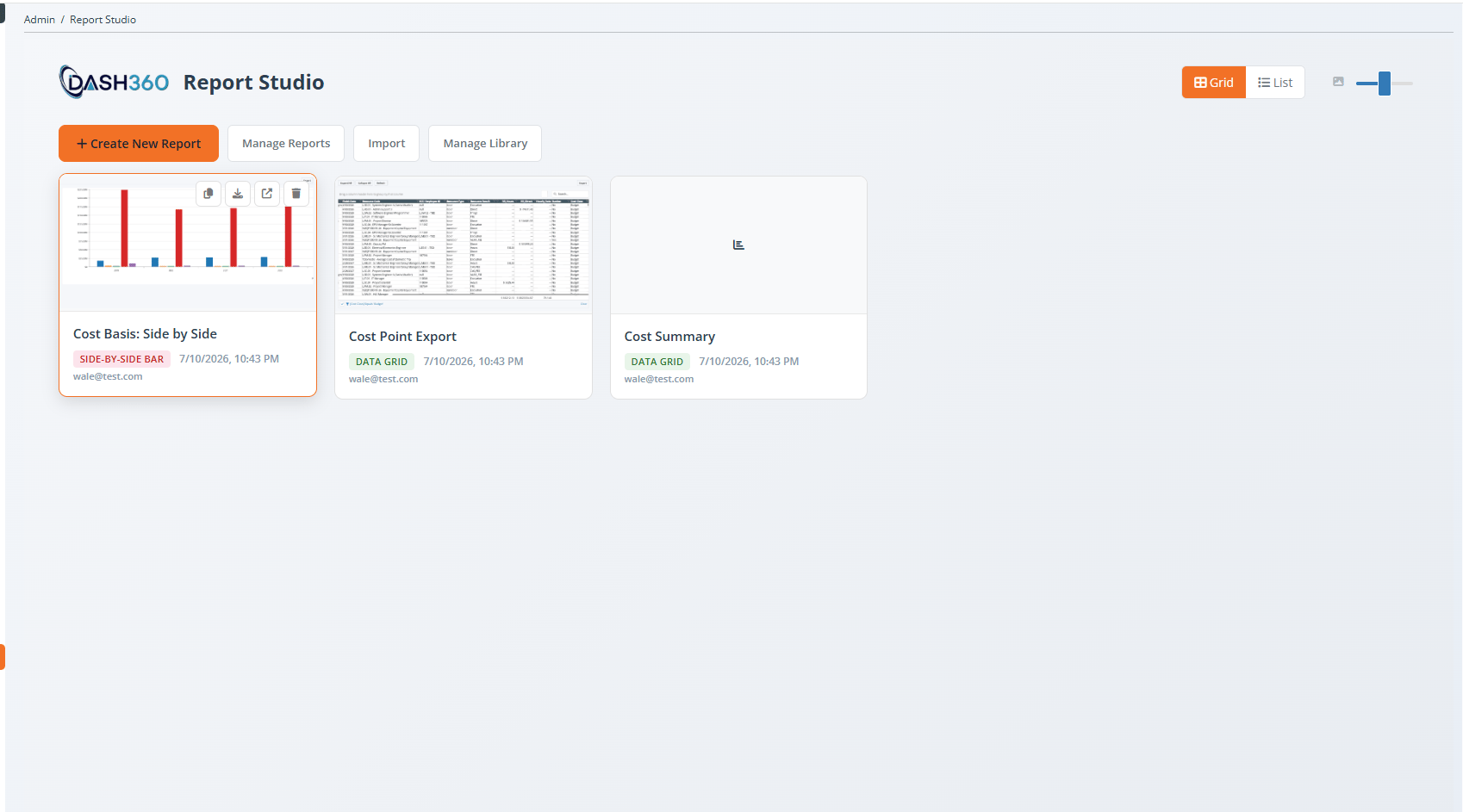
Managing report visibility
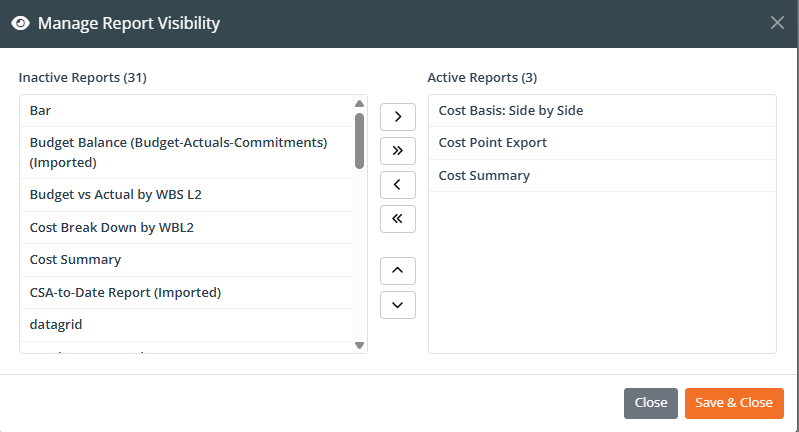
Click Manage Reports on the landing page to control which reports appear and in what order.- Active vs inactive: Make a report inactive to hide it from the landing page and the Viewer without deleting it. Inactive reports can be reactivated at any time.
- Display order: Arrange the order in which reports appear.
Deleting a report
Use Delete (the trash icon on a report card) to remove a report. If you only want to hide a report temporarily, make it inactive through Manage Reports instead.Export and import
Export and import move a single report between Dash360 environments (for example, from a test environment to production), or hand a report to another team to load themselves.Export
Click Export on a report card. Dash360 downloads a report package file. The package contains the report definition and the information needed to recreate it.Import
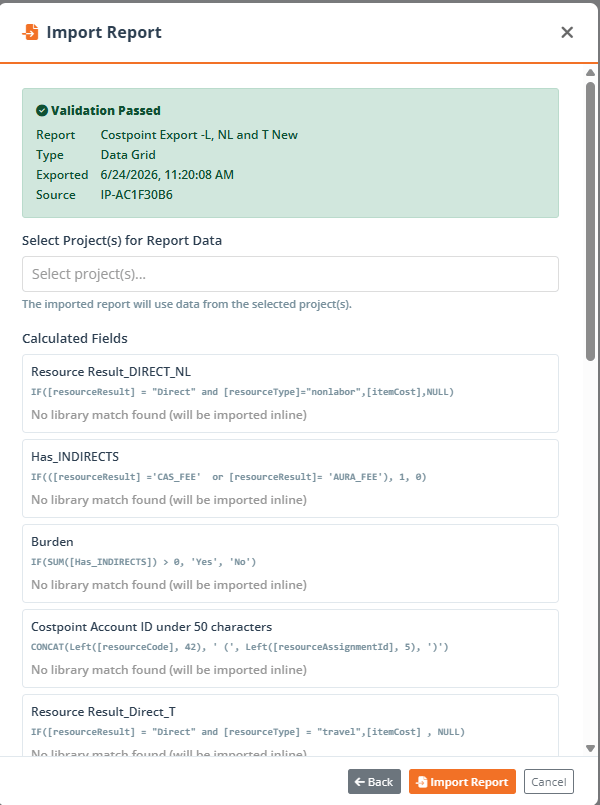
- Click Import on the landing page.
- Choose the exported report package file.
- Dash360 validates the package and checks that the dynamic fields it uses exist in your environment.
- Confirm to add the report to your landing page.
Publishing to the shared Report Repository
The Report Repository lets you share a report beyond your own environment so other Dash360 customers or teams can pull a copy.
These actions appear on the report card only when repository sharing is available to you.
How users get to your report
Saved reports are available in the read-only Report Gallery. There are two easy ways to reach a report:- From the Designer landing page, click the Open in Viewer icon on a report card.
- Share the Viewer link with users:
/Reporting/CetpReportViewer?reportId=<id>.
Where to go next
Report Gallery
Run, filter, save views, and export finished reports.
Fields and Calculated Fields
Pick fields and build calculated fields.