

Building a Pivot Grid
A Pivot Grid is a cross-tabular report. You drag fields into zones to summarize cost across two dimensions at once, for example WBS down the side and fiscal year across the top, with cost in the cells. Use it for analysis and roll-ups.This page is part of the Report Studio guide.
This page describes a Pivot Grid on the Estimating data source. The zones and the display settings are the same on every source; the fields are not. On the Risk Register the Data zone offers only the six measures that genuinely add up (Risks, Response Actions, and the four cost and schedule exposure figures), because a probability or a rank means something on one risk and nothing over a set of them.
Build it
1
Create the report
On the landing page, click Create New Report and choose Pivot Grid.
2
Choose your projects
Select one or more project snapshots.
3
Start from a template or scratch
The Quick Start section offers preset templates for common layouts. Pick one to get a head start, or click Start from Scratch.
4
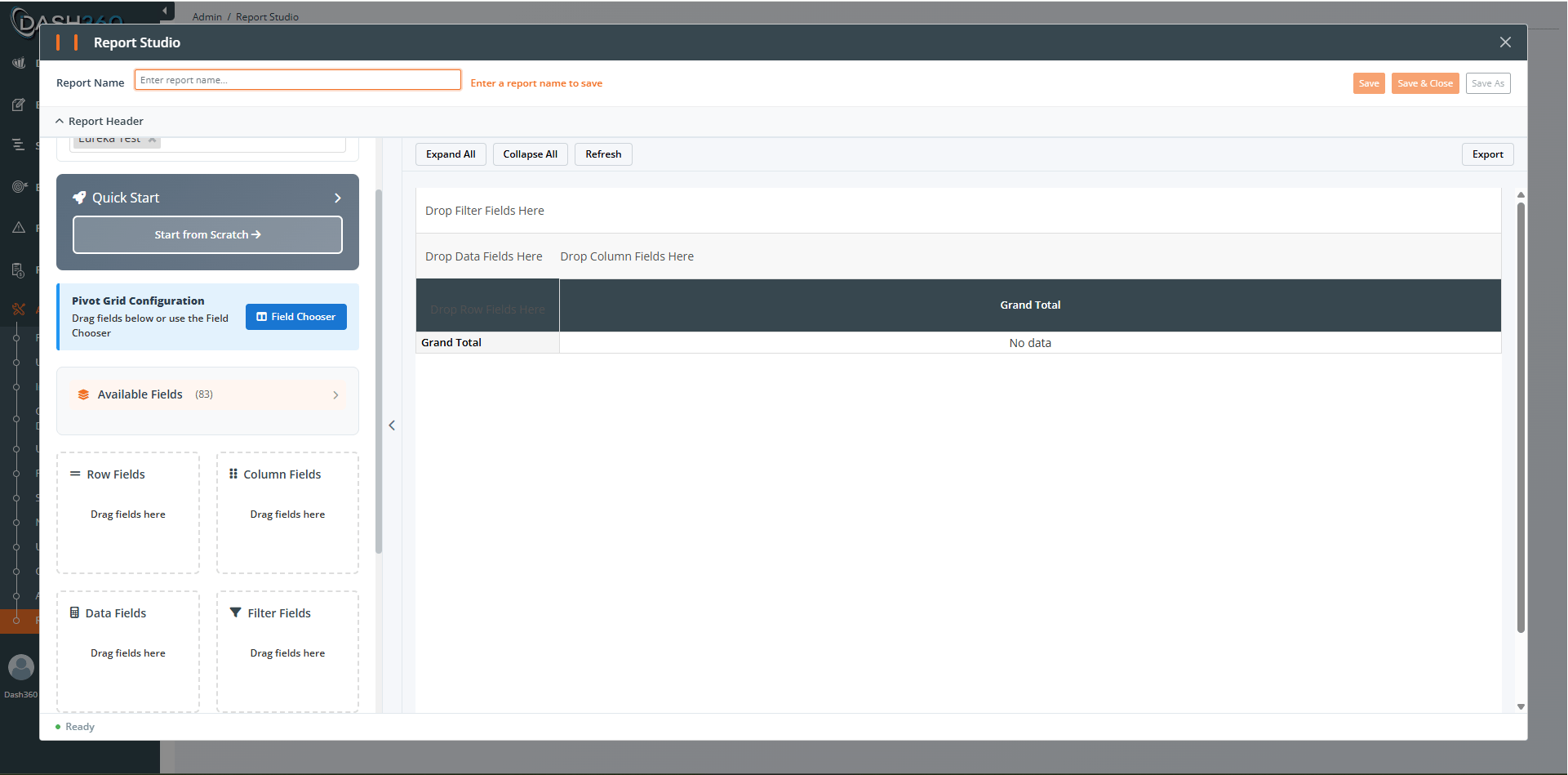
Place fields into zones
Use the Pivot Field Manager to drag fields into four zones (see below). Drag within a zone to reorder, drag to another zone to move, or click the X to remove.
5
Set data field aggregation
Click the summary-type badge on a Data field to choose how it is summarized: sum, avg, count, min, max, diffRow (difference across rows), or diffCol (difference across columns).
6
Configure display settings
Open Display Settings to set layout, totals, captions, and interaction options (see below).
7
Add a header, then save
Add a title, subtitle, and description, then click Save.
The four zones
Each cell is formatted as the measure it holds rather than as money. On the Cost Performance Report and the Risk Register the field catalog says what a measure is, so a count renders as a whole number, a duration carries a day marker, an index keeps the decimals that tell 1.06 from 1.10, and a percentage reads as a percentage. Costs are unchanged, and so is every Pivot Grid on the Estimating source, where a value is always a cost.
Cost Set in Rows or Columns
Cost Set is available in the field chooser once you have selected a project that defines cost sets. It behaves differently from every other field, so it is worth understanding before you use it. A cost set is a named basket of cost classes, and the same cost class can belong to more than one set. Putting Cost Set in Row Fields or Column Fields therefore counts a shared class once in every set that holds it. A project whose Actual class sits in both anActual set and an Actuals + Commitments rollup reports that cost on both rows.
Every total the grid draws follows the same rule, so the grid stays consistent with itself: the subtotals, the grand total row and the grand total column are all sums of the buckets they close. The consequence is that those totals are larger than the project, by exactly the cost of every shared class.
When the project’s sets overlap, two things happen automatically:
- A caution note appears above the grid naming the classes that are counted more than once.
- The grand total on whichever axis Cost Set occupies is withheld, because a spreadsheet exported from the report outlives the note that explains the number. The grand total on the other axis is kept, since nothing is doubled along it.
These override Show Row Grand Totals and Show Column Grand Totals while sets overlap. The two are independent of each other: you can keep the note and the totals, drop either, or drop both.
If the project’s sets do not share any cost class, nothing overlaps, no note appears, and the grand totals behave as they do on any other field.
Using Cost Set as a filter rather than a grouping does not double count anything. Dropping Cost Set into Filter Fields narrows the rows to the classes in the sets you pick, so the totals stay comparable with the rest of the report, no note appears, and no grand total is withheld.
Display settings
Layout
Totals
When Cost Set holds a row or column on a project whose sets overlap, the grand total on that axis is withheld even with these switched on. See Cost Set in Rows or Columns.
Total captions
- Subtotal Label: customize the subtotal label; use
{0}for the group name (placeholder is{0} Total). - Grand Total Row Label: customize the grand-total row label (placeholder is
Grand Total). - Grand Total Column Label: customize the grand-total column header.
Display
- Word Wrap: wrap long header text instead of cutting it off (default off).
- Alternating Rows: zebra striping for readability (default off).
- Fit Width to Content: size the grid to its columns instead of spreading them across the page (default on). A pivot with only a few column values renders as a compact table, centered under the report header, rather than a handful of very wide columns. Reports whose columns already fill the page are unaffected and still scroll sideways. Turn this off if you prefer every report to span the full page width.
Interaction
Fiscal Year prefix
As with the Data Grid, the fiscal-year prefix is detected automatically when all projects match, and offered as a Show Fiscal Year Prefix toggle when you mix fiscal and calendar projects.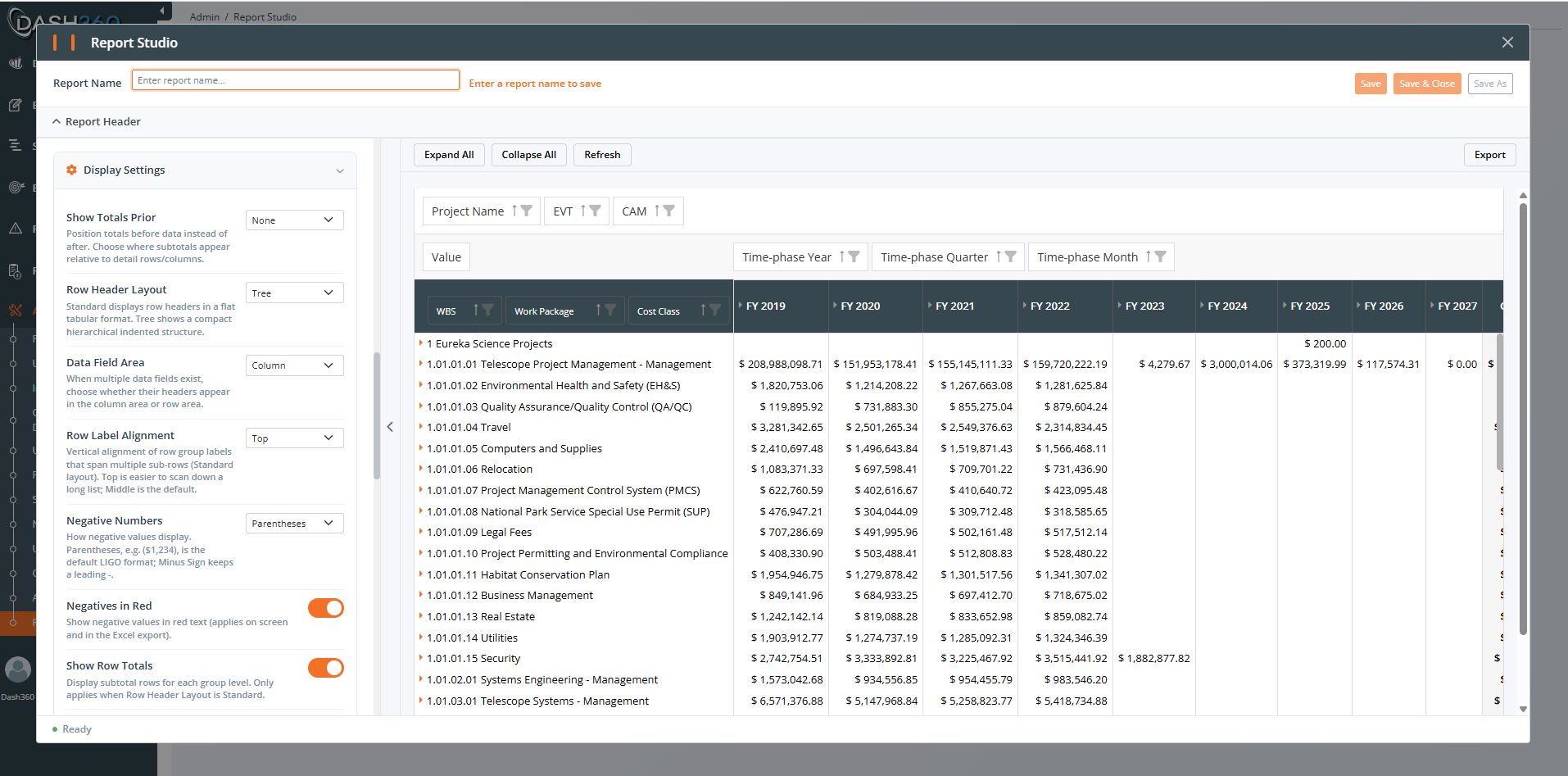
Performance: apply filters early
Like the Data Grid, the Pivot Grid runs on the server. Reduce the data it has to crunch:- Fewer Row and Column fields means a smaller cross-tab to compute.
- Expand sections on demand rather than expanding all at once on a large pivot.
- Results are cached for up to 30 minutes for the same projects, fields, and filters.
Pitfalls to avoid
Where to go next
Building Charts
Pie, bar, stacked, line, area, and trellis charts.
Calculated Field Cookbook
Ready-to-use formulas and how to fix wrong results.