

Report Viewer
The Report Viewer is where you run reports that were built in the Report Designer. It is read-only: you cannot change the report’s design, but you can filter it, rearrange it for your own use, save your own views, and export the results.You do not need Admin rights to use the Viewer. Anyone with access to a report can open and run it. What you see is limited by your Work Package permissions, so two users can open the same report and see different rows.
Opening a report
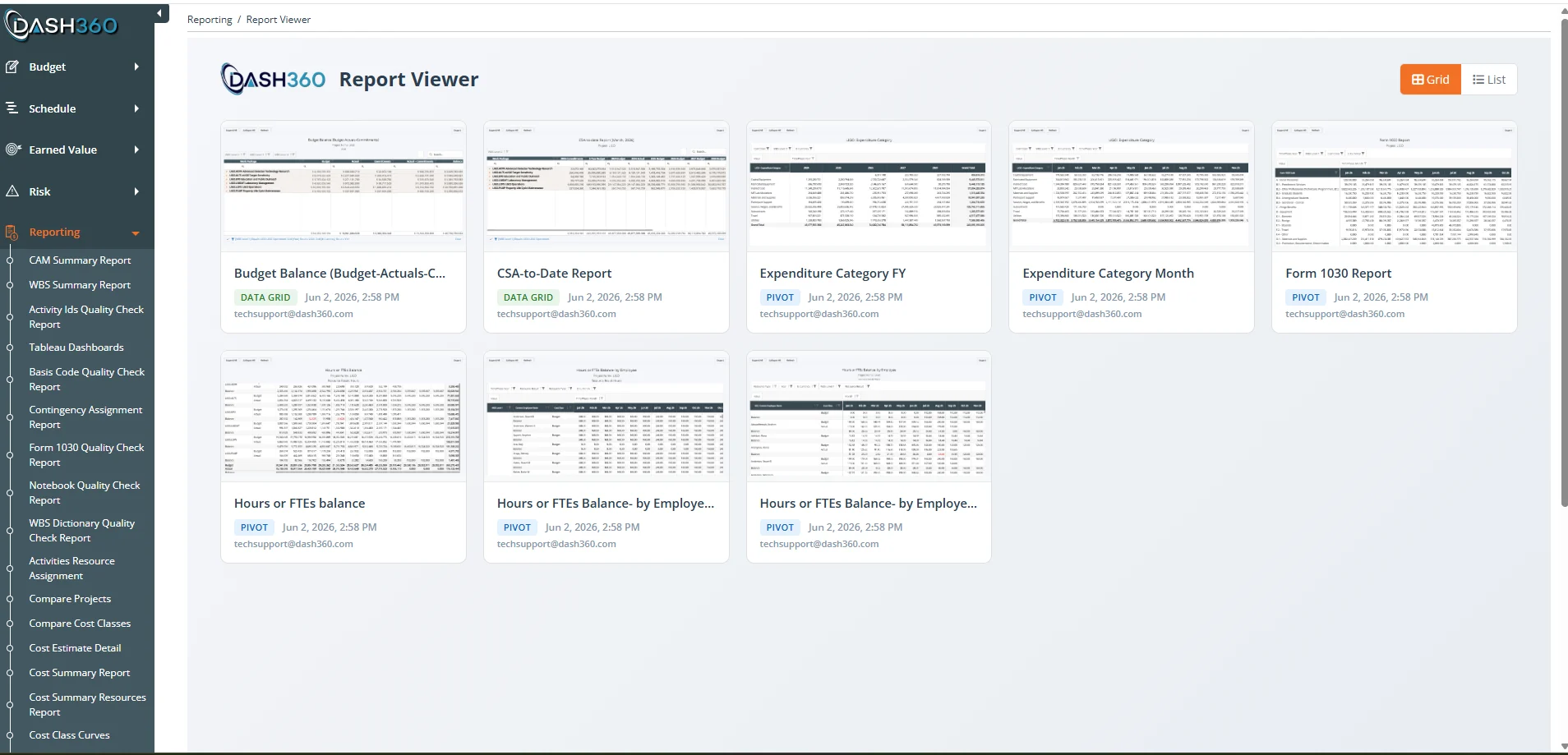
There are two common ways to open a report:- An Admin sends you a link, for example
/Reporting/CetpReportViewer?reportId=<id>. - From the Custom Report Designer landing page (Admins), click the Open in Viewer icon on a report card.
Filtering a report
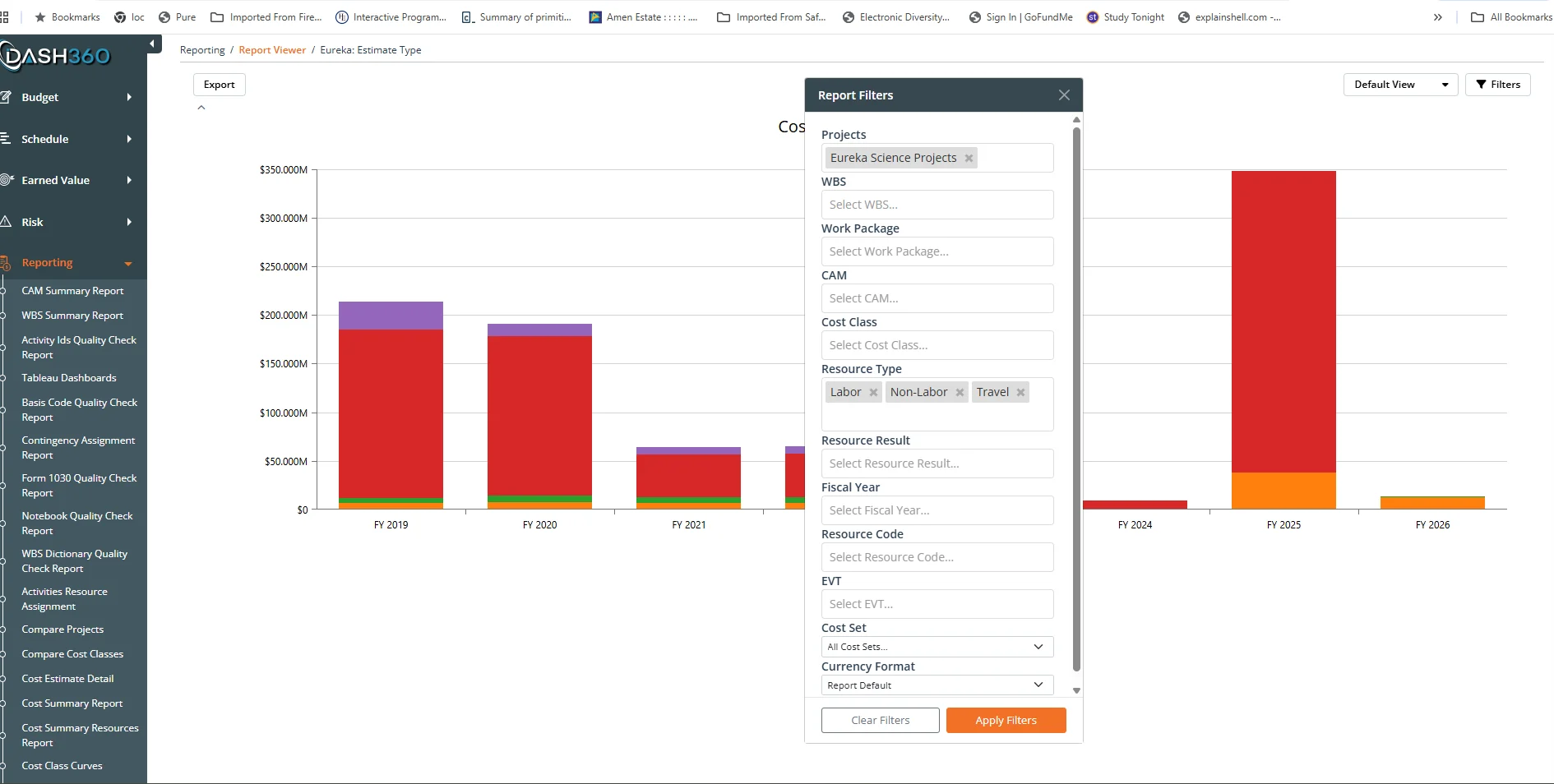
Use the filters at the top of the report to narrow the data. Typical filters include WBS, Work Package, CAM, Cost Class, and Resource Type. Filters apply immediately and affect the whole report, including totals. For grid reports you can also filter and search directly in the grid:- Header filter: Click the filter icon on a column header to pick values.
- Filter row: If enabled, type directly under each column heading.
- Search: Use the search box to find text across the report.
Working with grid reports
Data Grid and Pivot Grid reports are interactive:- Sort: Click a column header. Hold and click another to sort by several columns.
- Group: Drag a column into the group panel to group rows by it (Data Grid).
- Expand and collapse: Open and close group rows and pivot sections.
- Rearrange: Show or hide columns with the column chooser; in a Pivot Grid, drag fields between the Rows, Columns, Data, and Filter zones.
- Totals: Group subtotals and a grand total appear when the report is set up to show them.
Saving your own views
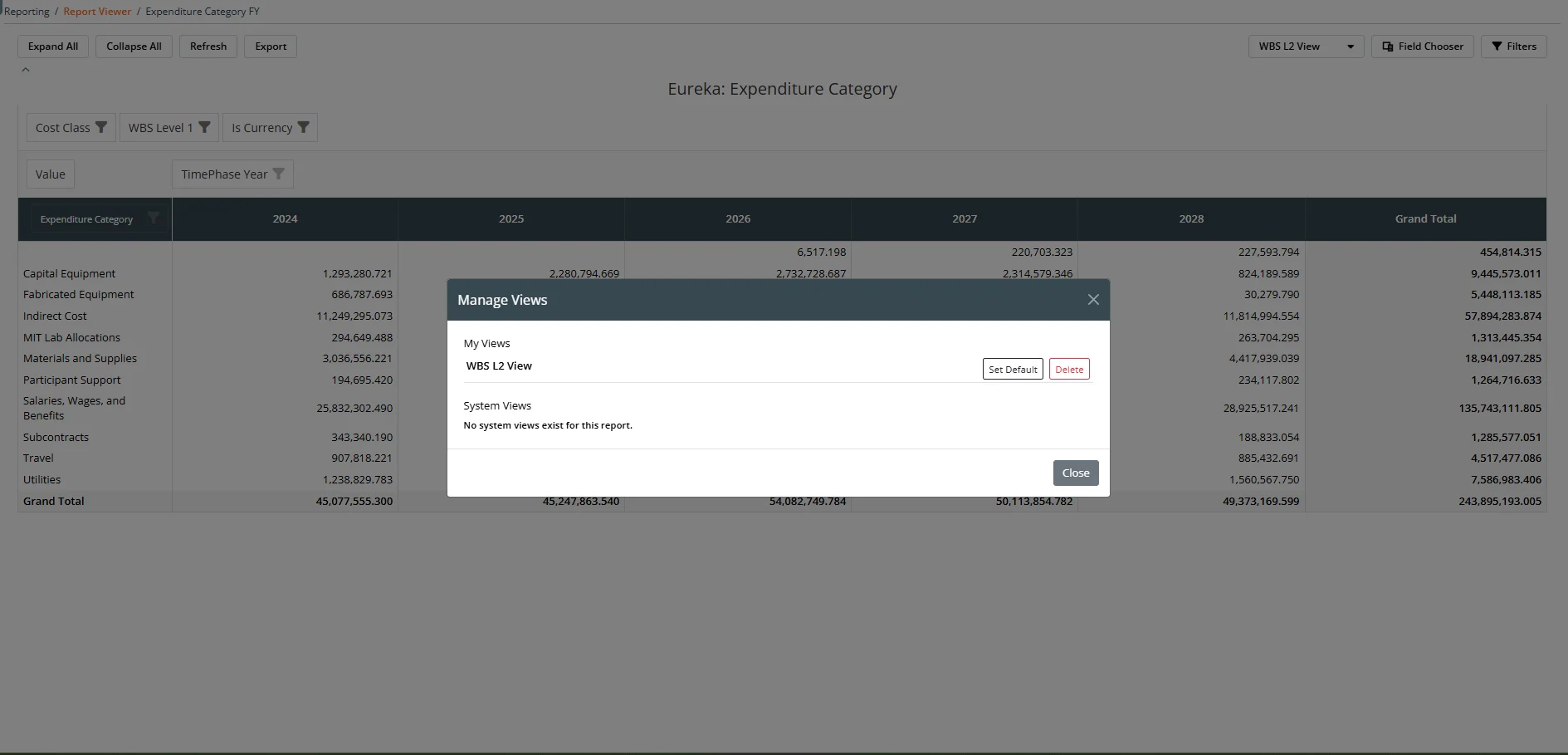
A view saves how you have arranged a report (columns, order, grouping, sorting, widths, and expanded groups) so it comes back the same way next time. Views are a convenience layer on top of the report; they do not change the report’s design for anyone else.Save the view
Open the views menu and choose Create New User View. Give it a name and save. The view is yours and loads whenever you choose it.
Sharing views (Admins)
Admins can turn a personal view into a system view that everyone sees:- Use the gear icon on a view and choose Copy to System View.
- Choose Make Default System View to make it the default for all users of that report.
Exporting
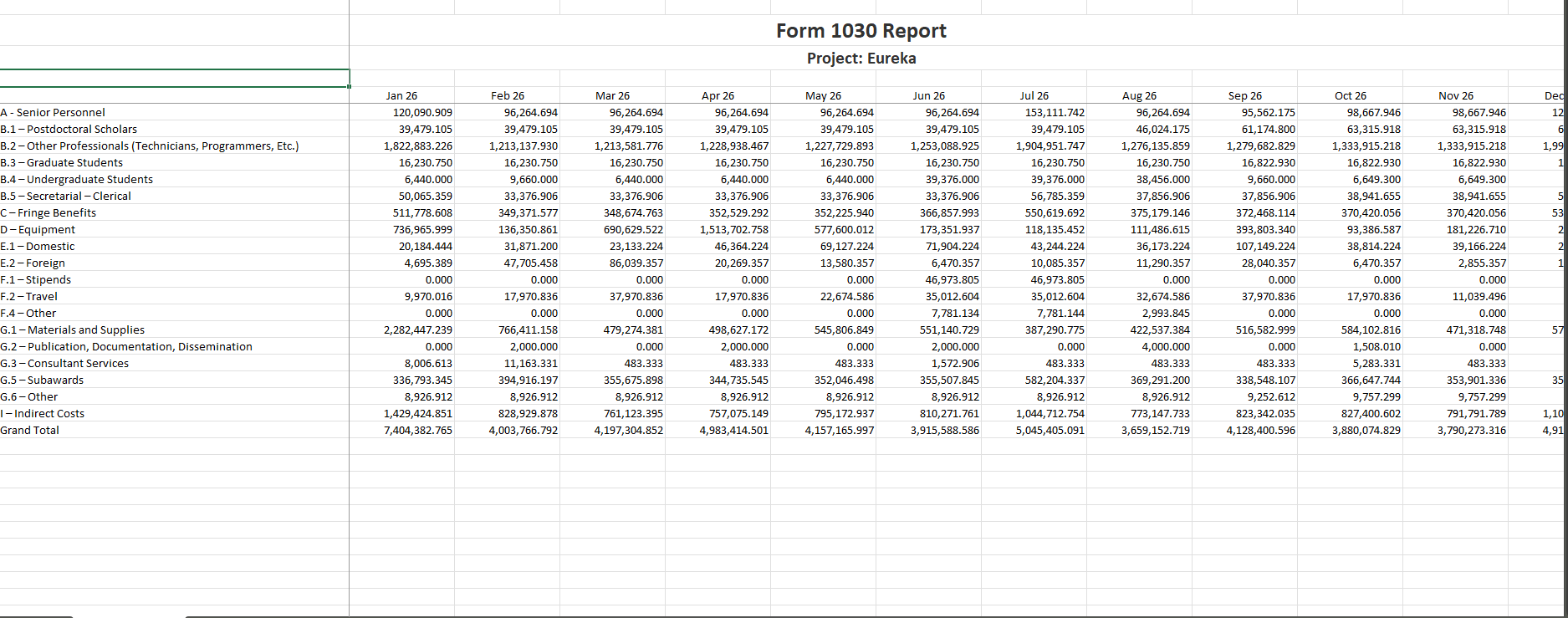
Grid reports export to Excel so you can share or do further analysis offline. Chart reports offer their own export, and many charts can include a data table beneath the chart for export. Use the export control on the report to download.An export reflects your current filters and layout, so set those the way you want before exporting.
Why your numbers might differ from a colleague’s
If two people open the same report and see different totals, the most common reasons are:- Work Package permissions: Each user sees only the rows they are allowed to see.
- Different filters: One of you has a filter applied that the other does not.
- Different snapshots: The report’s projects or snapshots were changed since one of you last opened it.
Where to go next
Report Designer
Build reports (Admins).
Saving and Sharing Reports
Control visibility and share reports (Admins).